You have too many passwords. Logging into email, work accounts, streaming services, and bank apps takes forever. You forget which password goes where. Or worse, you use the same weak password everywhere and risk getting hacked.
Organizing your passwords by category fixes all this. It makes your digital life smoother and more secure. This guide shows you exactly how to do it. We will cover why it matters, simple methods to start, and tools that make it easy.
Why Organizing Passwords Matters
Think about your daily routine. You wake up and check email. Then your work dashboard. Lunchtime means Netflix. Evening brings online banking. Each login needs a different password. Without organization, you waste time or use risky shortcuts.
Good organization brings real benefits.
- First, you save time. No more “password reset” emails every morning.
- Second, you boost security. Unique, strong passwords per account stop hackers. If one site gets breached, others stay safe.
- Third, you reduce stress. Knowing where to find credentials feels good.
Most people have 100+ accounts. Organizing them prevents chaos as that number grows.
Choose Your Organizing Method
You have three main ways to organize passwords. Pick what fits your life.
Method 1: Password Manager (Best for Most People)
Password managers store everything in one secure spot. They generate strong passwords, autofill logins, and sync across devices.
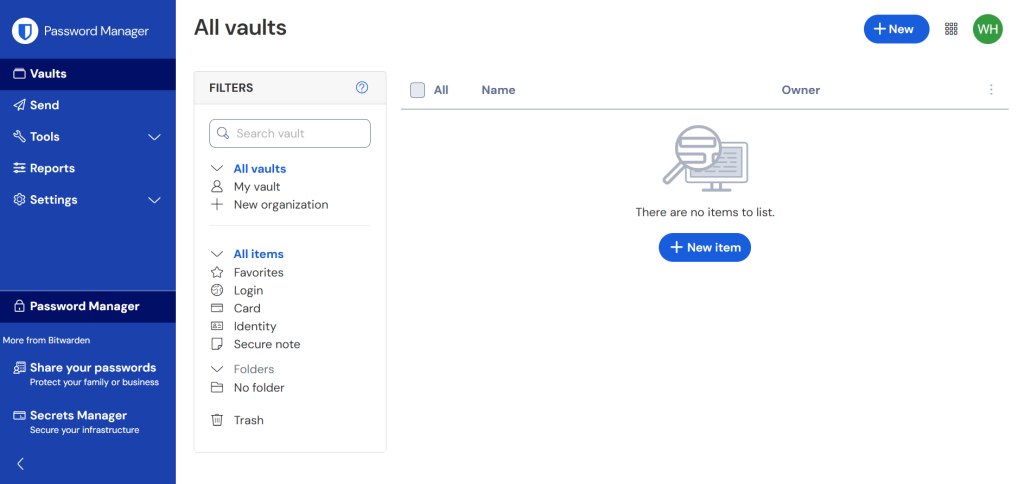
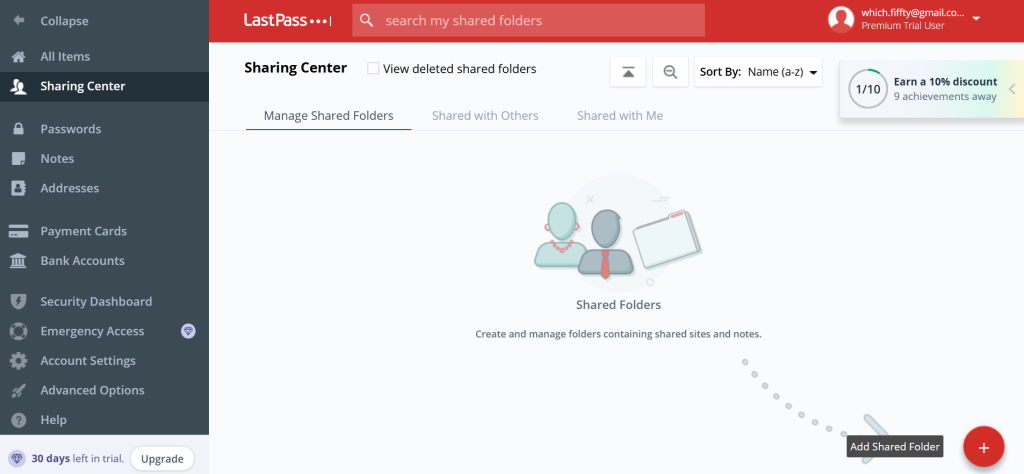
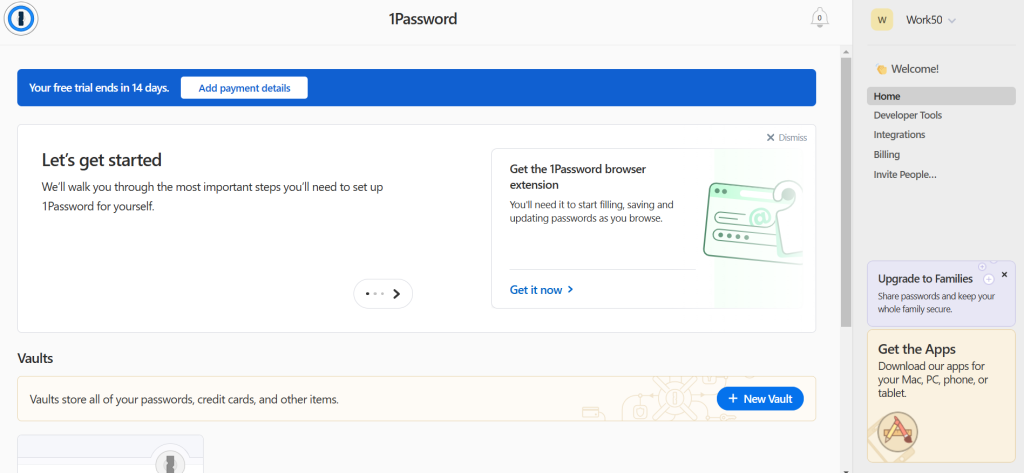
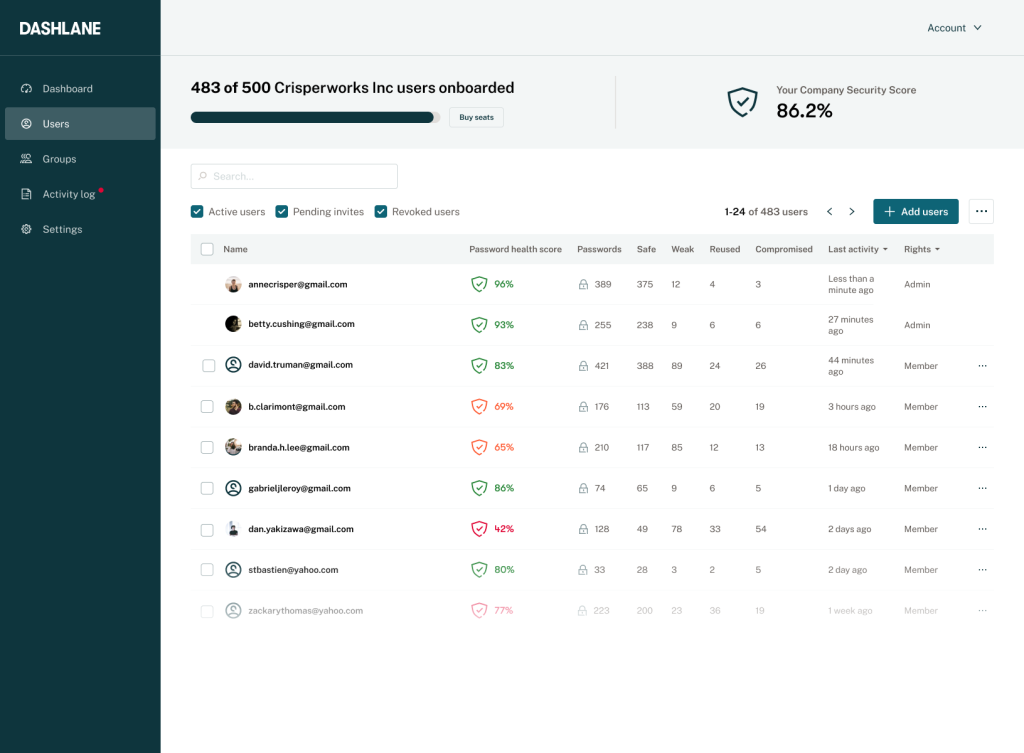
Popular options include LastPass, 1Password, Bitwarden (free), and Dashlane. They all let you create folders or categories.
Method 2: Spreadsheet (Free and Simple)
Use Google Sheets or Excel. Create columns for site, username, password, notes, and category.
This works if you only have 20-30 accounts and use one device. Not great for phones or sharing.
Method 3: Notebook (No Tech Needed)
A physical password book with categories works for low-tech folks. Write passwords clearly. Keep it in a safe spot. Notebooks are secure from hackers but risky if lost or stolen.
Password managers win for most people. They handle complexity and stay secure.
Set Up Your Categories
Categories group similar accounts. Start with these seven basics.
1. Email and Communication
Gmail, Outlook, Slack, WhatsApp, Microsoft Teams. These get daily use.
2. Banking and Finance
Bank accounts, credit cards, PayPal, investment apps, crypto wallets. High security here.
3. Work and Professional
Company email, CRM tools, project management, LinkedIn, payroll portal.
4. Shopping and Subscriptions
Amazon, Netflix, Spotify, gym membership, meal kits. Easy to forget these.
5. Social Media and Personal
Facebook, Instagram, Twitter, TikTok, personal blogs.
6. Health and Utilities
Doctor portals, insurance, electric bill, phone carrier, pharmacy apps.
7. Miscellaneous
Government sites, school portals, forums, rarely used services.
Add custom categories as needed. Like “Gaming” or “Travel Rewards.”
Step-by-Step Setup in a Password Manager
Let’s use Bitwarden as an example. It is free and works everywhere. Steps are similar in other managers.
Step 1: Create Your Master Password
Pick something strong. At least 16 characters, mix of letters, numbers, symbols. Write it down once in a safe place. Never forget it.
Step 2: Install and Set Up
Download the app or browser extension. Create your vault. Enable two-factor authentication right away.
Step 3: Create Folders
Go to the organization tab. Make a new folder for each category. Name them clearly like “Finance” or “Work.”
Step 4: Add Your Accounts
Start with your most used ones. For each:
- Enter the website or app name
- Add username/email
- Generate a strong password (let the tool do it)
- Assign to the right folder
- Add notes like security questions
Step 5: Import Existing Passwords
Most managers import from browsers or other services. Do this to avoid starting from scratch.
Step 6: Test Everything
Log out and back in to five key accounts. Make sure autofill works and folders organize correctly.
How to Maintain Your System?
Setup is half the battle. Keeping it updated takes discipline.
Monthly Review
Spend 15 minutes each month checking for:
- New accounts to add
- Unused accounts to delete
- Changed passwords to update
- Weak passwords to strengthen
Change Passwords Regularly
Update passwords for financial sites every 6 months. Others yearly. Let the manager generate new ones.
Share Securely
Need to share a password? Use the manager’s secure sharing. Never email or text credentials.
Backup Your Data
Most managers auto-backup to the cloud. Export your vault quarterly to an encrypted USB drive.
Teach Your Family
If you share accounts, show everyone how to use the manager. One family plan covers multiple users.
Security Best Practices
Organization means nothing without security. Follow these rules.
- Never Reuse Passwords: Each account gets a unique one. Even if you trust the site.
- Enable Two-Factor Everywhere: Add 2FA to email first. Then finance. Use an authenticator app, not SMS.
- Watch for Breaches: Use Have I Been Pwned to check if your email appears in breaches. Change affected passwords immediately.
- Avoid Public WiFi Logins: Save sensitive logins for secure networks. Use a VPN if traveling.
- Update Your Manager Regularly: Password managers get security patches. Keep them current.
Handling Shared and Emergency Access
What if something happens to you? Plan for it.
Designate a Trusted Contact
Pick one family member who knows your master password. Share it via secure method like a safe deposit box.
Use Emergency Access
Advanced managers like 1Password let you set emergency contacts. They can request vault access after a delay.
Document Key Info
Keep a one-page guide: “Master password location, emergency contacts, critical accounts.”
Common Mistakes to Avoid
- Too Many Categories
Five to ten is plenty. More than that gets confusing. - Weak Master Password
This protects everything. Make it long and memorable. Use a passphrase like “BlueDog-Runs-Fast2025!” - Forgetting to Update
Changed a work password? Update it everywhere immediately. - Sharing via Email
Never. Use the manager’s secure share feature. - Ignoring Mobile Apps
Desktop setup is useless if your phone can’t access it.
Tools Comparison
Here is a quick look at top password managers.
| Tool | Price | Best For | Folders | Sharing | Platforms |
|---|---|---|---|---|---|
| Bitwarden | Free/$10yr | Budget users | Yes | Limited (paid) | All |
| 1Password | $36/yr | Families | Yes | Excellent | All |
| LastPass | Free/$36yr | Beginners | Yes | Good | All |
| Dashlane | $60/yr | Premium features | Yes | Excellent | All |
Pick based on your needs and budget.
Scaling for Teams and Businesses
Work teams need shared access. Use business versions of these tools.
- Team Folders
Create category folders everyone sees. Like “Marketing Logins” or “Client Portals.” - Permission Levels
Admins see everything. Regular users see only assigned folders. - Audit Logs
Track who accessed what and when. Great for compliance. - Single Sign-On
Enterprise managers integrate with company SSO for seamless access.
Troubleshooting Common Issues
- “I forgot my master password”
Most managers lock you out permanently. Use your recovery key if set up. Prevention is key. - “Autofill doesn’t work”
Check browser extensions. Update them. Disable conflicting extensions. - “Sync issues across devices”
Check internet connection. Force a sync. Contact support if persistent. - “Too slow to add all accounts”
Start with 10 most important. Add others over weeks. Consistency beats perfection.
Making It a Habit
Organization sticks when it becomes routine. Try these tips.
- Sunday Reset
Spend 10 minutes Sunday organizing new accounts from the week. - Phone Lock Screen Reminder
Set a weekly alarm: “Password Audit.” - Accountability Partner
Tell a friend your goal. Check in monthly. - Reward Yourself
After first full setup, treat yourself. New coffee mug with “Password Boss” on it.
Final Words
Good password habits compound over time. You save hours yearly on resets. Sleep better knowing accounts are secure. Share access easily with family or teams.
Start small. Pick one category today. Email accounts. Set up your manager. Add them all. Feel the difference tomorrow. Don’t forget to audit your passwords too! That’s the crucial and necessary step to stay secure.
Organization turns password chaos into calm control. Your future self will thank you every login.
Leave a Comment