
You can have the best firewalls and antivirus in the world, but if your team is still using “Password123” everywhere, you are one weak login away from a serious breach.
That is why auditing password usage is so important. It is not about blaming people. It is about understanding how passwords are really used across your company, finding weak spots, and fixing them in a way that feels practical, not painful.
In this guide, we will walk through how to audit password usage step by step, what to look for, and how tools like LastPass and 1Password can help you make strong password habits the default instead of the exception.
Why You Need a Password Usage Audit
Most organizations think they know how passwords are used. Then they actually check and find:
- Shared logins written on sticky notes
- Teams reusing the same password across five tools
- Ex employees still able to log in to apps months after leaving
A password usage audit helps you:
- See where weak or shared passwords might put you at risk
- Check whether people follow your password policy in the real world
- Understand how many tools and accounts your team uses
- Decide where to tighten controls and where to make things easier
It is not a one time job. It is something you should revisit regularly, just like financial audits.
Step 1: Map Where Passwords Are Used
You cannot audit what you cannot see. Start by making a clear picture of where passwords live in your organization.
Look at:
- Core tools: email, collaboration, CRM, HR systems, finance tools
- Cloud apps: project management, marketing, analytics, developer tools
- Legacy systems: old internal apps that still need passwords
- Shared accounts: generic logins like “support@…” or “info@…”
You can build this list by:
- Exporting app lists from your SSO or identity provider if you have one
- Asking department heads which tools their teams use
- Checking company credit card statements for subscription tools
- Surveying employees about what apps they log into for work
You might be surprised how many tools show up. That is normal. The point is to finally have them in one place.
Step 2: Review Your Current Password Policy
Next, pull out your current password policy. If you do not have one written down, that is your first red flag.
A modern password policy should at least cover:
- Minimum password length
- Use of passphrases instead of short, complex strings
- Rules for reuse across systems
- When and how often to rotate passwords
- Use of multi factor authentication (MFA)
- How to store and share passwords securely
Check whether your policy is:
- Realistic: Can normal people follow it without going crazy?
- Clear: Would a new hire understand what to do within five minutes?
- Up to date: Does it reflect current best practices, not rules from ten years ago?
If your policy only lives in an old PDF no one reads, treat this audit as your chance to refresh and relaunch it.
Step 3: Check How People Actually Use Passwords
Now comes the honest part. You need to see how people really behave, not how they are supposed to behave.
Here are some practical ways to do that, without spying on anyone’s private data.
Look at technical signals
Work with IT to pull:
- Failed login attempts per account and app
- Account lockouts and how often they happen
- Accounts without MFA enabled
- Old accounts still active for former employees
Many tools and identity providers have built in logs and admin dashboards that show these patterns. They will not show you passwords, but they will show you where things look risky.
Ask your team directly
Run a short, anonymous survey. Keep it simple and non judgmental. For example:
- Do you reuse the same password across work tools?
- Do you store passwords in a document, notebook, or browser?
- Do you share logins with teammates for any tools?
- Do you use a password manager for work accounts?
The goal is not to catch anyone. It is to understand what habits exist so you can improve them.
Check shared accounts
For shared logins, ask:
- Who currently knows this password?
- How is it stored or shared today?
- When was it last changed?
- Is there a better way to manage access?
This will usually surface quick wins.
Step 4: Bring In Password Managers
If you are serious about strong passwords, expecting everyone to remember dozens of complex logins is not realistic. That is where password managers come in.
They let people:
- Generate long, unique passwords for every site
- Store them securely in an encrypted vault
- Share access without revealing the actual password
- Sync logins across devices
For teams, this is the difference between “Please remember this 20 character password” and “Click here, we saved it for you.”
LastPass for teams
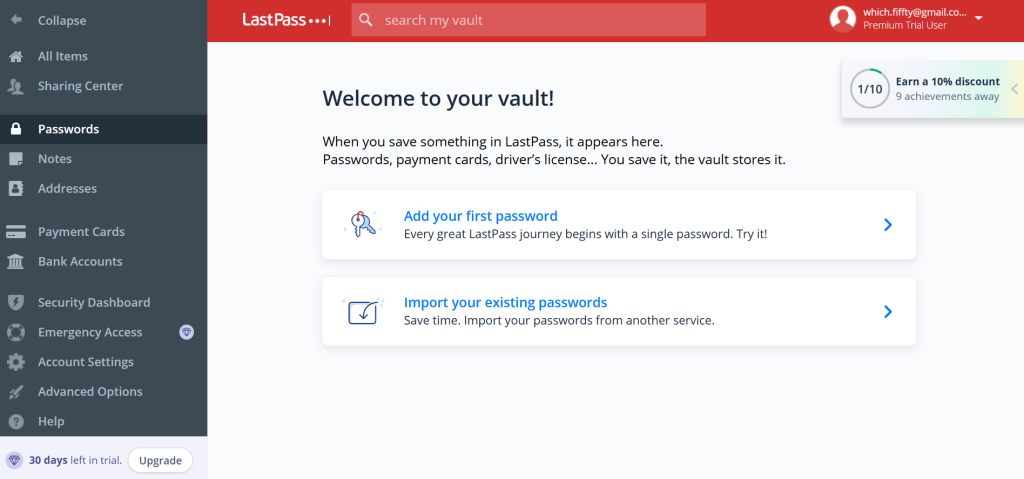
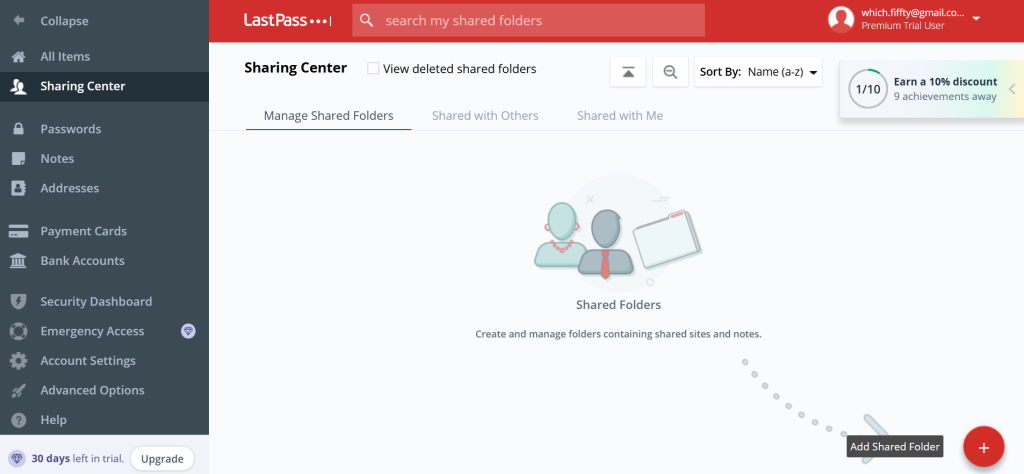
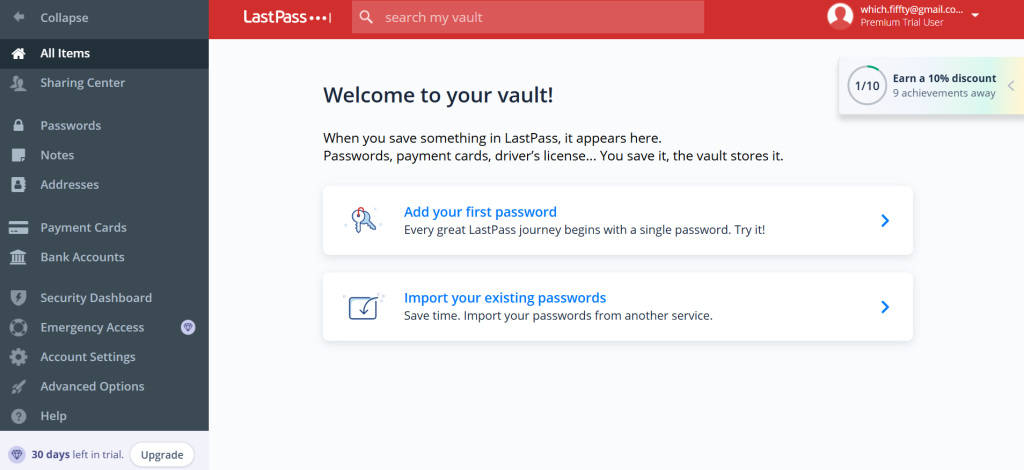
A popular option for businesses and teams is LastPass, which centralizes password management for your whole organization.It lets admins:
- Enforce strong password and MFA policies
- Share credentials securely across teams where needed
- Remove access quickly when someone leaves
- See high level security reports without seeing actual passwords

1Password for businesses
Another strong option is 1Password. You can read the complete review about the tool on Which50 database for secure access.
With 1Password, teams can:
- Use shared vaults for team tools
- Control who has access to which logins
- Store more than just passwords, like secure notes and keys
- Rely on a simple, user friendly interface that non technical staff can handle

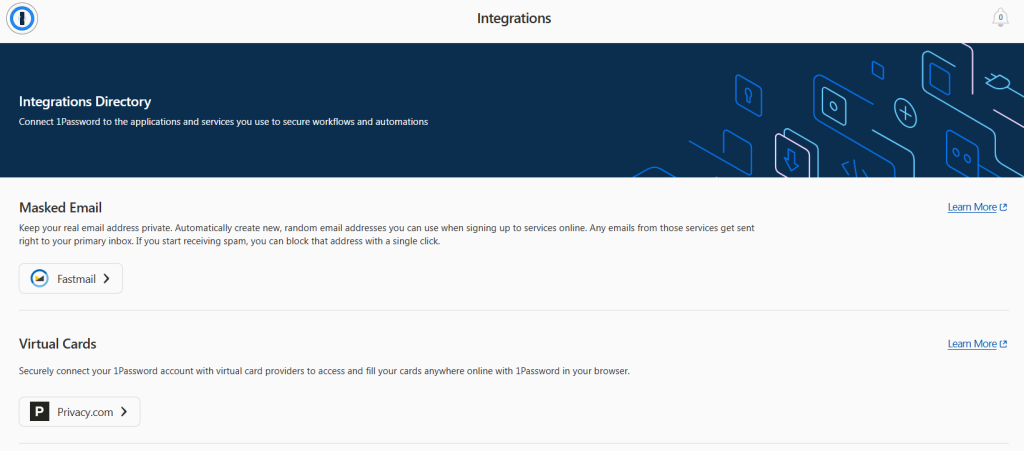
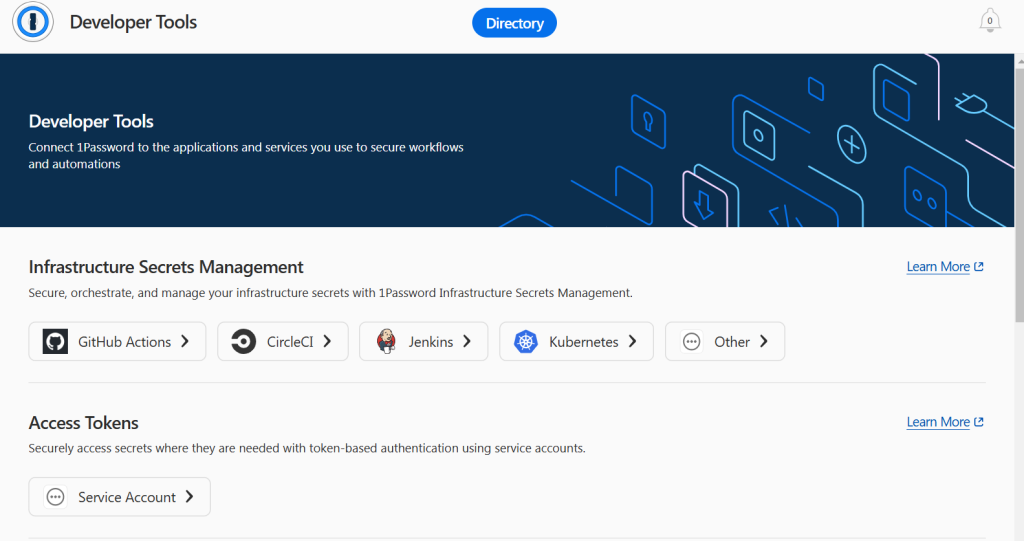
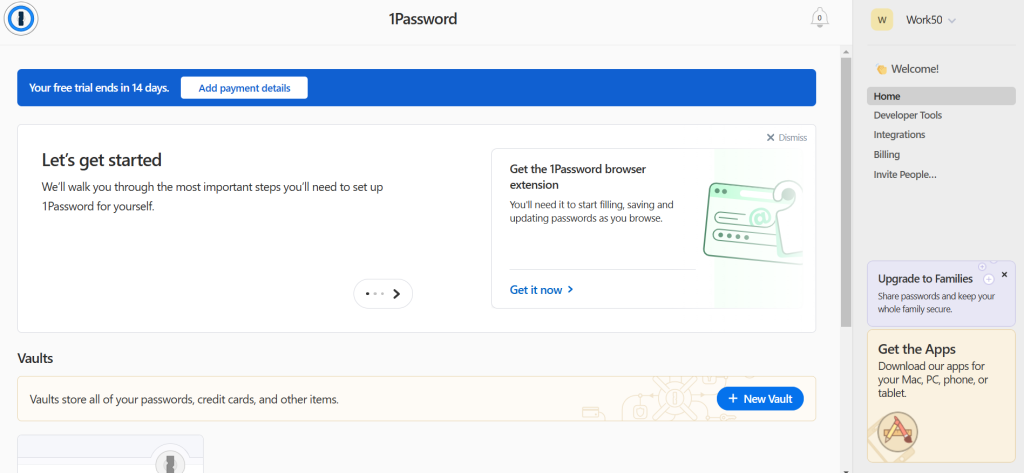
Both tools are designed to make secure behavior easier than insecure behavior. That is exactly what you want.
Step 5: Define What “Good” Looks Like
Before you make changes, decide on your target state. What does healthy password usage look like in your organization?
You might aim for:
- All staff use a company approved password manager
- All accounts for critical apps have MFA enabled
- No passwords stored in spreadsheets, shared docs, or notebooks
- No shared generic accounts without proper controls
- Clear offboarding steps to remove access for departing staff
Write these outcomes down. They will become your checklist during and after the audit.
Step 6: Run the Actual Audit
Now you have:
- A list of systems and apps
- A current policy
- Real behavior insights
- Target outcomes
Time to put it all together.
For each important system, capture:
- Who has access
- How passwords are created and stored today
- Whether MFA is turned on
- Whether there are shared accounts
- Whether a password manager is already used
You can structure this in a simple spreadsheet with columns like:
- App name
- Owner
- Number of users
- Shared accounts? (Yes or No)
- MFA enabled? (Yes or No)
- Stored in password manager? (Yes or No)
- Risk level (Low, Medium, High)
Focus first on anything marked High risk. Those are usually:
- Finance and payroll systems
- Email and identity systems
- Admin panels and production tools
- Apps with customer data
Step 7: Fix High Risk Issues First
Do not try to fix everything at once. Start with changes that greatly reduce risk with minimal friction.
Some powerful quick wins:
- Turn on MFA for email, VPN, and admin tools
- Move shared passwords into LastPass or 1Password team vaults
- Remove access for ex employees from critical apps
- Stop sharing logins by giving people their own accounts where possible
After that, roll out longer term improvements:
- Migrate all teams to a standard password manager
- Update your written password policy and share it widely
- Train managers to spot and correct risky habits in their teams
As you go, keep reminding people that the goal is to protect them and the company, not to make their life harder.
Step 8: Communicate And Train In Plain Language
Security fails when people do not understand why changes are happening. So explain it in simple terms.
For example:
- “We are introducing a password manager so you do not need to remember lots of complex passwords.”
- “We are turning on multi factor authentication to protect your account even if someone steals your password.”
- “We are asking you to stop storing passwords in documents because if that file leaks, attackers can use it easily.”
Run short, focused sessions:
- Ten minute demos of how to use LastPass or 1Password
- Step by step guides with screenshots
- FAQ pages that answer “What if I forget my master password?” or “Can I use this for personal accounts?”
Clear, friendly communication will do more for your security posture than a long, scary policy email.
Step 9: Document And Repeat
At the end of your audit, write down:
- What you found
- What you changed
- What still needs work
- What your new standards are
Set a schedule to repeat this audit, at least once a year, and more often if you grow quickly or use many cloud tools.
Treat it as an ongoing process, not a one time clean up.
Signs Your Password Usage Is In Good Shape
You will know your efforts are working when:
- New hires get set up with a password manager on day one
- Teams ask for secure shared vaults instead of trading passwords by chat
- MFA is standard for important tools
- Offboarding steps are followed every time without reminders
- Security incidents from weak or stolen passwords drop sharply
You will also notice that people complain less about logins, because they are not trying to remember impossible passwords anymore.
Wrap Up
Auditing password usage is not about catching people doing something wrong. It is about protecting your company and making everyone’s life a bit easier at the same time.
Start simple:
- List your tools and apps
- Look at how passwords are really handled
- Bring in a team password manager like LastPass or 1Password through their Which50 app pages so you can compare options in your actual stack
- Fix the highest risk areas first
- Train people in clear, friendly language
Once strong passwords and secure storage become the default, your organization is much harder to attack and much easier to manage. That is a win for your security team, your leadership, and every person who just wants to sign in and get on with their work.


Leave a Comment