A customer emails your support desk on Tuesday afternoon with a simple question about their account. By Thursday morning, nothing. No reply, no update, not even an automated “we got your message” note.
By Friday, they’ve posted a angry tweet, called their credit card provider to charge back their latest payment, and started checking out your main competitor’s pricing page.
This happens way more often than most founders and support heads want to admit. A Salesforce report on customer expectations found that 88 percent of buyers care just as much about the service experience as the product itself. And response speed is usually the very first test.
When response times start dragging, it’s rarely because your support agents are lazy. It’s almost always because nobody is actually keeping an eye on the numbers day to day.
Here is how to set up response monitoring that catches queue bottlenecks before they turn into customer complaints, along with how to track metrics across tools like Zendesk, Freshdesk, EngageBay, and Salesforce.
Four Response Metrics That Actually Matter
If you only look at your average handle time across all tickets, you’re missing the real story. Break your tracking down into these four numbers instead.
- First Response Time (FRT): This is how long a customer sits waiting between sending a message and getting their first real reply from a human. It’s the metric people feel most intensely. Wait six hours for a first hello, and you feel ignored — even if the agent fixes the issue five minutes later.
- Full Resolution Time: How long it takes from ticket creation to final resolution. Password resets take two minutes; billing bugs take two days. Track resolution by category so long technical tickets don’t distort your baseline data.
- SLA Compliance Rate: The percentage of tickets answered within your agreed target window. If your team promises four-hour responses but only hits that target 60 percent of the time, your team isn’t bad — your scheduling or staffing ratio is off.
- Reopen Rate: How many closed tickets get reopened by the customer within a few days. A sudden spike here usually means agents are closing tickets prematurely to hit daily quotas without actually solving the problem.
Tracking Response Times in EngageBay Helpdesk
For growing teams running support and CRM from a single platform, EngageBay has simple helpdesk reporting built straight in.
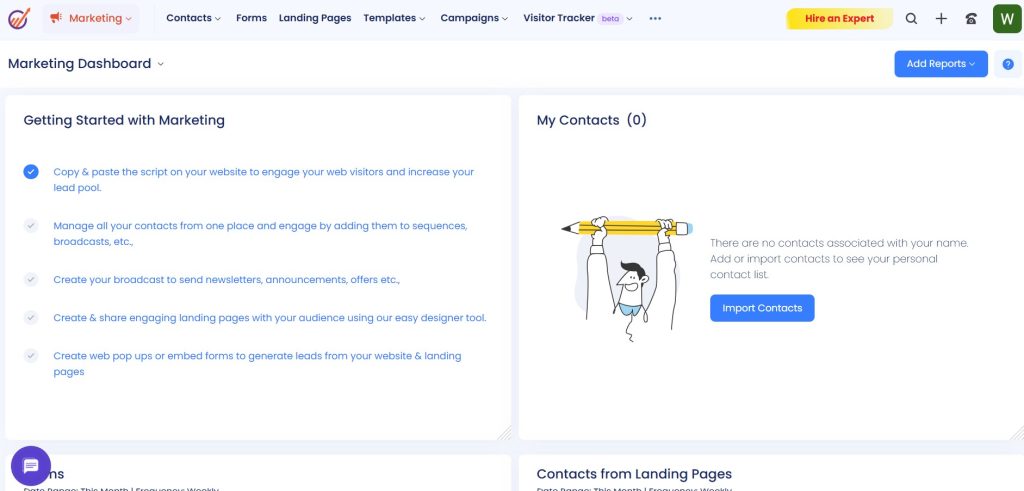
When an email or chat hits your EngageBay helpdesk, it gets logged with a precise creation timestamp. Managers can sort the live queue view by time waiting, making unassigned or old tickets instantly visible.
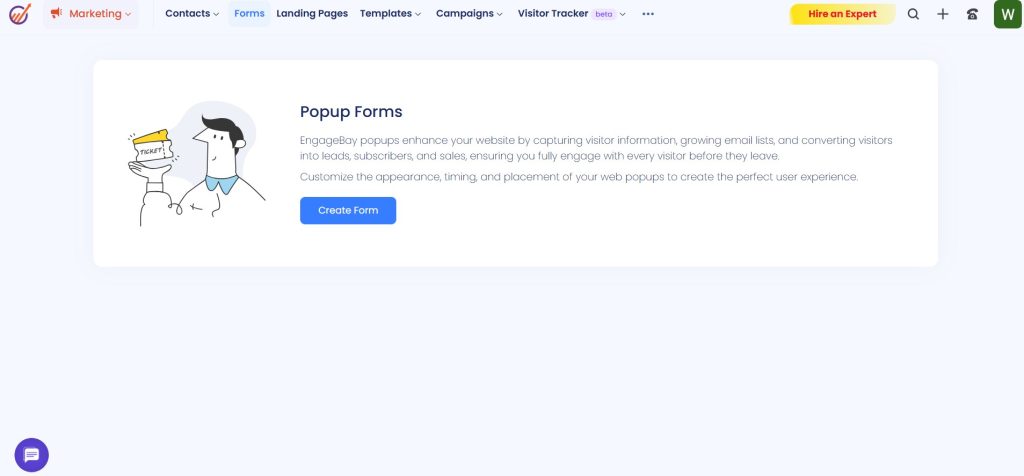
EngageBay’s reporting tab breaks down first response time and total resolution time by agent, department, and ticket tag. If Mondays are consistently slow or one agent’s resolution time is double everyone else’s, the data makes it obvious.
You can also configure automated escalation rules. If a ticket sits unhandled for three hours, EngageBay can ping a manager or reassign it to an available rep automatically.
Tracking Response Times at Scale with Salesforce
Enterprise operations running on Salesforce Service Cloud have access to much deeper custom reporting across every stage of a ticket.
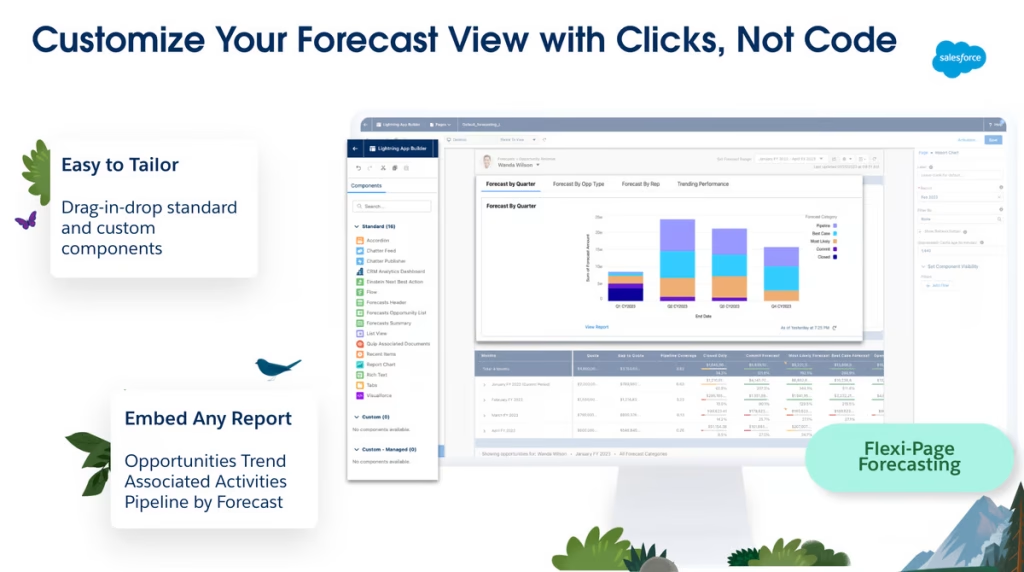
Salesforce logs timestamps for every single action — ticket creation, assignment, initial reply, internal transfers, and closure. The report builder lets you create custom dashboards filtering first response and handle times by account tier or product line.
Using Salesforce Entitlements, you can give high-tier enterprise clients a strict 60-minute SLA window while standard users get a 24-hour target. On-screen timers count down live on every case so reps know what needs tackling next.
Other Tools Worth Looking At
Without an all-in-one CRM, dedicated tools like Zendesk and Freshdesk give you pre-built reporting tailored for high email and chat volume.
If you don’t need enterprise complexity, lightweight platforms like BoldDesk and HelpScout offer straightforward SLA setups that take minutes to turn on. On the flip side, platform suites like HubSpot link support data straight into sales pipelines.
If you want to cut down first response times right away, setting up saved templates for common questions makes a huge difference. Check out this guide on how to create chat shortcuts for common questions to see how canned replies speed up your initial response benchmarks.
Setting Targets Your Team Can Actually Hit
A common trap is setting response targets based on wishful thinking rather than your team’s real capacity.
Promising a 15-minute response sounds great on a sales page. But if you have three reps handling two hundred tickets a day across time zones, you’re going to miss that target constantly — and missing targets hurts customer trust far more than setting a realistic four-hour goal.
Look at your average response numbers from the past 90 days. Set your initial SLA target right around that baseline. Once your team hits it consistently, lower the target bit by bit.
Differentiating SLAs by ticket urgency is also essential. A broken payment checkout needs attention way faster than a minor feature suggestion.
Wrap Up
When response numbers start heading in the wrong direction, don’t panic or start lecturing your team. Look for the root cause:
- Did a sudden spike hit? Check whether a new feature release, bug, or server outage drove a wave of incoming tickets.
- Where are tickets getting stuck? Look at handle times by category. If billing questions take four times longer than technical ones, your billing documentation or access workflow needs work.
- Are reps answering efficiently? Encourage reps to solve simple issues in a single detailed reply instead of sending short back-and-forth messages.
Connecting your ticket stats to wider company reports gives you an honest view of customer health. For more on connecting reporting dashboards, check out this guide on how to generate sales reports from CRM data.
Keep an eye on queue numbers regularly, set targets your team can meet, and set up auto-escalation for busy days. That’s really all it takes to keep response times under control.


Leave a Comment