Every support agent has typed the same sentence a hundred times. “Hi there! Thanks for reaching out. Could you share your order number so I can pull up your account?”
Word for word. Again and again.
It’s not just tedious. It adds up across a team. If three agents are typing the same response fifty times a day, that’s a meaningful chunk of work hours going toward something that could be handled in two keystrokes. And beyond the time cost, consistency suffers — one agent writes a polished response, another fires off something vague, and the customer experience varies depending on who picks up the conversation.
Chat shortcuts — sometimes called canned responses, saved replies, or snippets — solve both problems at once. They let your team respond faster and ensure every customer gets the same quality answer regardless of who’s on shift.
This guide covers how to build a shortcut library that actually gets used, and how to set it up across the tools your team is already working in.
What Separates a Good Shortcut from a Useless One
Most teams that try canned responses end up with a folder of fifty templates that nobody touches. The reason is almost always the same: the responses were written to be comprehensive rather than usable.
A response that covers every possible variation of a question is usually too long and too generic to feel personal. Agents skip it because it’s faster to just type something themselves.
The shortcuts that actually get used share a few traits. They’re short — designed to be a starting point, not a final answer. They leave clear gaps for personalisation, like a placeholder for the customer’s name or a blank space for the specific detail that changes each time. And they match the tone your team actually speaks in, not the formal language that feels borrowed from a legal document.
Before you build anything, it helps to spend a week logging every question your team receives. Group them into clusters. The top five or six clusters are where your shortcuts should live. Everything else can wait.
Setting Up Chat Shortcuts in HubSpot
HubSpot calls these Snippets, and they work across live chat, email, and the CRM contact view. Any team already using HubSpot for sales or support can add a shortcut library without leaving the platform.

To create a snippet, head to the Conversations menu in your HubSpot account and select Snippets from the sidebar. Hit the orange Create Snippet button in the top right. You’ll give it a short internal name — this is what your team types to search for it — and then write the actual text in the body field.
The name is what makes or breaks the shortcut. Keep it intuitive. If an agent has to remember an obscure code like “SR-004” to pull up a shipping response, they won’t bother. Something like “shipping-delay” or “refund-process” is much easier to recall under pressure.

Once saved, snippets are accessible in any HubSpot conversation window by typing a hash symbol followed by the snippet name. The matching results appear instantly, and the agent selects the one they want. The text drops into the reply field and can be edited before sending.
HubSpot also supports personalisation tokens inside snippets — placeholders that auto-fill with the contact’s name, company, or other CRM data. A greeting that starts with “Hi [First Name]” will automatically pull the customer’s name from their contact record, which means the response feels personal without the agent having to type anything extra.
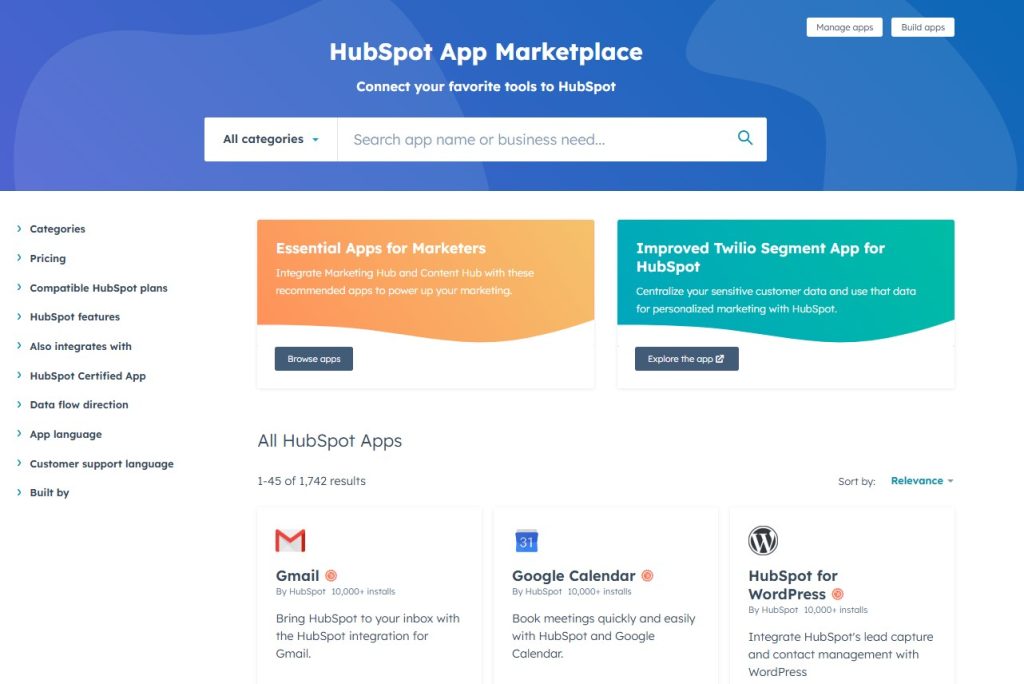
Setting Up Canned Responses in EngageBay
For teams that handle both marketing and support in one place, EngageBay includes a canned responses feature built directly into the live chat and helpdesk modules.
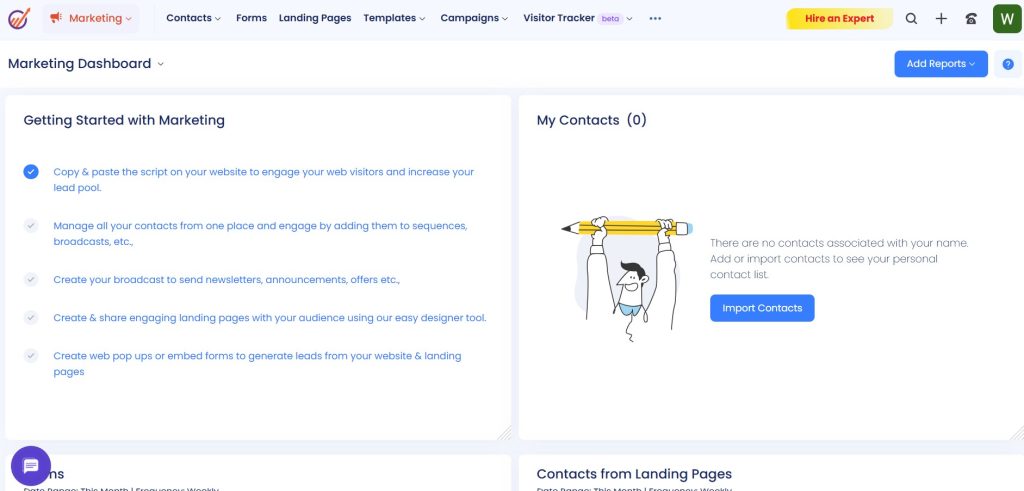
Inside EngageBay, navigate to the Service section and open the Canned Responses tab. Creating a response is straightforward — you give it a title, assign it a shortcut keyword, and write the body text. The shortcut keyword is what agents type in the chat window to surface the response.
What makes EngageBay’s implementation particularly clean is the ability to organise responses by category. If you’re running support for multiple products or departments, you can group shortcuts under separate headings — Billing, Technical, Shipping, General — so agents can browse quickly when they need something but can’t remember the exact keyword.
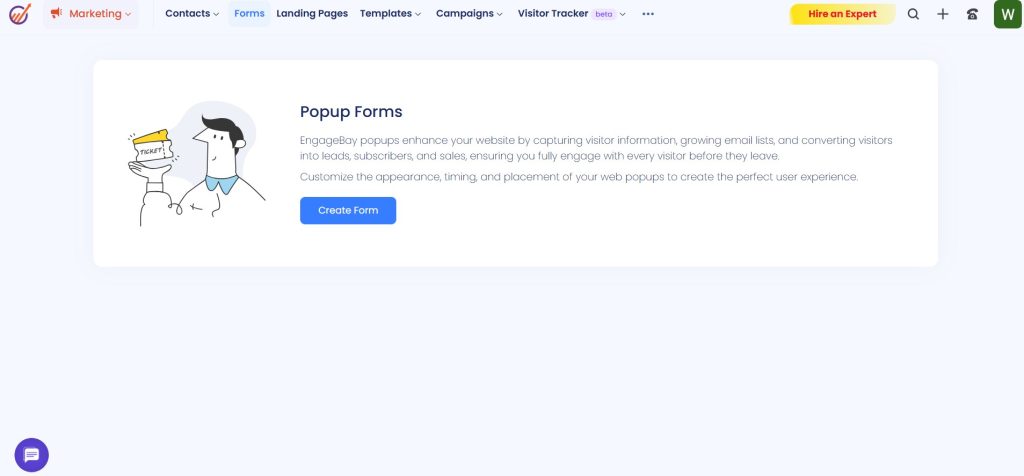
Once an agent is in an active chat window, typing a forward slash followed by a keyword surfaces the matching canned response. They can preview it before inserting, which gives them a moment to check whether the response needs any tweaking for that specific customer’s situation.
The key thing to train agents on: canned responses are a starting point, not a copy-paste autopilot. Customers can tell when a reply is robotic. The shortcut handles the structure and the boilerplate; the agent’s job is to read it, adjust anything that doesn’t fit, and send something that feels like it was written for that person.
Using Snippets in Streak for Gmail-Based Support
Some teams run their support entirely through Gmail — especially smaller operations or sales teams handling inbound inquiries through a shared inbox. Streak is a CRM that sits inside Gmail, and it includes a Snippets feature that works directly within the email compose window.

Inside Streak, you can create snippets through the Snippets menu in the sidebar. Each snippet gets a shortcut name that you type directly in a Gmail compose window, preceded by a hash. The text expands inline — no switching tabs, no copy-pasting from a separate document.
This is particularly useful for sales teams that send the same follow-up sequences repeatedly, or for support handled by founders and small teams who haven’t yet moved onto a dedicated helpdesk platform.
What to Build Shortcuts For — and What to Leave Out
Not every response deserves a shortcut. The ones that do tend to fall into a few clear categories.
Greetings and openers are an easy win. A warm, consistent opening line that includes the agent’s name, a reference to the customer’s question, and a promise to help sets the right tone without taking thirty seconds to compose.
Information requests are the most commonly repeated messages in any support operation. “Could you share your order number?” or “What email address is linked to your account?” — these are typed dozens of times a day and benefit enormously from a one-keystroke shortcut.
Status update templates come up constantly during shipping delays, service outages, or long processing queues. A template that acknowledges the situation, offers a realistic timeframe, and gives the customer something to do while they wait handles a high-stress moment with consistency.
Closing messages are underrated. A good closing that thanks the customer, confirms the issue is resolved, and invites them to come back if anything else comes up takes ten seconds to type but is easy to skip when an agent is racing through a queue. A shortcut makes it automatic.
What to avoid turning into shortcuts: anything that requires meaningful context or emotional sensitivity. A customer who is upset about a lost order doesn’t want a form response. A complaint that involves a nuanced refund decision shouldn’t be handled with boilerplate. Those conversations need a real, considered reply. Using a canned response in those moments signals that you didn’t read what they actually wrote.
For teams managing customer relationships at scale, it also helps to map your shortcuts alongside your CRM pipeline stages. Check out this guide on how to generate sales reports from CRM data to understand how your support data and response patterns can feed into broader reporting.
Keeping Your Shortcut Library Fresh
A canned response library has a shelf life. Pricing changes. Products get discontinued. Policies get updated. A shortcut that was accurate six months ago might now be sending customers wrong information about your return window or your support hours.
Set a quarterly reminder to review your most-used shortcuts. Check that every piece of specific information — dates, pricing, policy details, links — is still current. Remove any shortcuts that haven’t been used in three months. A smaller, accurate library beats a large, outdated one every time.
It also helps to collect feedback from agents directly. The people using the shortcuts daily will notice quickly when something doesn’t land well with customers or when a new question type is coming up repeatedly that doesn’t have a shortcut yet. Make it easy for them to flag gaps and suggest edits.
The goal is a shortcut library that feels like a tool your team reaches for, not a folder they ignore. Get the fundamentals right — short, editable, organised — and it’ll save hours every week without anyone noticing the system at work.


Leave a Comment