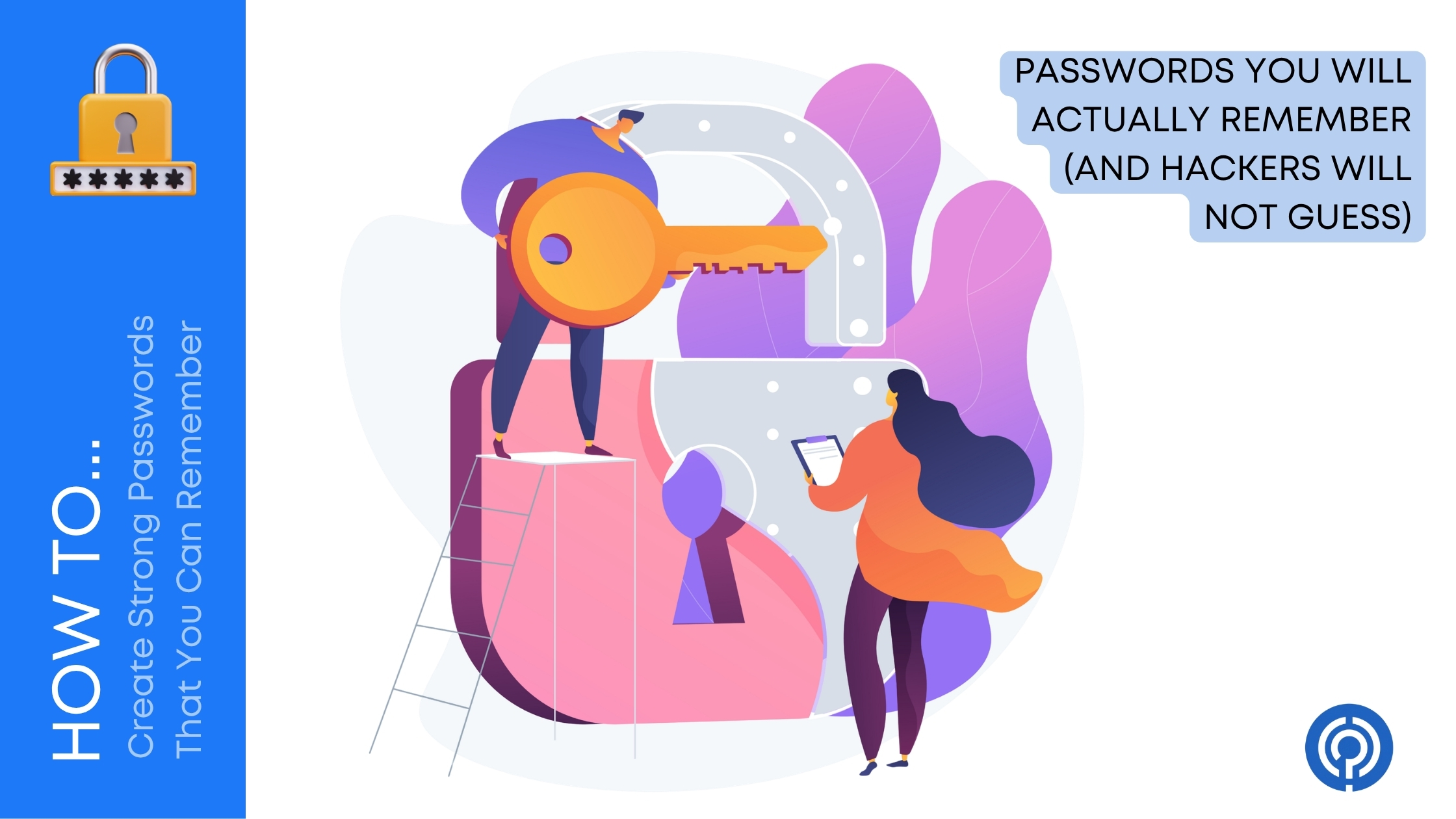
Let’s be honest: we’ve all been there. You’re setting up a new online account, you’re in a massive rush, and you use the exact same password you’ve been recycling since 2019—maybe with a capital letter and an exclamation point thrown at the end just to satisfy the annoying security prompt. It feels fine. It feels safe enough. Until it isn’t. Suddenly, you get that terrifying notification that your email address was caught in a massive data breach, and you’re left scrambling to change twenty different logins before someone drains your accounts.
But here’s the thing: creating a strong password doesn’t mean you have to invent a 20-character string of random, jagged gibberish that you’ll inevitably forget five minutes later. You can build incredibly secure, unhackable passwords that actually stay in your head without causing a massive headache.
Stop Thinking Words, Start Thinking Phrases
The biggest mistake people make when creating passwords is trying to make a single, basic word complex. Changing “banana” to “B@n@n!1” doesn’t fool modern hacking software. Not even close. It takes a basic brute-force algorithm a fraction of a second to crack that kind of predictable substitution. Hackers know exactly how human brains think when they try to be clever with special characters.
Instead, you need to transition to passphrases.
Pick four or five completely random words and string them together into a coherent or utterly ridiculous mental picture. Think of something like “CorrectHorseBatteryStaple” or “BlueToasterDancingRain.” It’s incredibly easy for your human brain to picture a bright blue toaster dancing around in a rainstorm. It sticks. But for a computer attempting to guess that exact combination of words? It takes literally millions of years. It’s long, it’s chaotic, and best of all, you don’t need a sticky note stuck to your monitor to remember it. The length of the phrase does all the heavy lifting for your security, while the imagery does the work for your memory.
The “Sentence to Abbreviation” Method
If random word strings aren’t your style, you can try the sentence method. This is a personal favorite for people who need a bit more structure. Think of a line from your favorite childhood song, a quote from a movie you’ve seen a hundred times, or a weird, hyper-specific fact about your own life.
Take this sentence, for example:
“I bought my first red bicycle in 1999 for ninety dollars!”
Now, take the first letter of every single word in that sentence, keeping the numbers and punctuation exactly as they are: Ibmfrbi1999fnd!
Look at that string of characters. It looks like absolute chaos to anyone else looking at it. It is an absolute, undeniable nightmare for a hacker. But to you? It represents a vivid, highly specific memory. You can type it out seamlessly at lightning speed because you’re just reciting the sentence quietly in your head as your fingers move across the keyboard. It bypasses the human tendency to pick predictable patterns while keeping the password entirely memorable.
The Reality of Managing the Chaos
Even with these tricks, you face a massive hurdle: you cannot use the same secure passphrase for everything. If one random site you rarely use gets compromised, hackers will immediately take those exact credentials and blast them across your bank, your primary email, and your Amazon account. You need a bulletproof system to keep track of everything.
If you’re managing multiple digital profiles for personal use, side hustles, or freelancing, learning how to organize passwords by category can save you hours of locked-out frustration and endless password reset loops. Categorization allows you to isolate your high-security assets from your casual, low-risk accounts.
For businesses and teams, the stakes are dramatically higher. Leaving digital security up to individual employee habits is a massive financial risk. It’s an open invitation for a breach.
This is exactly why a staggering number of companies are actively shifting away from legacy methods, a trend clearly reflected in the shifting password manager adoption rate statistics among employees as corporate leadership realizes that messy spreadsheets and shared text files just don’t cut it anymore. If you’re running a team or managing a corporate network, you need to know exactly where your vulnerabilities lie before a crisis hits. Taking the proactive time to learn how to audit password usage in your organization is the only real way to patch the holes and hold your infrastructure to a modern security standard.
Let Dedicated Tech Do the Heavy Lifting
Look, let’s be completely honest here. You shouldn’t have to remember fifty different complex phrases. Human brains are built for creativity and processing, not for storing hundreds of unique strings of alphanumeric data. That’s exactly why the entire password management software ecosystem exists—to handle the heavy lifting, generation, and memorization for you so you only ever have to remember one single, iron-clad master password.
If you are looking for the absolute best tools to store your credentials securely, generate uncrackable strings, and sync across all your devices, three massive industry leaders stand out. You can look into Keeper Security if you want enterprise-grade protection, zero-knowledge architecture, and deep encryption for sensitive files, try out 1Password for its incredibly polished, seamless user experience and brilliant family or team sharing vaults across mobile and desktop apps, or opt for LastPass to easily organize, auto-save, and autofill your digital vault on the fly without breaking a sweat.


Using a dedicated tool completely changes how you interact with the internet. Instead of stressing over character counts and special symbols, you click a single button, let the software generate a chaotic 30-character string, and let it save automatically. You never even have to look at the password again.
Wrap Up
You can build the strongest, most complex passphrase on earth, but it won’t matter at all if your security recovery questions are incredibly easy to guess. If your security question is “What is your mother’s maiden name?” or “What high school did you attend?” and the answer is easily searchable on public records, LinkedIn, or an old Facebook post, your account isn’t secure. You’ve left the back door wide open while putting five locks on the front door.
When you’re setting up recovery prompts on sensitive accounts, treat the answers like mini-passwords themselves.
If the prompt asks for your first pet’s name, don’t write “Max.” Write a full phrase. Or better yet, lie completely. Pick a word that has absolutely nothing to do with the question, but something you will remember. If the question is “What city were you born in?”, your answer could be “NeonGreenSubmarine.” The system doesn’t know you’re lying; it only knows if the strings match.
Stop relying on the lazy, dangerous variations of your childhood pet’s name or your birth year. Pick a weird phrase, grab a solid manager to handle the daily chaos, and lock down your digital life today. It takes ten minutes to set up, but it saves you months of absolute agony down the road. Keep your data yours.
Leave a Comment