Every team shares passwords. The question isn’t whether it happens—it’s how. And for most teams, the honest answer is: badly. Someone sends a password in Slack. Someone else emails it. Someone texts it. Another person keeps it in a shared Google Doc that never gets updated when the password changes. It works, sort of, until it doesn’t—until someone leaves and still has access, until a Slack message gets compromised, until you realize you have no idea who has the login to your payment processor.
Password sharing between team members is normal and necessary. The problem is the method. Here’s how to do it without creating the security problems you’re trying to avoid.
Why Sending Passwords Over Chat and Email Is a Real Problem
It feels harmless because it works in the moment. Someone needs the Instagram login, you send it in Slack, done. But there are a few things happening under the hood that make this genuinely risky.
First, those messages stay in message history indefinitely. A password you sent in Slack two years ago is still sitting there, searchable, accessible to anyone who ever has access to that Slack workspace—including future employees, contractors, or anyone whose account gets compromised.
Second, you have no revocation mechanism. If you need to change the password or cut off someone’s access, you can’t pull a message back. You’d have to change the credential and hope everyone who needs it notices the new one.
Third, there’s no audit trail. If something happens with that account—a suspicious login, an unauthorized purchase, a content change you didn’t approve—you have no way to know who accessed what or when.
According to CISA’s password security guidelines, credential compromise from insecure sharing practices is one of the leading causes of unauthorized account access in organizations. The fix isn’t complicated—it’s just a process change that takes one afternoon to set up.
The Right Model: Shared Vaults, Not Shared Messages
A shared vault is a password manager folder that multiple people have access to. Instead of sending a password to someone, you put it in a shared vault and give them access to the vault. They open the vault, find the credential, and use it—without you ever transmitting the password itself.
This matters because:
- The password never travels through chat or email. There’s nothing in anyone’s message history to find.
- You can revoke access at any time by removing someone from the vault. Change the underlying password and they’re cut off completely.
- Most business password managers log who accessed what and when, so you have a usable audit trail.
- Passwords in the vault stay current. When someone updates a credential, everyone with vault access gets the new version automatically—nobody’s working with an outdated password they got from a Slack message six months ago.
How to Set It Up
The basic setup is the same across most tools:
- Create vaults organized by team or function. A marketing vault for social media and ad accounts. A dev vault for hosting credentials and API keys. A finance vault for payment processors and banking tools. Keep sensitive credentials in smaller, more restricted vaults rather than dumping everything into one shared folder.
- Grant access based on actual need. Not everyone needs access to every vault. A contractor doing graphic design work doesn’t need the hosting credentials. An account manager doesn’t need the dev database login. Restrict vault membership to the people who genuinely need the credentials to do their job.
- Use view-without-copy where available. Some password managers let you give someone access to a credential without letting them see or copy the actual password—they just click to autofill directly into the login form. This means the password never actually leaves the vault, even when it’s being used.
- Remove access immediately when someone leaves. This is the part most teams forget. When someone leaves, removing them from the shared vault is as important as recovering their laptop. Some tools can be configured to automatically revoke access when an account is deprovisioned through your SSO or directory tool.
What to Do About Credentials You Can’t Put in a Vault
Some credentials genuinely can’t be managed through a shared vault—systems that don’t support password manager autofill, API keys embedded in config files, or situations where a contractor needs a one-time credential for a specific task.
For these cases:
- Use a self-destructing link service that lets you send a password via a link that expires after one view or after 24 hours. Services like One-Time Secret let you create a link that shows the credential once and then destroys itself. The password still travels, but it doesn’t sit in someone’s message history forever.
- Immediately rotate the credential after the one-time use if possible. Temporary access should be temporary.
- Document that the share happened, who received it, and when it was rotated, even if just in a notes field in your password manager.
Tools That Handle Team Password Sharing Well
1Password — Best for Shared Vault Management With Granular Access
1Password is built for exactly this use case. The business plan lets you create as many shared vaults as you need, manage individual access per vault, and see a full activity log of who viewed or used each credential. Revoking someone’s access when they leave is one click—remove them from a vault and they’re out.
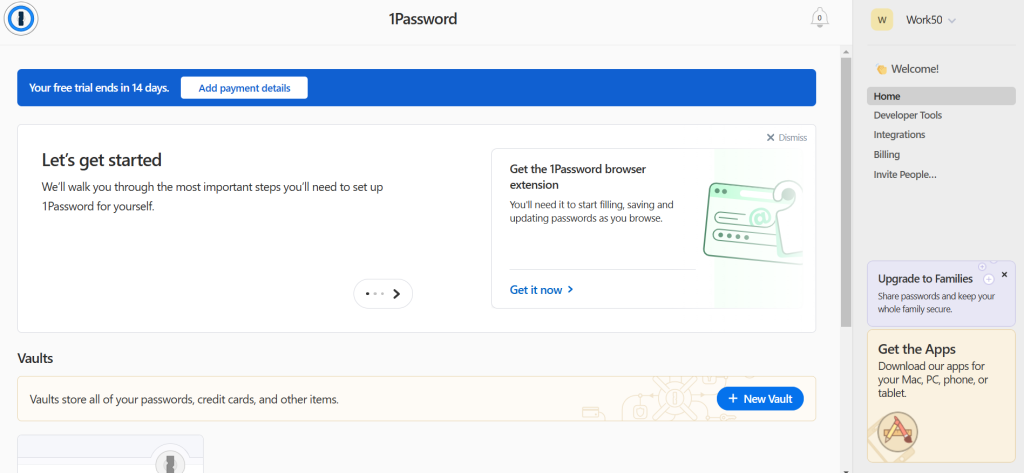
The hide-password feature lets you share a credential so someone can autofill it without ever seeing the actual characters. For shared social media accounts, payment platforms, and any credential you’d rather people use but not personally possess, that’s the right setup. You can also grant temporary access to specific vaults for contractors or freelancers and set expiry dates on their membership.
LastPass — Best for Teams That Need Straightforward Shared Folders
LastPass has a shared folders feature on its Teams and Business plans that works well for organizations that want something simple to manage. You create a folder, add credentials to it, and invite team members. They see those credentials in their LastPass account alongside their personal ones.
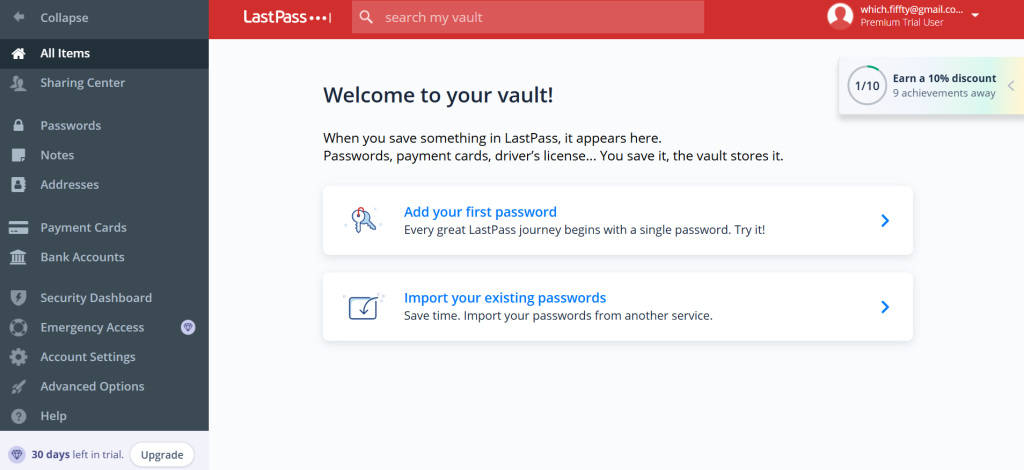
The admin dashboard shows which credentials are shared, who has access, and flags weak or reused passwords across the organization. For teams that don’t need the more granular access controls of enterprise tools but do need to stop sharing passwords over Slack, LastPass Teams is a quick and affordable way to get there.
Here’s the honest limitation: LastPass has had notable security incidents in its history, which has made some security-conscious organizations cautious. It’s worth knowing that and making an informed decision rather than discovering it later.
Keeper — Best for Teams That Need Full Audit Trails
Keeper is the strongest option if your team operates in a regulated environment where you need to demonstrate exactly who accessed which credential and when. Every vault access event is timestamped and logged with the user identity, which is the kind of audit trail that compliance frameworks like SOC 2 or HIPAA ask for.

The role-based access control lets you define exactly what each user or team can do with credentials—view only, use without revealing, edit, or full access. For shared credentials where you want people to be able to use a login but not know the password or be able to export it, that granularity is genuinely useful.
BreachWatch scans dark web data and alerts you when shared credentials appear in breach compilations, which is an extra layer of protection for the accounts your whole team relies on.
Enpass — Best for Teams That Want Self-Hosted Control
Enpass is the right choice if your team has a strong preference for keeping password data entirely on your own infrastructure. It doesn’t store credentials on its own servers—your vault syncs through your own chosen storage, whether that’s your company’s SharePoint, a self-hosted WebDAV server, or a cloud storage bucket you control.

For teams in industries with strict data residency requirements or strong policies against third-party credential storage, this approach removes the reliance on a password manager vendor’s security entirely. You’re responsible for securing the sync endpoint, but the vault data never touches Enpass’s infrastructure.
The shared vault setup requires a bit more technical configuration than cloud-native tools, but once it’s running, the day-to-day experience for team members is straightforward. Enpass is also significantly cheaper than the enterprise tiers of 1Password or Keeper, which makes it worth considering for cost-conscious teams with the technical capacity to manage their own storage.
The Off-boarding Checklist Nobody Does Until There’s a Problem
According to the Ponemon Institute’s research on insider threats, a significant percentage of data incidents involve credentials that former employees still had access to after leaving. This isn’t malicious most of the time—it’s just that the off-boarding process didn’t include a step for revoking shared vault access.
So here’s the actual checklist:
- Remove the departing employee from all shared vaults before their last day
- Rotate any credentials they had personal access to, not just shared vault access—if they knew a password from memory, it needs to change
- Check whether they had any personal devices enrolled in the organization’s password manager and revoke device trust
- Update the list of accounts they owned or administered, and reassign those to current team members
If this feels like a lot, that’s because most teams have never mapped out which team members have access to what. Building a shared vault structure forces you to make that map—which is actually one of the most useful side effects of the whole process.
Conclusion
Sharing passwords safely isn’t technically hard. It’s a process change. The tools exist, they work well, and most teams can get a shared vault set up in an afternoon. The harder part is making it the default—getting everyone to stop texting credentials and start using the vault instead.
Pick the tool that fits your team’s size, budget, and compliance requirements, set up vaults by function, and make vault access revocation a fixed step in your off-boarding process. That’s really the whole thing.


Leave a Comment