Trying to send a huge video, design folder, or backup file by email is painful. It either bounces, takes ages, or feels risky because you are not sure who else might see it.
Sharing large files online can be fast, but it should also be safe. Whether you are sending client contracts, product designs, or family photos, you want two things: the file to arrive, and only the right person to see it.
This guide walks you through how to share large files safely online, in simple steps you can follow right away.
Why Large File Sharing Needs Extra Care?
Small files often travel by email without much thought. Large files are different:
- You often use third party services to move them.
- They may sit on a server for a while.
- Links can be forwarded, copied, or guessed if they are not protected.
On top of that, large files are often more sensitive. Think:
- Full project folders
- Video interviews or recordings
- Financial reports and backups
- Source code or designs
That is why security is not a “nice to have” here. It is part of the basic workflow.
The Main Risks When Sending Big Files
Before we look at tools, it helps to know what can go wrong.
- Link sharing without control
Anyone with the link can download the file if there is no password or access control. - Files stored without encryption
If a service stores your files unencrypted, a breach on their side can expose your data. - Weak or reused passwords
Protecting a file with “123456” or a reused password is almost the same as not protecting it at all. - Phishing and fake upload pages
Attackers sometimes use “file sharing” links to trick people into entering passwords. - No expiry or cleanup
Old files and links stay online for years, even after they are no longer needed.
The goal is not to panic. It is to add a few simple layers of protection so these risks are much lower.
Core Principles Of Safe File Sharing
You can keep your setup simple if you follow a few basic rules:
- Encrypt what you can.
Ideally, files are encrypted in transit and at rest. For very sensitive items, encrypt them yourself before upload. - Use access control, not public links.
Prefer named access (email-based), passwords, or logins over “anyone with the link”. - Limit how long files live.
Set expiry dates and delete files once the recipient has downloaded them. - Share passwords separately.
Do not put the password in the same email or chat as the link. - Use strong, unique passwords.
A password manager such as those recommended by organizations like the National Institute of Standards and Technology helps you build and store them safely.
Keep these in mind as we walk through the “how to”.
Step-by-Step: How To Share Large Files Safely
1. Clean Up And Organize Your Files
Before you upload anything:
- Remove files the recipient does not need.
- Check for hidden items such as system files or drafts.
- Rename folders and files clearly so the recipient knows what they are.
This makes your transfer smaller, faster, and less confusing.
2. Compress And (Optionally) Encrypt
Next, turn your folder or group of files into a single archive:
- Select the files or folder.
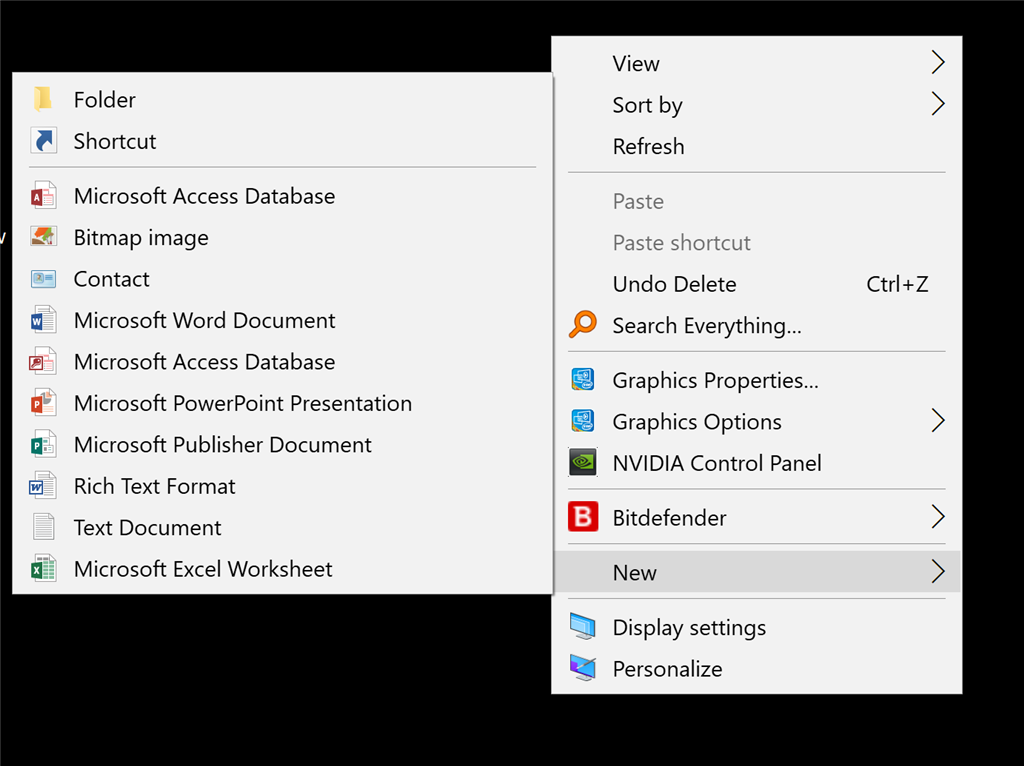
- Right click and choose Compress or Send to > Compressed (zipped) folder.
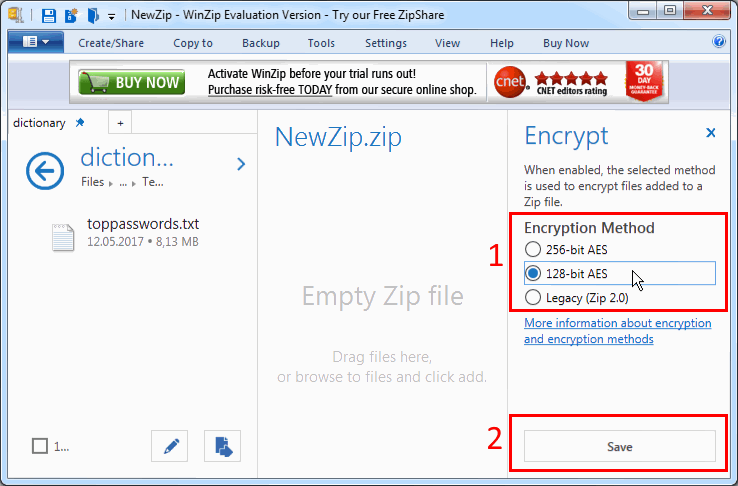
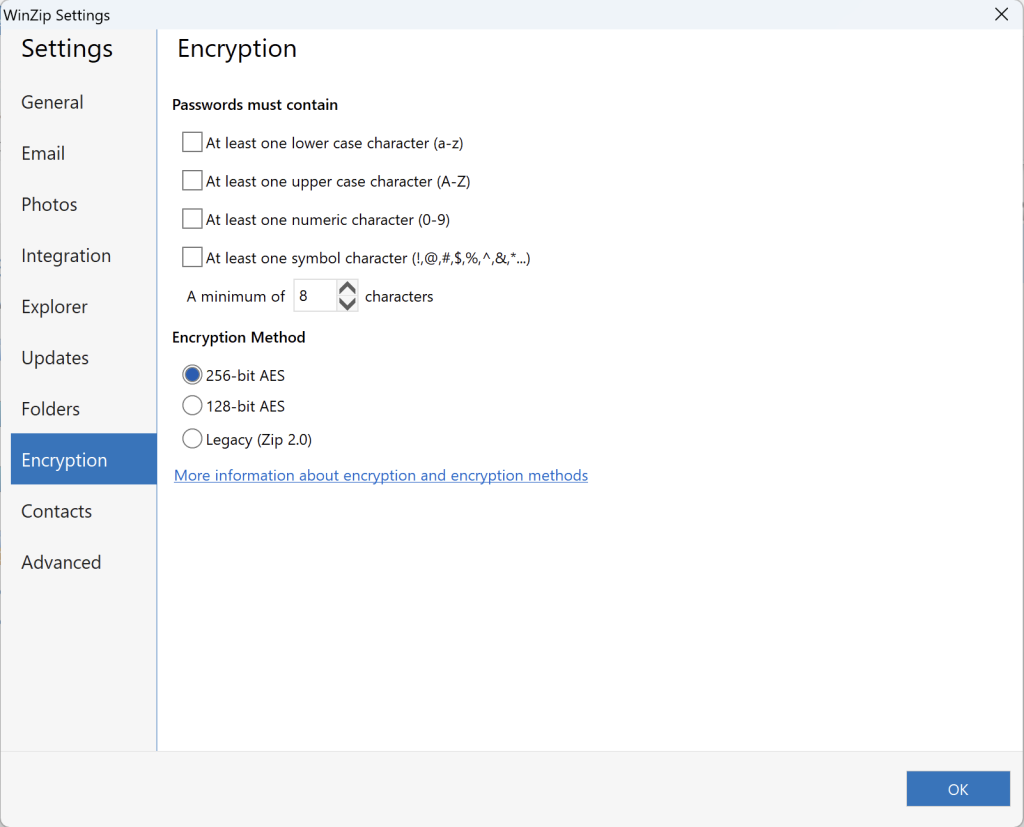
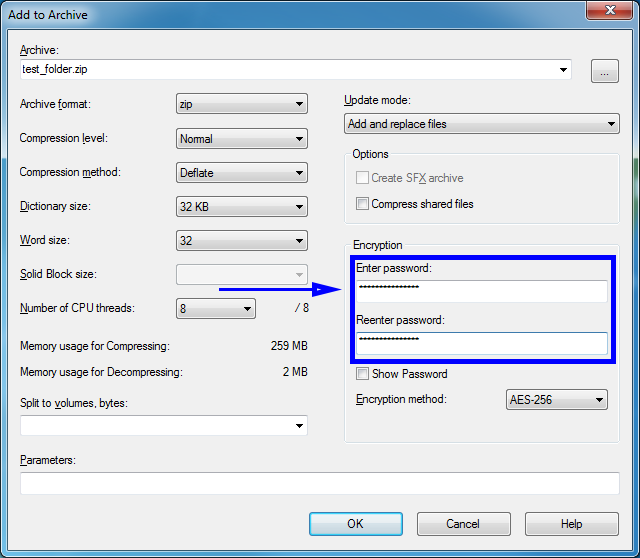
- If you use tools like 7-Zip or WinZip, set a strong password and choose AES-256 encryption if available.
This gives you:
- Smaller file size
- One neat file instead of a messy list
- Extra protection if someone finds the file
If the files are very sensitive, encrypt before you upload, not after.
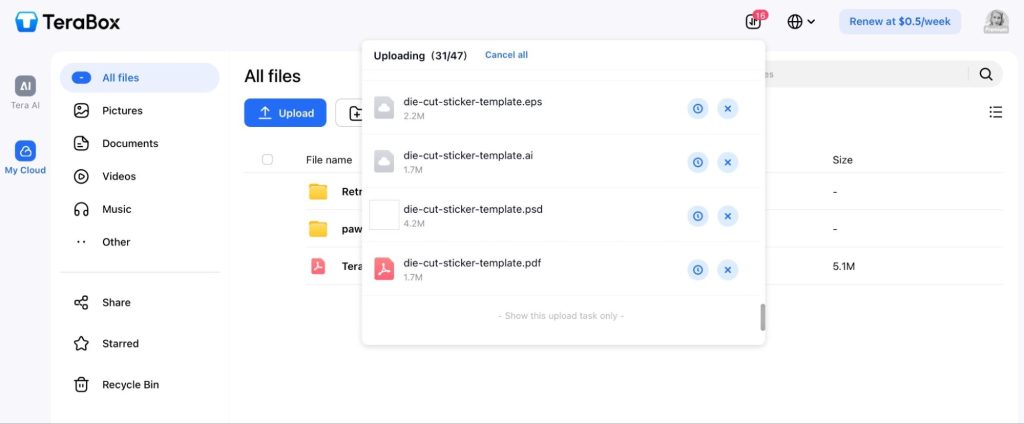
3. Pick The Right Transfer Method
There is no single “best” service. The right one depends on your use case. Here are common options and how they fit.
Cloud storage links
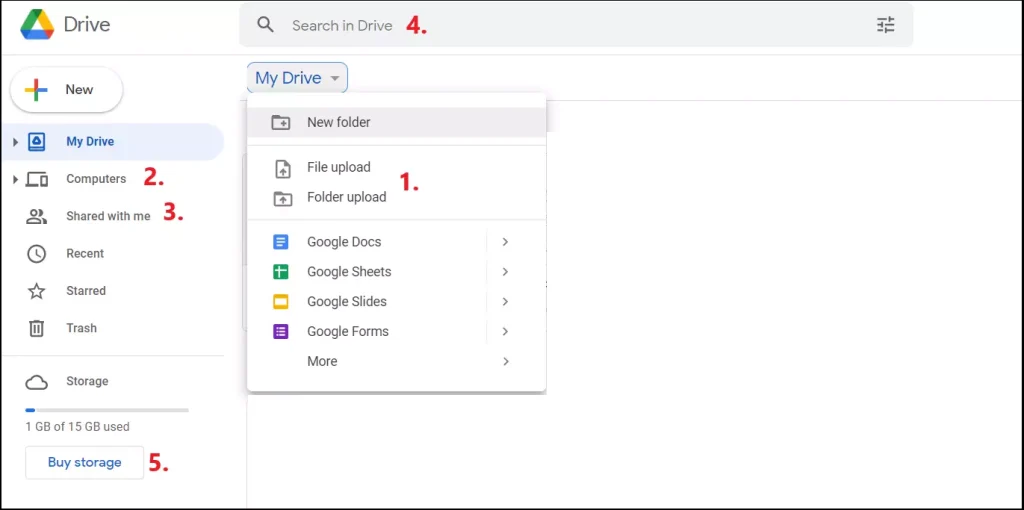
Services like popular cloud drives let you:
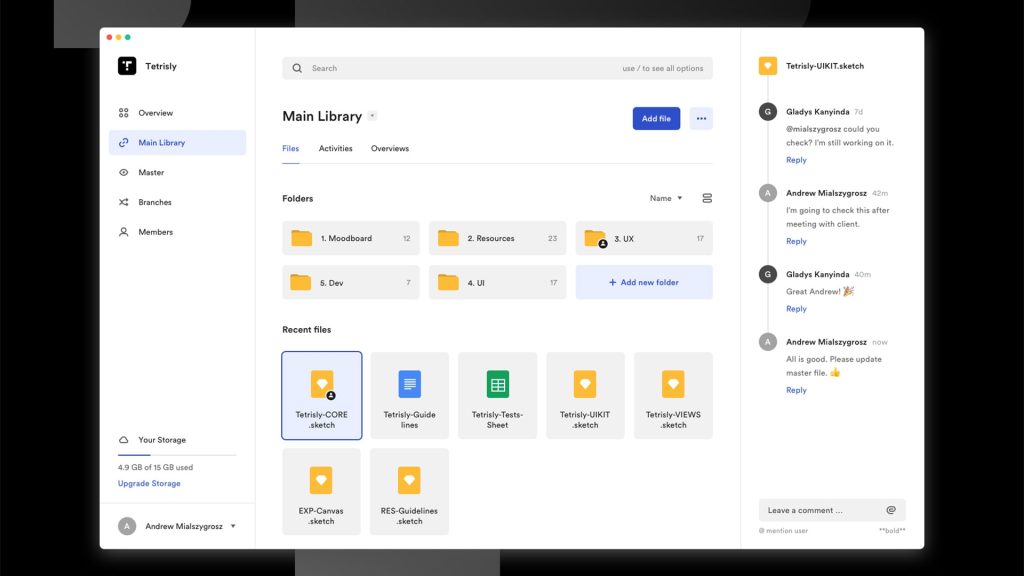
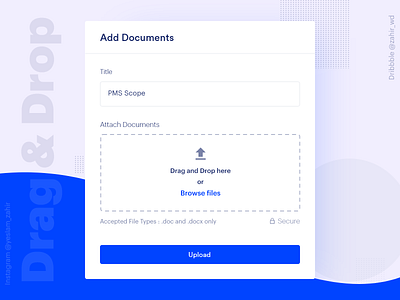
- Upload large files or folders
- Share a private link
- Limit access to specific people or emails
Look for options like:
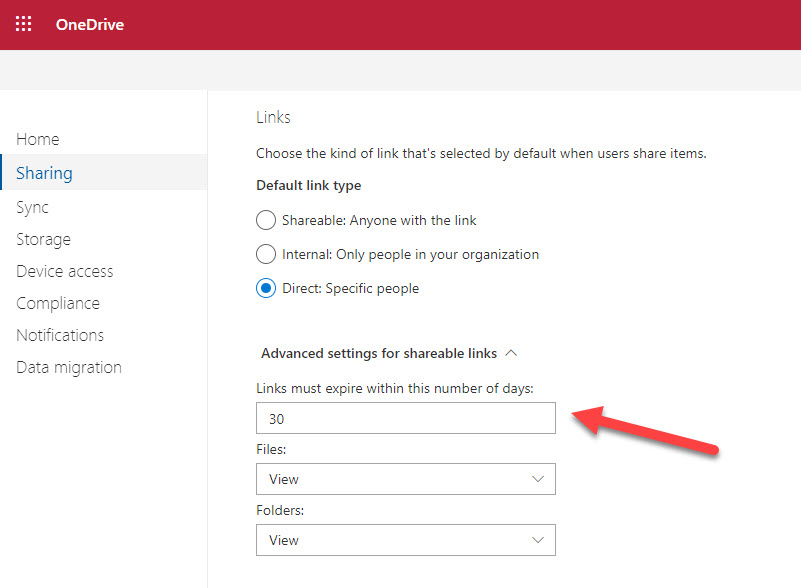
- View only access
- “People you choose” instead of “Anyone with the link”
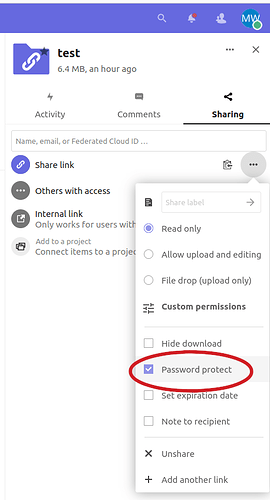
- Password protection and expiry dates
These are great for teams and ongoing work.
One-off large file transfers
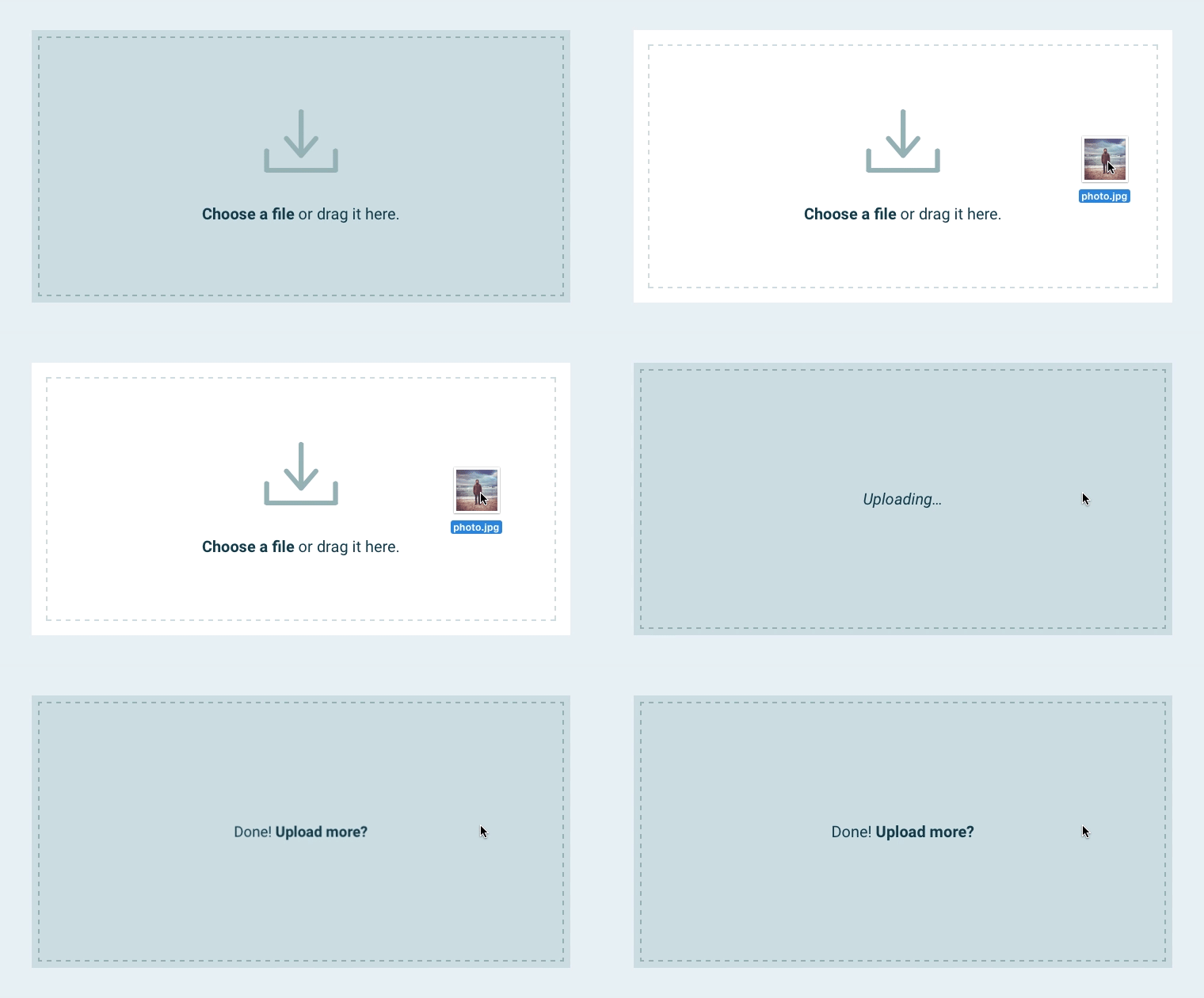
For quick one-time sends, dedicated large file tools are often easier. Services such as WeTransfer, Send Anywhere, Smash, TransferNow, FileMail, TransferXL, SwissTransfer, MediaFire, 4Shared, or Sync are built for exactly this use case.
When you choose among them, focus on:
- Maximum file size allowed
- Password protection support
- Link expiry options
- Whether the file is encrypted on their servers
Use the security features they provide instead of only the default settings.
Direct and peer-to-peer style tools
Some tools send files directly from your device to another, sometimes using end to end encryption. These are useful if:
- You both are online at the same time.
- You want less data sitting on third party servers.
They can be very secure, but are less convenient if people are in different time zones.
4. Turn On Security Features
Whatever service you pick, walk through its sharing settings slowly once.
Look for options such as:
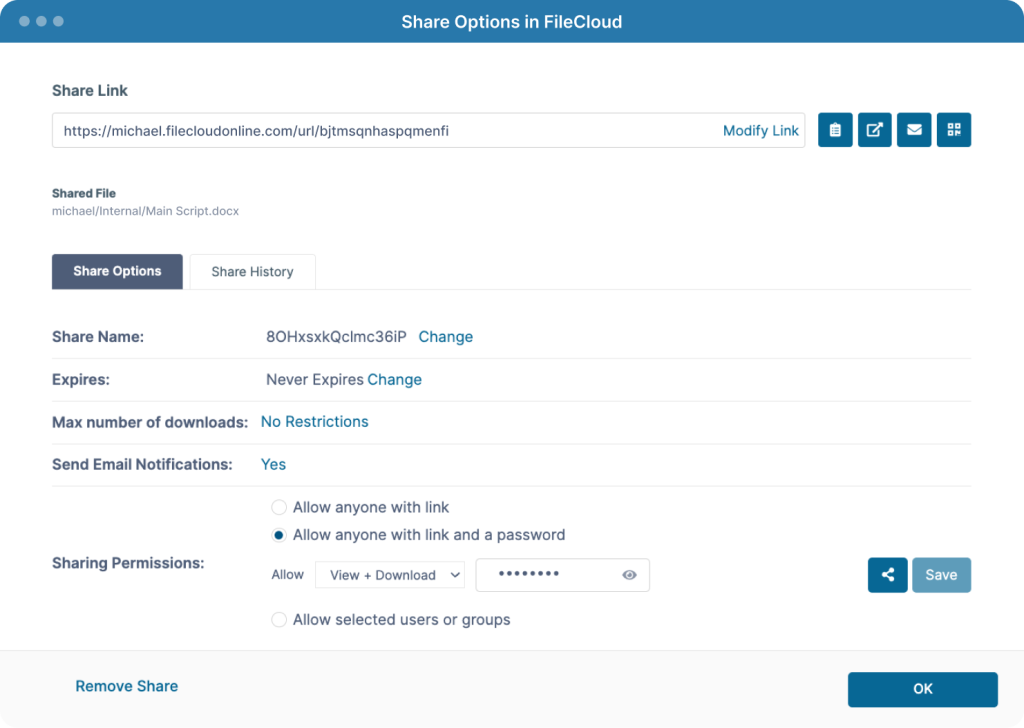
- Password protected links
Set a long, unique password. Avoid words someone can guess about you (names, birthdays, pet names). - Link expiry
Set the link to expire after a few days or after a set number of downloads. - Recipient specific access
Where possible, share with specific email addresses instead of a public link. Some services send the link directly to that person. - Two factor authentication for your account
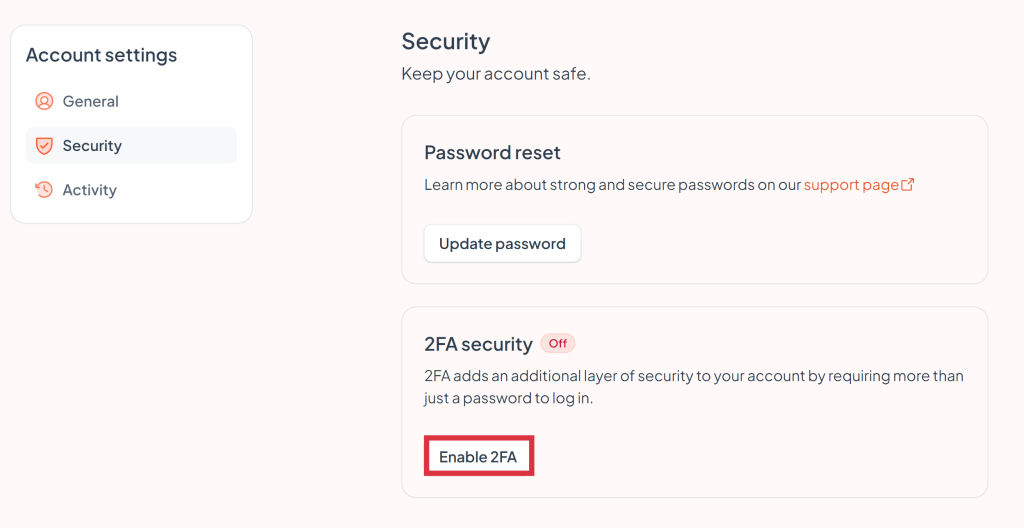
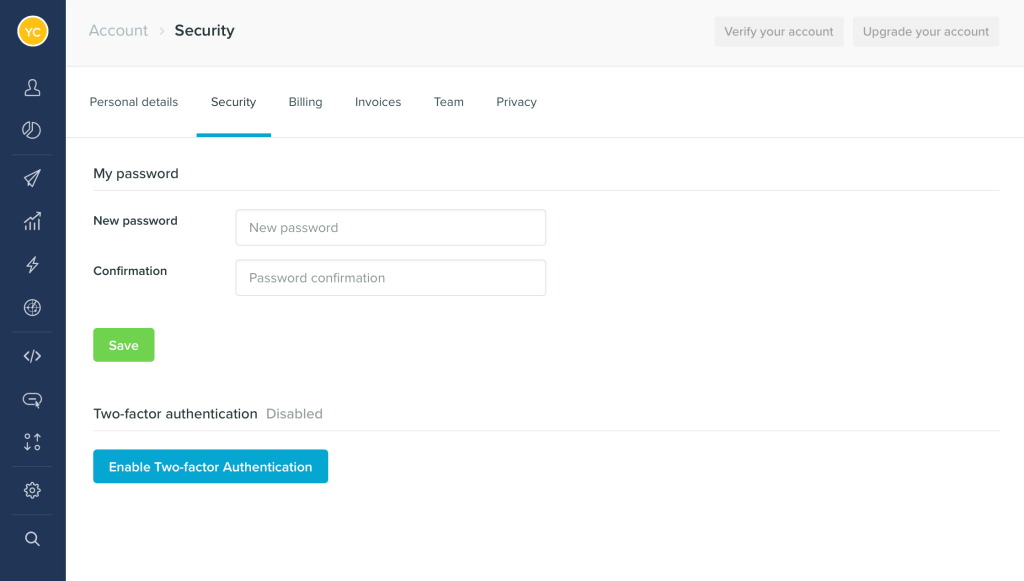
Turn on 2FA so no one can log in as you even if they guess your password. Guidance from agencies like the Cybersecurity and Infrastructure Security Agency strongly recommends this for any account that handles sensitive data.
Spending two minutes here can save you from hours of cleanup later.
5. Share The Link And Password Safely
Once your file is uploaded and secured:
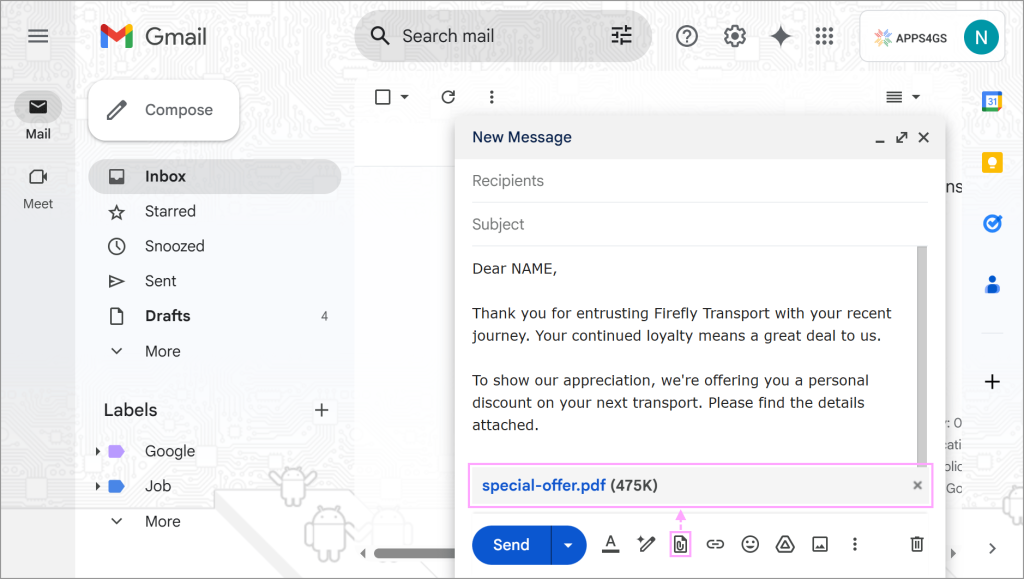
- Copy the link from your file sharing service.
- Send the link using your normal channel, for example email or a chat app.
- Send the password using a different channel if you can.
For example:
- Link by email, password by text message.
- Link by work chat, password by a quick phone call.
This way, even if someone gains access to your email, they still do not have everything they need.
If you use a password manager, you can also share secure notes instead of plain text messages. Many modern password managers offer this and explain how to use it safely in their online help sections, similar in spirit to security guidance you might see from trusted providers like Mozilla or Microsoft.
6. Confirm And Clean Up Afterward
Once the recipient downloads the file:
- Ask them to confirm they received and opened it.
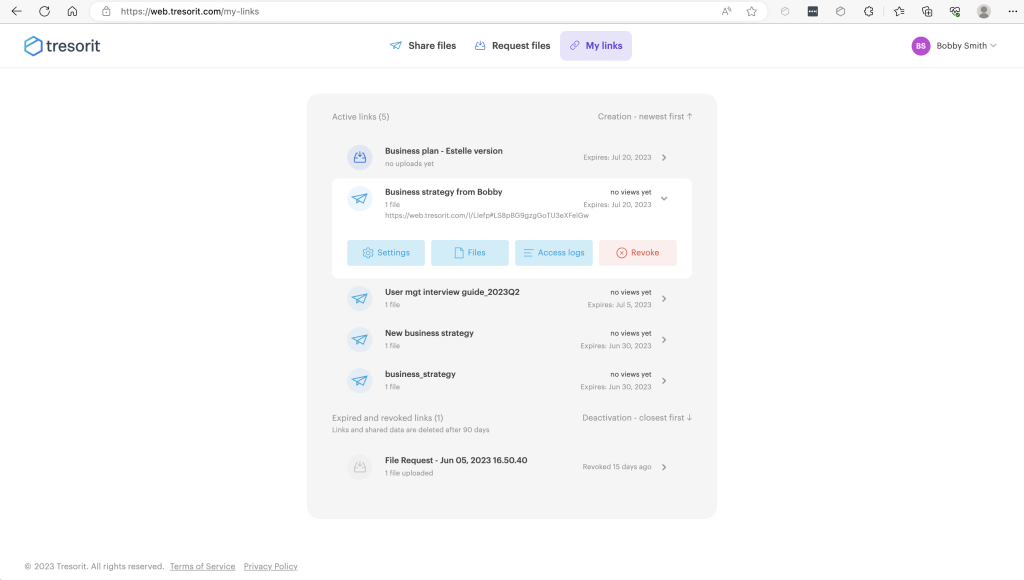
- Delete the file from the file sharing service if you do not need it there.
- Revoke the link if the service allows it.
- Remove any temporary copies you stored on shared or public computers.
Regular cleanup reduces the chance of old data floating around where it should not be.
Choosing Between Different File Sharing Services
You mentioned tools like WeTransfer, Send Anywhere, Sync, MediaFire, Smash, 4Shared, TransferNow, FileMail, TransferXL, and SwissTransfer. They can all move large files, but their security models differ.
When you compare services, look at:
- Encryption
Do they encrypt your files at rest, in transit, or both? - Zero knowledge or not
Some tools cannot see the content of your files at all. Others can scan files for malware or policy reasons. Decide what fits your case. - Control over links
Can you set passwords, expiry dates, and download limits? - Location of servers and compliance
For work data, your legal or IT team might care where data is stored and what regulations apply. - Reputation and transparency
Check if they publish security pages, whitepapers, or follow known security standards similar to the ones discussed by organizations like the National Cyber Security Centre in the UK or NIST in the US.
If you are in a company, always check if there is an approved tool list before picking a new service.
Extra Tips For Different Scenarios
Sending work files to clients
- Use your company’s approved tool, not your personal cloud account.
- Use client specific folders, not shared folders across different clients.
- Agree in advance how you will share and how long files will stay available.
- Document where sensitive files are kept and who has access.
Sharing media files with friends or family
- Compress large photo or video folders before uploading.
- Use password protection even if “it is just family”, especially if the link goes into group chats.
- Tell them when the link will expire so they download in time.
Collaborating on ongoing projects
- Use a shared workspace or team drive instead of sending new links each time.
- Use roles and groups, for example “Design team view” or “Clients view only”.
- Review access lists every month and remove people who no longer need it.
Bad Habits To Drop Right Now
If you are already sharing large files, check if you are doing any of these:
- Reusing the same weak password for every shared file
- Sending both link and password in one email
- Leaving “anyone with the link can edit” turned on
- Never deleting old uploads or expired projects
- Uploading from public or shared computers and leaving files behind
These are simple to fix and make a big difference to your overall security posture.
Wrapping It All Up
Sharing large files safely online does not have to be complicated or technical. You are mostly doing the same thing you already do, just with a bit more intention.
You:
- Tidy and compress your files, encrypt when it matters.
- Pick a file sharing tool that gives you control, not just convenience.
- Turn on passwords, expiry dates, and access limits.
- Share the link and password using different channels.
- Clean up when the job is done.
Once you run through this flow a couple of times, it will feel natural. You will still send big videos, heavy design folders, and detailed reports, but with far less stress about who might see them.
Safe file sharing is really just good digital hygiene. Start with your next big file and build the habit from there.

Leave a Comment