Are you sick of wasting 15 minutes a day hunting for that one critical document your team supposedly saved to “the drive”?
If you are nodding your head right now, I get it. I have been there. When I first started scaling my agencies, we had files scattered across personal desktops, email chains, and random loose folders. It was a complete disaster. It didn’t just cause headaches; it literally cost us money in lost productivity and botched client handoffs.
Here is the truth that most people ignore: your cloud storage is exactly like a physical office. If you don’t build a filing system, everyone just dumps their paperwork on the floor.
Today, I am going to show you exactly how to build an ironclad folder architecture. I will give you the exact naming conventions, access control strategies, and maintenance frameworks that successful remote teams use to stay productive and secure.
If you want to stop pulling your hair out over missing files, read on.
Start With a Rock-Solid Architecture
The biggest mistake I see companies make is thinking that buying cloud storage automatically creates organization. It does not. The software is just the empty warehouse; you have to build the shelves.
Before you even log into an app, you need a blueprint.
Keep It Flat, Not Deep
You have to stop burying files. If a team member has to click seven times to reach a document, they will simply stop looking and create a duplicate file, which ruins version control.
Stick to a three-level hierarchy:
- Level 1: Department or Broad Category (e.g., Marketing, Finance, HR)
- Level 2: Specific Project or Function (e.g., Q3 Ad Campaigns, 2026 Tax Documents)
- Level 3: The Assets (e.g., Ad Copy Docs, Banner Images)
If you find yourself creating a fourth or fifth folder inside that chain, stop. Your category is too broad, and you need to break it out into a new Level 2 folder.
The Power of Naming Conventions
If you let your team name files whatever they want, your system will fail. You will end up with folders called “Final_Draft” right next to “Final_Final_Draft_Use_This”.
Force your team to use dates. Specifically, you need to use the YYYY-MM-DD format at the beginning of time-sensitive folder names. Computer systems naturally sort numbers first. If you name a folder “2026-09-03_Client_Launch”, it will always stack in perfect chronological order.
Also no spaces and no weird characters. Spaces in folder names often break URL links when you try to share them outside your company network. Use underscores instead. It seems like a tiny detail, but it prevents massive tech headaches down the road.
Picking and Configuring the Right Platform
Not all cloud storage tools handle shared ownership the same way. If you set this up wrong, you risk losing critical company data when an employee quits.
The Google Workspace Approach
If your team is running on Google Workspace, you need to stop using standard folders in your personal “My Drive” to share team assets.
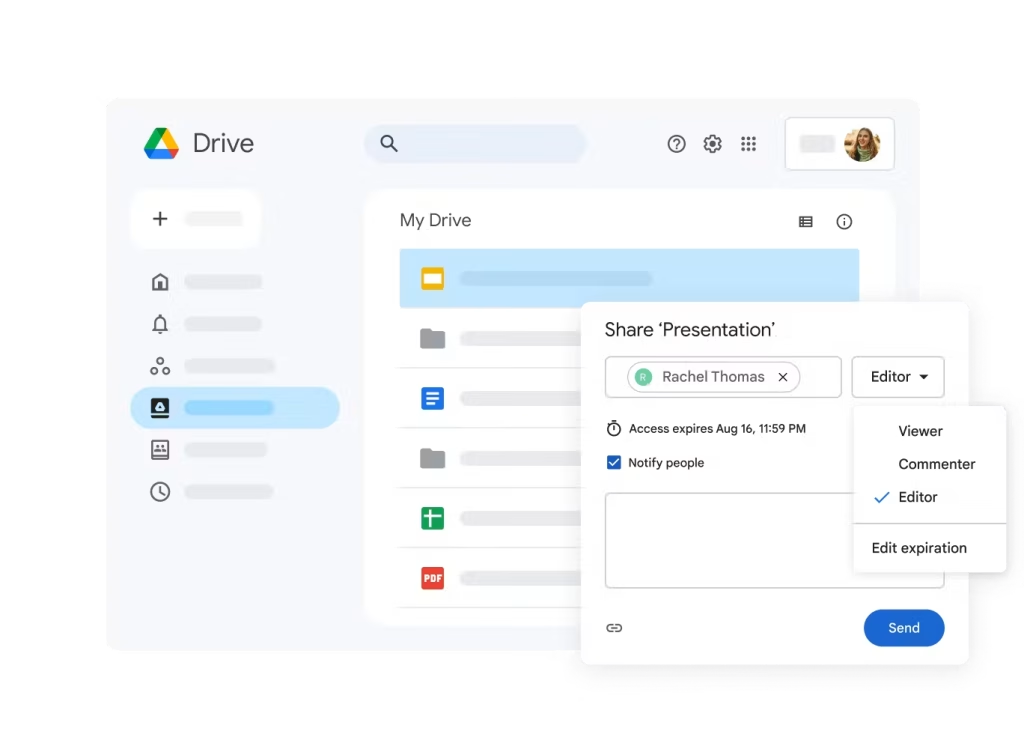
Why? Because if an employee creates a crucial client folder in their personal drive and just shares the link, they own those files. When they leave your company and you delete their account, all of those files get wiped out permanently.
You must use Shared Drives. Files stored in a Shared Drive belong to the organization, not the individual. Go to your left-hand menu, click Shared Drives, and set up your top-level departments. Grant your team “Contributor” access so they can add and edit files, but restrict “Manager” access strictly to department heads so an intern cannot accidentally delete the entire marketing department’s history.
The Dropbox System
Many creative and engineering teams prefer file synchronization platforms over web-based editors. If you are using Dropbox, the core feature you need to master is Team Folders.
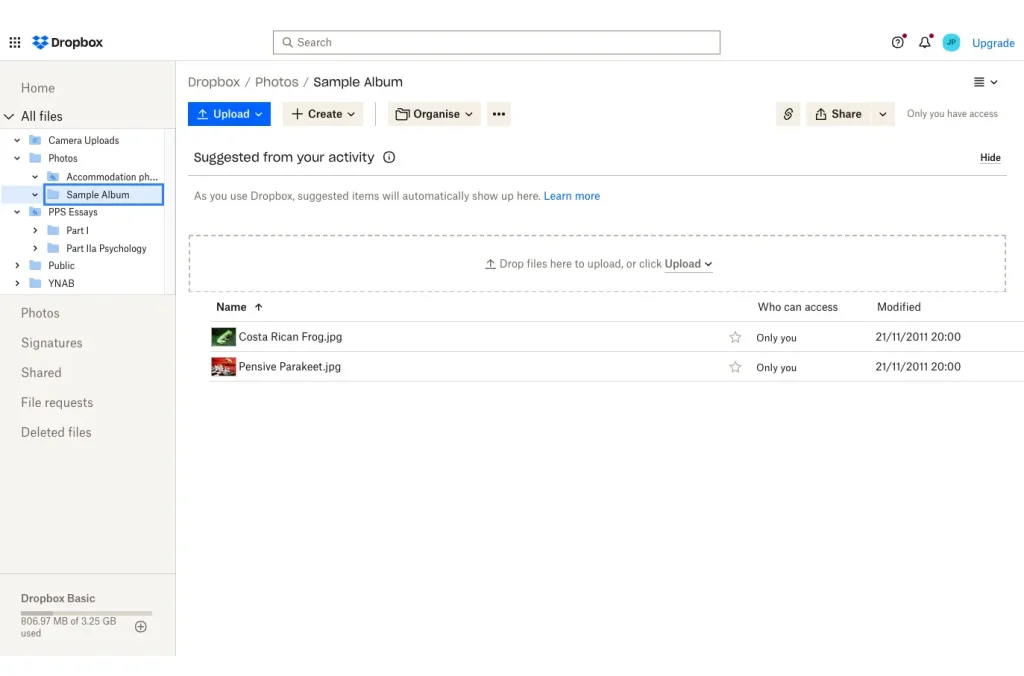
The trick here is group management. Don’t add individual people to folders. Create functional groups like “Design Team” or “Account Managers” in your admin console. Then, assign those groups to the specific Team Folders they need. When you hire a new designer, you just add them to the Design Team group, and they instantly get access to every relevant folder they need to do their job. It makes onboarding completely automated.
Navigating the Microsoft Ecosystem
For enterprises deeply tied to Microsoft, you have to split your thinking. Microsoft OneDrive is fantastic for personal, drafted work that isn’t ready for prime time. But for your heavy team collaboration, you need SharePoint.

Create a SharePoint Team Site for your departments. Because this ecosystem is so integrated with Microsoft Teams, creating a new chat channel often spins up a corresponding file folder automatically. You have to be aggressive about monitoring this, or you will end up with dozens of empty, redundant folders cluttering your workspace. Coordinate your communication strategy with your file storage strategy.
Lock Down Your Access Management
If everyone has access to everything, you are asking for a data breach.
The CISA access management guidelines hammer on a concept called the “principle of least privilege.” This simply means an employee should only have the exact level of access they need to execute their daily tasks, and nothing more. The junior copywriter does not need editing access to the HR payroll folder.
Map out your permissions clearly:
- View-Only: Use this for things like brand style guides, company policy handbooks, and finalized template forms. People need to see them, but nobody should be altering the originals.
- Reviewer says: Draft a feedback required. This means teams can collaborate without compromising the core integrity of the document.
- Editor: The standard role for the people directly executing the project.
- Manager/Owner: Strictly limit this. Only give this power to senior leaders who understand the structural architecture.
Handle External Sharing with Extreme Caution
So, how do you handle clients, freelancers, and outside vendors?
Never invite them into your core internal folders.
According to major Gartner data security analysis, uncontrolled external sharing is one of the biggest vulnerabilities for modern businesses. When you just toss a link to a vendor, you lose control of where that data goes.
Instead, create isolated, external-only hub folders. Move copies of the required files into these specific hubs. Then, when you generate a sharing link, set an expiration date. Most enterprise platforms allow you to auto-kill a link after 30 or 60 days. Once the project wraps, access is automatically revoked. For very sensitive intellectual property, set the link settings to absolutely prevent downloads, so that they must view the asset in the secure browser environment.
Schedule Routine Maintenance
Your cloud storage is a living organism. If you don’t prune it, it will become overgrown and chaotic.
Set a recurring task in your calendar every quarter to perform a basic audit. Department heads need to spend just 30 minutes moving completed projects out of the active Level 2 folders and into a locked, read-only “Archive” directory.
Do not delete old work. Storage is cheap, and historical data is incredibly valuable for referencing past campaigns. Just get it out of the active daily workspace so it stops slowing your team down.
If you are struggling to get your team to actually follow these rules and change their messy habits, you have a systemic issue. I highly recommend reviewing our comprehensive guide to optimizing remote team workflows to learn how to enforce these standard operating procedures effectively.
Creating a good folder structure takes a few hours of hard work up front, but it pays off massively in long term efficiency. Start flat, be strict about naming conventions, lock down permissions and watch your team’s productivity soar.



Leave a Comment