
Let’s be totally honest for a second: absolutely nobody wants to pick up the phone and contact customer support.
When a user runs into a weird bug or can’t figure out your billing settings, their immediate instinct isn’t to look for a phone number or wait in a live chat queue. They want to open Google, type a quick question, find a clear answer in thirty seconds, and get right back to whatever they were doing.
If your website doesn’t offer a clean, self-service knowledge base, you are failing your audience. Plus, you’re burying your support staff under an endless pile of repetitive, easily avoidable tickets.
Building a self-service resource center sounds incredibly simple on paper. You just type up a few instructions and post them online, right? Wrong. Most help centers are an absolute mess. They are filled with dense corporate jargon, broken screenshots, and outdated steps. Instead of solving the user’s problem, they just make them want to tear their hair out.
If you want to build a world-class documentation hub that actually deflects tickets on autopilot, you have to approach it like a real strategy. Let’s break down the exact tech mix, writing style, and analytical tricks required to build articles that actually do their job.
1. Setting Up the Skeleton of Your Help Center
Before you type a single sentence, you need to decide where these articles are actually going to live. Trying to manage fifty different troubleshooting guides inside a generic, messy blog layout is a complete nightmare. You need an environment built explicitly for sorting information.
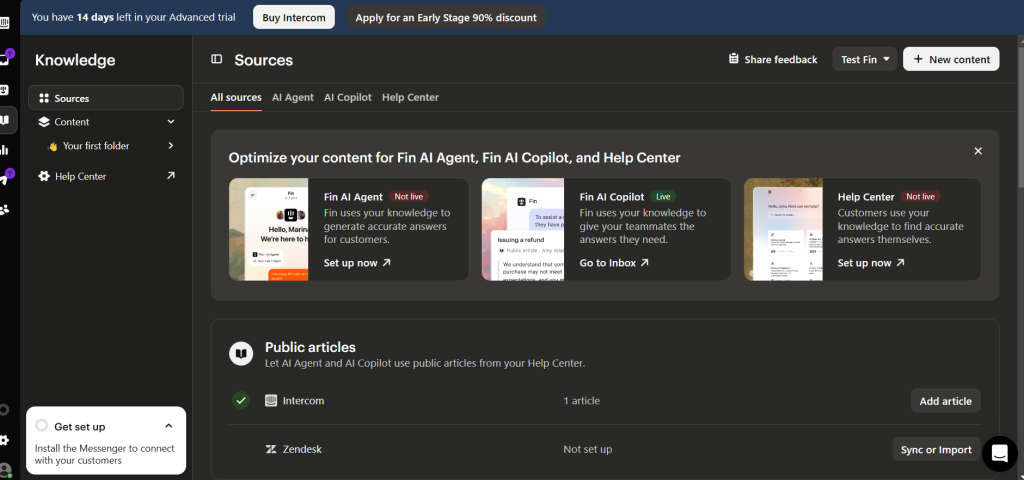
Your choice entirely depends on how big your business is and what kind of budget you’re working with. If you are scaling a fast-moving software company or a busy e-commerce storefront, you probably want to look at heavy hitters like Zendesk Guide or Intercom. These platforms are brilliant because they bake your documentation directly into your active ticketing system. When a user opens a support bubble, the system automatically suggests articles based on what they’re typing before a human agent even has to step in.
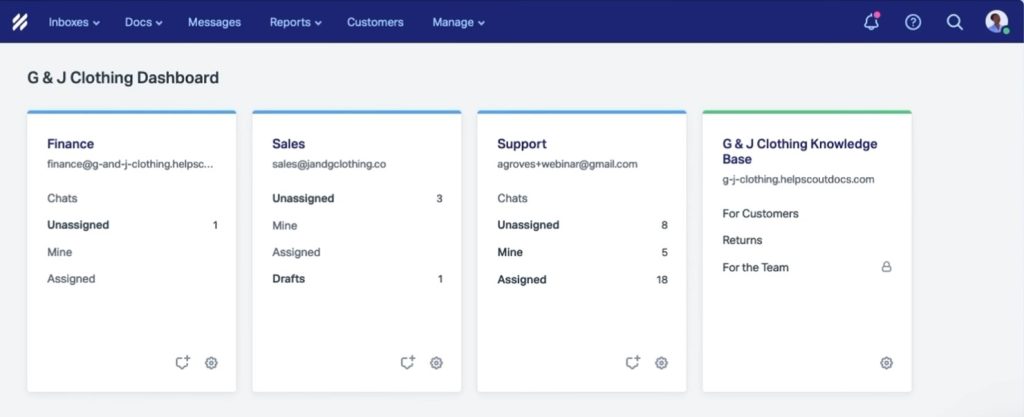
If you want to skip that level of enterprise bloat and focus entirely on an elegant, incredibly straightforward reader experience, Help Scout is fantastic. It strips away the complex corporate mess and just gives you a beautiful, highly searchable directory.
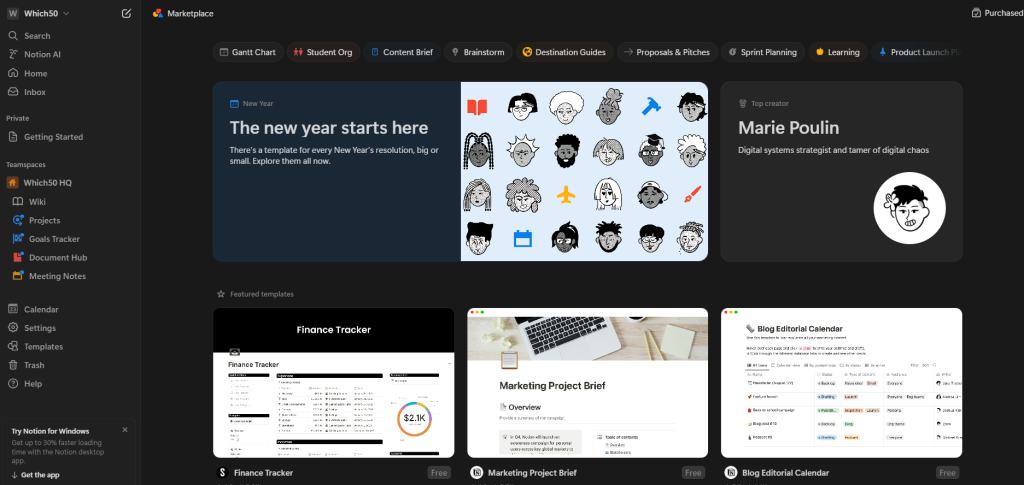
On the flip side, if you are a tiny team or a startup running on a shoestring budget, don’t overengineer things. You can easily build a completely public help directory right inside a shared Notion workspace. It’s highly flexible, dead simple to edit on the fly, and takes about five minutes to set up.
2. The Golden Rule of Writing: Keep It Kindergarten Simple
The absolute biggest trap people fall into when drafting help articles is trying to write like an academic textbook. Your users do not care about the deep engineering philosophy behind your software architecture. They are stuck, they are in a rush, and they just want to know which exact button to click to fix their issue.
Keep your language punchy, use short sentences, and break everything down into numbered lists.
When you sit down to write, it helps to bring in some editorial backup. Run your first drafts through Grammarly to instantly flag embarrassing spelling slips, passive voice, or awkward phrasing. Once you’ve cleaned up the grammar, paste your text straight into the Hemingway App. This tool calculates a raw readability score and highlights overly dense, winding sentences that will confuse your reader.
You should realistically aim for a 5th or 6th-grade reading level. If your explanation forces a customer to stop and look up a technical term, hit delete and rewrite it.
3. The Visual Mix: Stop Describing, Start Showing
A good image can save you ten paragraphs of confusing instructions. If an article consists of eight consecutive blocks of text explaining how to navigate a buried settings menu, nobody is going to read it. They will scroll down, get overwhelmed, and hit your team up instead. You have to mix in high-quality visual aids.
For quick, static explanations, use a tool like Snagit to capture clear screenshots of your product. But don’t just drop the raw image into the page and call it a day. Use their annotation tools to slap a bright red box or a giant arrow directly around the exact link or toggle the user needs to find.
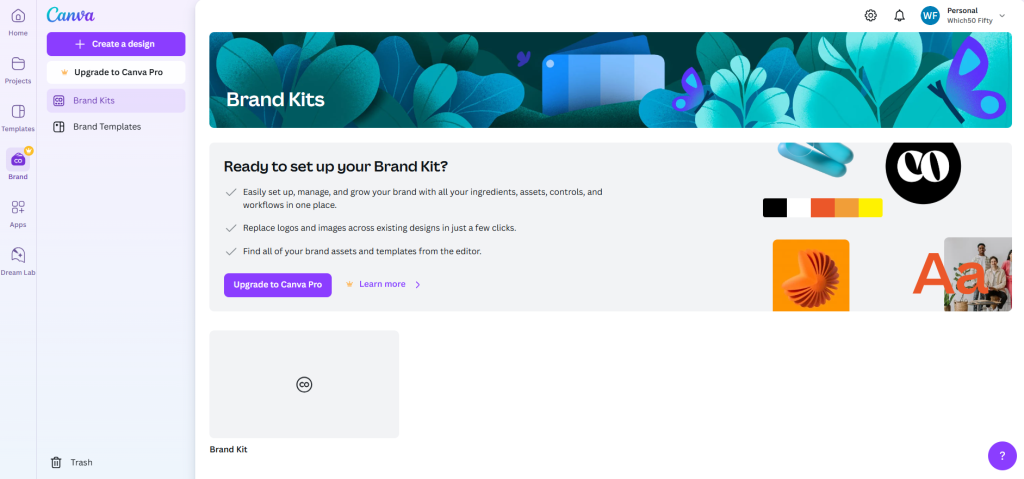
If you need a clean graphic, a feature badge, or a custom banner to break up a long page, you can easily spin up a template in Canva. It keeps your technical documentation looking highly professional and on-brand without you having to beg your design team for assets.
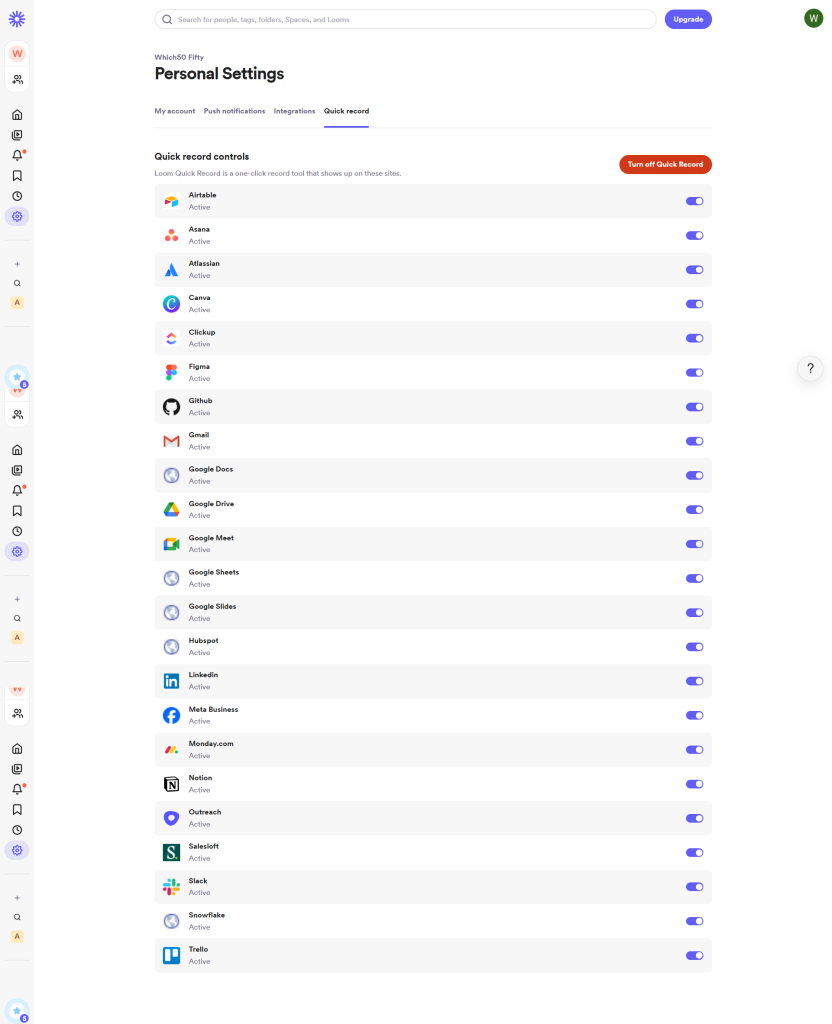
Sometimes text and images still don’t cut it, especially for complex integrations or data exports. When that happens, record a quick 30-second screen share using Loom. If that video needs a quick crop, subtitles, or some audio cleanup before it goes live, toss it into a simple browser editor like Kapwing. Embedding these short, punchy video walkthroughs alongside your text ensures that both visual learners and fast readers get their answers instantly.
4. The Anatomy of a High-Converting Article
Every guide in your database should follow a predictable layout. Start with an action-oriented title that matches exactly what people type into a search bar. Don’t name your article “Account Settings.” Call it: How to Change Your Billing Password.
Give them one or two quick sentences of immediate context so they know they’re in the right place, then jump straight into the numbered steps. Never combine multiple actions into one step. Keep it completely isolated: Step 1: Click your profile icon. Step 2: Choose ‘Billing Info’ from the dropdown.
Finally, always leave a clean safety net at the very bottom of the page. If their specific edge case isn’t covered in the guide, give them a direct, frictionless link to open a ticket or email your staff.
5. Hunting for Content Gaps with Data
A knowledge base is never truly finished. Your products change, your features update, and your policies shift—which means your documentation has to keep pace. You need to actively watch how users interact with your pages to see where the friction points are.
Hook up your directory to Google Analytics and keep a very close eye on your internal search data. If you see fifty people a week typing phrases like “delete account” into your search box, but you don’t have an article covering that topic, you have a massive content gap that needs to be plugged immediately.
To look even deeper into actual reader behavior, layer on a tool like Hotjar. This platform generates visual heatmaps and lets you watch anonymized session recordings of real people scrolling through your live help documents.
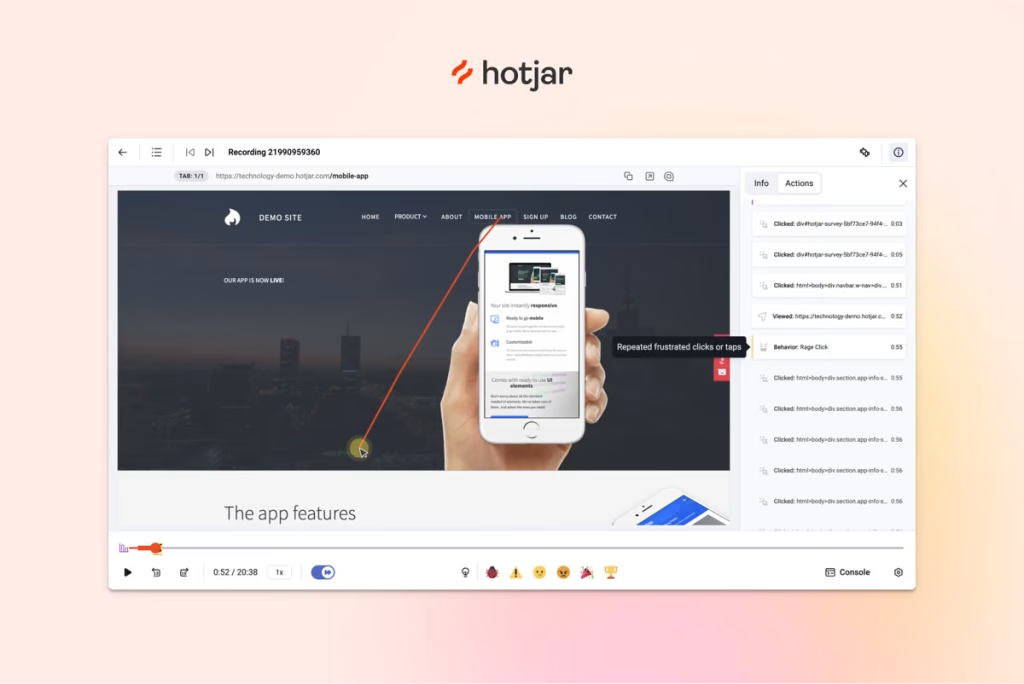
If you watch a recording and see a user spend three minutes frantically scrolling up and down a page, repeatedly highlighting the same paragraph, or rage-clicking on an outdated screenshot, you know that specific article is broken. Use that behavioral data to jump into your dashboard, update the steps, and fix the confusion before the next customer gets stuck.
The Bottom Line
A world-class self-service hub is built on simplicity, transparency, and relentless maintenance. By picking the right management environment, keeping your reading level low, adding clear visual markers, and constantly checking your user behavior data, you can build a knowledge base that does the heavy lifting for you. Treat your help docs like an extension of your product, make finding answers frictionless, and your support team will finally have the breathing room to handle the deep, complex issues that actually require a human touch.



Leave a Comment