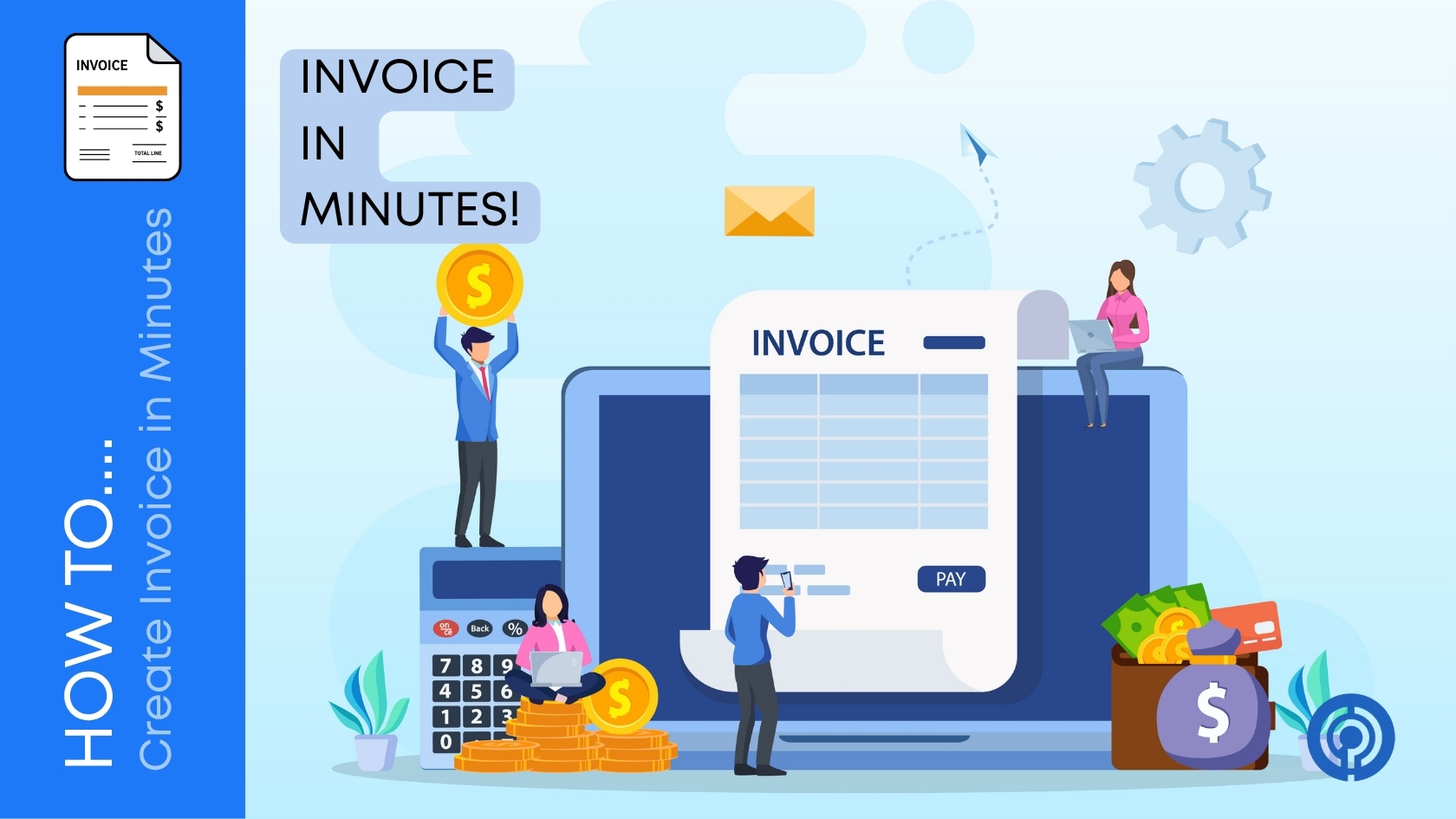
Let’s cut straight to the chase about administrative work: billing your clients should never feel like you are digging through a mountain of confusing tax documents. It is just one of those standard operational chores you are forced to handle to keep cash moving through your accounts, but the actual process always seems to end up feeling incredibly sluggish and way more annoying than it has any right to be. The good news here is that once you clear out the basic friction and establish a straightforward, natural rhythm, you can genuinely spin up a pristine, professional billing sheet in just a few minutes flat without overthinking it.
This breakdown focuses entirely on the real-world habits you need to ship files out faster, eliminate those tiny manual calculation errors that stall accounting departments, and keep your overall cash flow highly predictable. Beyond the document design itself, we will look closely at how your inbound customer billing loops directly into your internal team payroll so that everyone on your roster gets taken care of exactly on schedule.
Start With the Basics You Need Every Time
BBefore you jump into any software app or start typing out a new message, you need to lock down a permanent internal mental checklist of the baseline details that must appear on every piece of billing material you issue. Once you turn this collection of data into an automatic habit, the setup work becomes complete second nature.
Your sheet naturally needs your complete business name, your physical mailing address, a clean contact email, and a direct phone number placed right next to the client’s official billing destination. You are also going to need unique tracking variables, such as a chronological invoice code and the exact calendar date you sent the file.
Do not forget to include a clear, unmistakable payment deadline alongside your explicit parameters, whether you prefer immediate turnarounds or typical commercial windows like a two-week stretch. Finally, build out a completely transparent, itemized log detailing the exact services or deliverables you are charging for, followed by the definitive bottom line after calculating localized taxes or applying any special discounts. Keeping a quick note of these requirements saved right on your desktop wallpaper ensures you eventually start filling out these components on total autopilot.
Choose a Simple Way to Create Invoices
You really do not need to complicate your life by purchasing massive, confusing accounting software platforms when your operation is still finding its feet. Depending entirely on your current project volume and the size of your client list, you can choose between a couple of incredibly simple operational paths.
A lot of independent operators and early-stage small business owners start out by using basic text documents or simple spreadsheet formulas. It makes perfect sense at the baseline because it costs absolutely nothing and gives you total layout freedom. However, the exact moment your active client list scales past three or four regular accounts a month, typing out every single line item manually turns into a massive time suck and a prime target for messy typos.
Step 1: Add Your Business and Client Details
Open your chosen template or tool and start at the top.
Include:
- Your logo (if you have one)
- Your business name, address, email, and phone number
- Your client’s name or company name, plus their billing address and email
Keep this section clean and easy to scan. The client should instantly see:
- Who the invoice is from
- Who it is for
Once you work with repeat clients, most tools let you save their details so they auto-fill next time. That alone can save you a few minutes per invoice.
Step 2: Create a Clear Invoice Number
Invoice numbers keep your records organized and make life easier when you need to follow up.
You can use a simple pattern such as:
- 2025-001, 2025-002, 2025-003
- INV-1001, INV-1002, INV-1003
Pick a format and stick with it across all invoices. Never reuse numbers. When a client asks about payment, you can both refer to the same clear code instead of “that invoice from last month.”
Step 3: Set Invoice and Due Dates
Two dates matter on every invoice:
- Invoice date – when you create or send the invoice
- Due date – when you expect payment
Some common choices for due dates are:
- “Due upon receipt”
- “Net 7” (due in 7 days)
- “Net 14” or “Net 30”
Shorter terms like 7 or 14 days can be better for small businesses that need steady cash flow. Whatever you choose, write the due date clearly so there is no room for confusion.
Step 4: List Your Services or Products Clearly
This part tells your client exactly what they are paying for. The goal is clarity and simplicity.
For each line item, include:
- A short description: “Logo design,” “Monthly social media management,” “Consulting call – 1 hour”
- Quantity: number of hours, units, or items
- Rate: price per hour, unit, or item
- Line total: quantity × rate
Using a small table keeps everything tidy. For example:
- “Brand strategy session – 2 hours – $100 – $200”
- “Website maintenance – 1 month – $150 – $150”
When your client can easily match the invoice to the work you did, they are more likely to approve and pay quickly.
Step 5: Add Taxes, Discounts, and the Final Total
If you need to charge tax, add a separate line below your list of services.
Include:
- The tax rate (for example, 10%)
- The tax amount
- The grand total including tax
If you offered a discount, list it as its own line:
- “New client discount – 10%”
Then show the final total after the discount. Many templates and basic tools can handle these calculations automatically once you set them up. This reduces mistakes and speeds you up.
Step 6: Add Payment Terms and Payment Methods
This section explains:
- How to pay you
- When to pay you
- What happens if payment is late
You can include:
- Accepted methods: bank transfer, card, PayPal, or local options
- Your bank details: account name, account number, routing or sort code, IBAN, or SWIFT as needed
- A short note on late payments, such as “A small late fee may apply for invoices more than 14 days overdue”
Keep the wording friendly but clear. You want to set expectations without sounding harsh.
That is the exact moment you want to graduate to automated billing utilities. Most modern small business systems will automatically sync your outgoing files directly with your financial ledgers. This means you can track exactly which client balances are cleared, which are still floating in limbo, and what is critically overdue from a single visual dashboard. Pick whatever tool you feel most comfortable clicking around in right now because the absolute most efficient system is always the one you can run without causing yourself a massive headache.
Assembling your document layout without the rigid patterns
When you sit down to arrange the actual page, put your brand icon prominently right up in the top corner and list your complete corporate details immediately next to it. Directly opposite or right below your own data, place the client’s official accounts payable records. Keep this whole upper header section completely clean, open, and easy to read so that any coordinator opening the attachment can tell who the bill is from within two seconds.
For your tracking codes, stop picking numbers randomly out of thin air. Commit to a highly consistent, sequential pattern across your entire corporate lifecycle, like a year-based string or a traditional alphabetical prefix. Whatever pattern you settle on, stick to it permanently and never reuse an old number. When an account manager emails you to clarify an item, you want both teams referencing a definitive tracking code instead of trying to figure out which project you worked on last month.
You also need to display two explicit, unmissable calendar dates on the page: the day the file was generated and the hard deadline. You can use immediate terms if your cash flow requires quick turnarounds, or opt for standard commercial intervals like a seven, fourteen, or thirty-day window. Shorter payment windows are usually a whole lot safer for small independent operations that rely on steady weekly deposits to cover day-to-day running costs. Just make sure the final calendar date stands out clearly so there is zero room for confusion or debate.
When it comes to describing the actual work you completed, transparency is your best friend. For every individual row, write out a brief description like custom design execution or ongoing channel maintenance. Include the raw volume showing the exact hours logged or milestones met, your fixed rate, and the mathematical total for that row. Utilizing a basic embedded table keeps the entire layout incredibly tidy. When a client can seamlessly connect your billing lines to the actual project objectives you knocked out for them that month, they will pass the file to their treasury department immediately.
If you are legally required to collect sales tax, feature it as its own isolated line right below your itemized breakdown. Display the exact percentage alongside the matching dollar amount before printing the grand final total. The exact same rule applies to promotional rates or welcome credits—list them as a distinct negative line item so the client can visually see the exact value write-off before looking at the balance.
Finally, remove all the friction from the transaction process by explaining exactly how to route the funds. List your accepted payment methods, whether you prefer direct bank transfers, credit card portals, or online merchant processors, and include all your routing numbers and account strings right there on the page. Drop in a brief, professional note explaining that a minor late fee applies if the balance stalls past a two-week window. If you are using cloud utilities, turn on the native instant payment link feature. Letting a customer click a button inside a digital file to clear the balance via their credit card can easily shave an entire week off your average collection cycle.
How Invoicing Connects to Payroll?
Invoicing is about money coming in. Payroll is about money going out to your employees and contractors. When your invoicing is slow or messy, it can create stress when it is time to run payroll.
Here is how they connect in real life:
- You send invoices for finished work
- Clients pay on time
- You know how much money is coming in and when
- You can plan payroll with confidence
If you delay creating invoices, your income lags behind your work. That can make it tough to cover salaries, taxes, and your own pay on time.
Why Simple Payroll Tools Help?
Just like invoicing, you can handle payroll in a spreadsheet at the very beginning. But as soon as you have recurring payments, tax rules, and more than one or two people to pay, doing it all manually becomes risky and time-consuming.
A good payroll app will usually help you:
- Calculate salaries, tax, and other deductions automatically
- Set a clear schedule (weekly, bi-weekly, or monthly)
- Generate payslips your team can download
- Keep tidy records for tax filings and audits
For example:
- Some businesses like using Gusto because it bundles payroll, basic HR, and tax filings into one simple interface, which can be less scary for founders who are not finance experts.
- Others prefer QuickBooks Payroll, especially if they already use QuickBooks for bookkeeping, because invoices, expenses, and payroll can live in the same system.
- A growing remote team might look at a global payroll tool like Deel, especially when paying staff or contractors in multiple countries with different rules.
You only need to pick one or two tools that fit how your business works. The goal is less stress on payday, not more complexity.


Connect Invoicing and Payroll in Your Weekly Routine
You do not have to overcomplicate this. A simple weekly routine keeps both invoicing and payroll under control.
A basic flow might look like this:
- Pick a fixed “money day” each week.
On this day, you create and send all new invoices for work done and check which ones got paid. - Update your records.
Mark invoices as paid once money hits your bank or payment processor. This gives you a realistic picture of available funds. - Look ahead to payroll.
Check your upcoming payroll date, expected invoice payments, and current bank balance. This helps you spot any gaps early. - Run payroll on a schedule.
Use your payroll app to pay salaries and contractors on time, based on the plan you set at the start.
This kind of simple habit is what keeps many small teams stable even when work is busy or unpredictable.
Speed Up Your Invoicing With Templates
Once you have made a few invoices, turn your best one into a template.
Your template should already include:
- Your logo and business details
- The basic layout and table for line items
- Space for client details, dates, and invoice number
- A standard note about payment terms
Next time you need to bill a client, you only have to:
- Duplicate the template
- Fill in the client info
- Update the description, quantities, and rates
- Edit the invoice number and due date
This can easily bring your invoice time down to just a couple of minutes per client.
Use Recurring Invoices for Regular Work
If you charge the same client the same amount every week or month, recurring invoices can save you a lot of time and mental energy.
Ideal for:
- Monthly retainers
- Ongoing service packages
- Support or maintenance plans
You simply set:
- The amount
- The client
- How often it repeats
- When it starts (and ends, if needed)
After that, your system sends invoices automatically. You just keep an eye on which ones are paid and follow up if something is late. This steady pattern also makes it easier to plan for payroll, since some of your income is more predictable.
Avoid These Common Invoice Mistakes
A few tiny mistakes can slow down your payment. Watch out for:
- Missing payment details: No bank info or unclear payment options
- Vague descriptions: “Services” with no explanation often leads to questions
- Math errors: Wrong totals create doubt and delays
- No clear due date: If there is no deadline, many clients will pay “sometime later”
- Messy file names: Use names like “ClientName_Invoice_2025-007.pdf” so both sides can find them easily
Taking one minute to double-check your invoice before sending can save you days of chasing.
How to Follow Up Without Feeling Pushy?
Even with perfect invoices, late payments happen. A calm, friendly follow-up is usually all it takes.
You can try:
- A reminder a few days before the due date:
“Hi, just a quick note that invoice 2025-007 is due on Tuesday. Let me know if you need any extra details.” - A check-in a few days after the due date:
“Hi, I wanted to check in on invoice 2025-007, which shows as unpaid on my side. Could you let me know the status or expected payment date?”
You are not nagging. You are running your business. Most clients understand and appreciate a clear reminder.
Wrap Up
Building a lightning-fast billing pipeline isn’t about typing like a manic speed-demon every month. It’s about committing to a simple, repeatable, organized system: a locked-down template with all your unchanging business data, an explicit and sequential numbering protocol, completely frictionless payment channels, and a fixed weekly habit that links your collections straight to your payroll data. As you continue to scale your operations, let your software tools handle the repetitive administrative tasks so you can spend your time doing what you do best—growing your business.


Leave a Comment