Most people do not get hacked because they are careless. They get hacked because life is busy, passwords get reused, and old logins quietly sit in the background for years.
Changing your password regularly is one of the simplest habits you can build to reduce risk. It is not the only security move you should make, but it is a solid layer of protection, especially when combined with multi-factor authentication (MFA) and a password manager. In this guide, you will learn when you should change your password, how to do it without forgetting everything, and how to make the whole process easier for your personal accounts or your workplace.
Why Changing Passwords Regularly Still Matters
You might hear people say, “Password changes do not matter anymore.” That is only half true.
Yes, strong passwords and MFA matter a lot. But regular password changes still help in real situations, like these:
- Data breaches happen quietly. Sometimes your email and password get exposed, and you do not find out for months.
- Old passwords leak over time. If you reused a password years ago, it might already be in a leaked list.
- Shared devices and saved logins create risk. A password saved on an old laptop can become a weak link.
- People share passwords. Even if they should not, it happens in real life.
If someone gets your password today, a future password change can lock them out before they cause more damage.
The Real Goal: Reduce Risk Without Creating New Problems
Here is the honest truth: forcing frequent password changes can backfire.
If people are told to change passwords every 30 days, they often respond by doing things like:
- Using short, easy passwords
- Adding “1” or “!” to the end
- Writing passwords on sticky notes
- Reusing the same password across accounts
So instead of “change passwords constantly,” the better goal is:
Change passwords on a smart schedule, and change them immediately when risk is high.
We will cover both.
How Often Should You Change Your Password?
This depends on what kind of account it is and how sensitive it is. Here is a practical approach most people can follow.
High-Risk Accounts (Change More Often)
These accounts give attackers the most power, so treat them differently:
- Primary email account (Gmail, Outlook, iCloud)
- Banking and payment apps
- Password manager master password
- Work accounts (especially admin accounts)
- Cloud storage with personal files

A good routine is changing these every 90 to 180 days, as long as you also use MFA.
Everyday Accounts (Change Less Often)
These include:
- Shopping sites
- Streaming apps
- News sites
- Casual forums
If the password is strong and you have MFA available, you can change these less often. Some people change them once a year or only when there is a breach.
Change Immediately When Something Feels Off
No matter what your schedule is, change your password right away if:
- You get a login alert you do not recognize
- Your account sends a “password reset” email you did not request
- You notice unusual activity (sent emails, purchases, messages)
- A site you use announces a breach
- You logged in on a public computer or shared device by mistake
This is not about following a calendar. It is about reacting fast when risk is real.
Step-by-Step: How to Change Your Password the Right Way
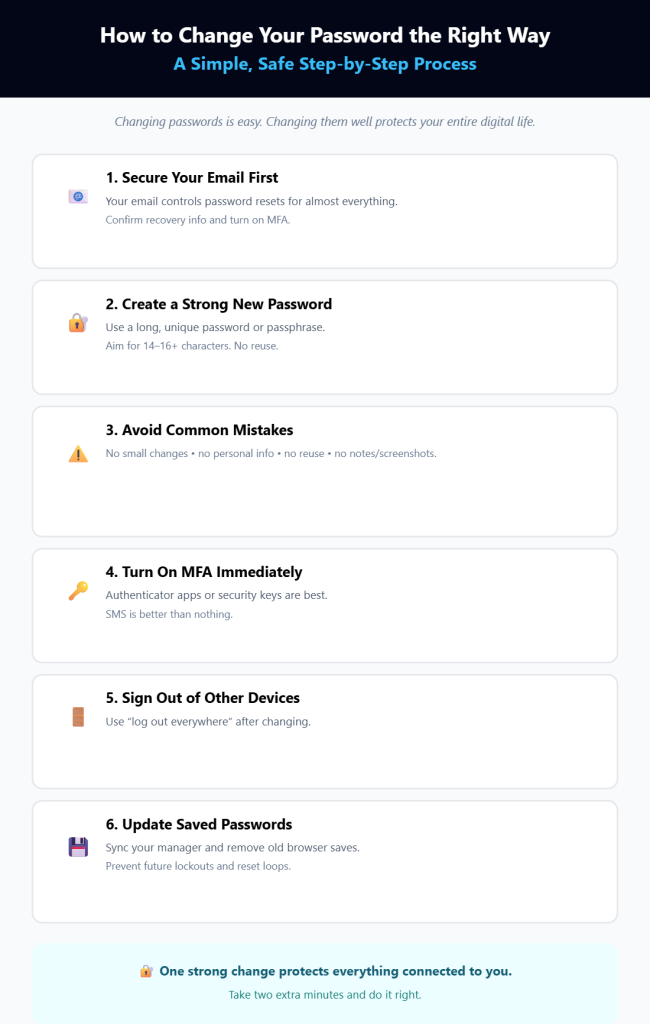
Changing your password is easy. Changing it well is where most people slip up.
Here is a safe process you can use for any account.
1. Start With Your Email Account First
Your email is the key to almost every other account because it is used for password resets.
Before you update anything else, change your email password and confirm:
- Your recovery email is correct
- Your recovery phone number is correct
- MFA is turned on
If someone controls your email, they can usually control your whole digital life.
2. Create a Strong New Password
A strong password is not just random characters. It is also:
- Long enough
- Unique to that account
- Not easy to guess from personal info
Aim for:
- At least 14–16 characters
- A mix of words and symbols, or a fully random password from a manager
- No reuse across accounts
A simple and memorable option is a passphrase, like:
- CoffeeTrainRiver!Lamp93
It is long, hard to guess, and still readable.
3. Avoid These Common “New Password” Mistakes
When people are rushed, they do predictable things. Avoid these:
- Do not use the same password with one character changed
Example: Summer2025! → Summer2026! - Do not use personal details
Names, birthdays, pets, favorite teams - Do not reuse your old password
Even if it “felt safe” - Do not store it in notes or screenshots
Especially on shared devices
If you want the easiest path, use a password manager and let it generate something truly random.
4. Turn On MFA Right After
If the service offers MFA, enable it right after changing the password.
Best options in order:
- Authenticator app (strong and convenient)
- Hardware security key (best for high-risk accounts)
- SMS codes (better than nothing, but not the best)
MFA means even if someone learns your password, they still cannot log in without the second step.
5. Sign Out of Other Devices
Many sites have a feature that says something like “Sign out of all devices” or “Log out everywhere.”
Use it, especially if:
- You suspect your account was accessed
- You used a shared device
- Your password was old and reused
This step is often missed, and it matters.
6. Update Saved Passwords Carefully
Browsers love to save passwords. That is convenient, but it can also cause confusion.
After you change your password:
- Update it in your password manager
- Remove the old saved one from the browser if it is still there
- Make sure your phone, tablet, and laptop all sync properly
If you skip this, you end up locked out later and hit “forgot password” again, which adds risk.
A Simple Password Change Plan You Can Actually Stick To
If you try to change every password at once, you will give up by day two. Here is a realistic plan.
Week 1: Secure the “Keys to Everything”
Change passwords for:
- Password manager master password (if you have one)
- Bank and payments
- Apple ID or Google account
Enable MFA on each one.
Week 2: Fix Your Work and Admin Accounts
Change passwords for:
- Work email
- Slack, Teams, or internal tools
- Admin dashboards
- Hosting or cloud accounts
If you are a business owner, this week is huge. These accounts often hold customer data and money.
Week 3: Clean Up Your Most-Used Accounts
Change passwords for:
- Social media
- Shopping accounts
- Your phone carrier account (often overlooked)
- Any account that stores a card on file
Week 4: Delete Accounts You Do Not Use
This step is underrated. Old accounts are risks.
- Search your inbox for old signups
- Close accounts you no longer use
- Remove saved payment info where possible
Fewer accounts equals fewer ways to get hacked.
How to Remember Passwords Without Losing Your Mind
Most people do not forget passwords because they are careless. They forget because they have too many logins.
Here are the options that actually work.
Use a Password Manager
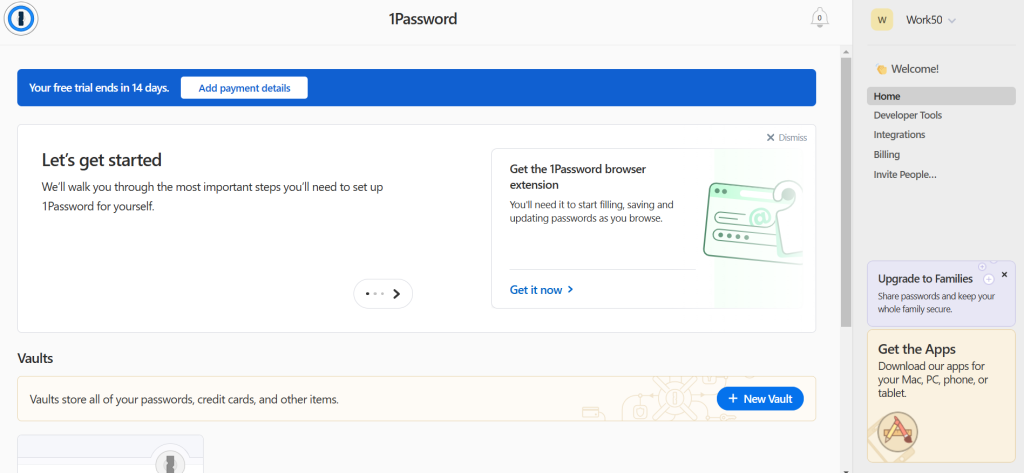
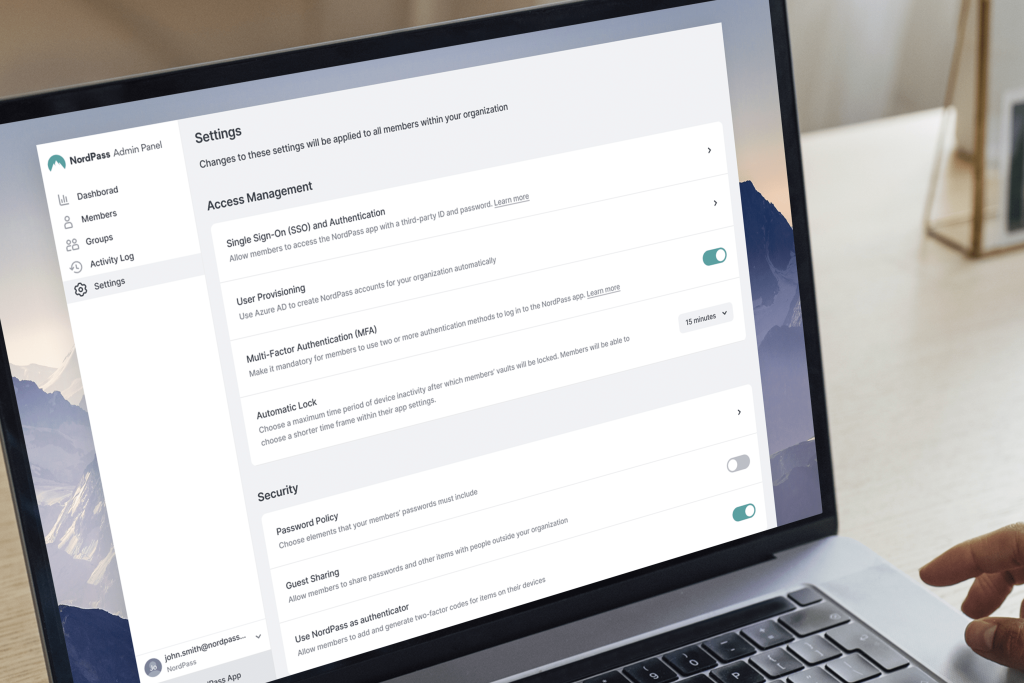
A password manager stores your passwords securely and fills them in for you. You remember one strong master password. Apps like LastPass, 1Password, and Nordpass, are the best apps available on the market currently.
Benefits:
- You can use strong unique passwords everywhere
- It warns you about reused or weak passwords
- It makes password changes faster

If you do not want to use one, at least write down a safe system you can follow.
Use Passphrases for Important Accounts
For accounts you type often, passphrases work great. They are long, but still easy to enter.
Try this approach:
- 3–4 random words + a symbol + a number
- Do not pick words tied to your life
Example:
- PaperRocketMango#41
Never Reuse Passwords
This is the big one. One leaked password should never unlock multiple accounts.
Password reuse is how small breaches turn into big disasters.
Password Changes at Work: What Teams Should Do Differently
Workplaces deal with a different kind of risk because:
- People come and go
- Accounts get shared
- Access permissions drift over time
If you manage a team, make password hygiene simple and repeatable.
Use Role-Based Access
Instead of sharing one login with five people, give each person their own login. If someone leaves, you remove access without resetting everything.
Use Shared Vaults for Shared Accounts
If a shared login is unavoidable (like a social media account), store it in a shared vault using a password manager. Do not pass passwords around in chat or email.
Set a Smart Change Policy
A practical policy for many teams looks like this:
- Require password changes for admin roles every 90 days
- Require changes for regular staff every 180 days
- Force a reset after suspicious activity or breaches
- Require MFA everywhere possible
Most importantly, train people on why it matters. People follow rules better when they understand the reason.
Offboard Cleanly
When someone leaves:
- Remove their access immediately
- Rotate shared passwords
- Review any API keys they used
- Audit “admin” permissions
Offboarding mistakes are common, and they are avoidable.
Signs You Should Change Your Password Today
Sometimes you do not need a schedule. You just need to act.
Change your password immediately if you notice:
- Password reset emails you did not request
- Login attempts from new devices or locations
- Friends receiving strange messages from you
- Charges you do not recognize
- Your browser warns your password has been exposed
Also, if you used the same password anywhere else, change those too.
FAQs People Always Ask
Is changing passwords often really necessary?
Not always. If your password is strong, unique, and protected by MFA, changing it constantly may not add much. But changing it on a reasonable schedule and after risk events is still a smart safety layer.
What is safer: a complex password or a long one?
Long usually wins. A long passphrase is often stronger and easier to remember than a short complex password.
Should I use browser password saving?
It is better than writing passwords in notes, but a dedicated password manager usually gives you stronger protection and better features like breach monitoring.
Conclusion
Changing your password regularly is not about paranoia. It is about reducing risk in a world where breaches and leaks happen all the time. If you want the safest approach that is still realistic, focus on three things:
- Use strong, unique passwords
- Turn on MFA wherever you can
- Change passwords on a sensible schedule, and immediately when something seems wrong
Start with your email and financial accounts, then work outward. Once you build a system, this stops being a chore and becomes a simple habit that protects your identity, money, and personal data.
Leave a Comment