Let me tell you about my friend Jake.
Jake ran a small photography business. He took portraits, edited them for hours, and saved everything on his laptop. Every few weeks, he’d plug in an external hard drive, copy his folders over, and pat himself on the back. Smart guy. Good habit.
Then one Tuesday, Jake’s laptop died. Hard drive failure. The last backup? Six weeks old. Six weeks of weddings, family sessions, and edited portraits — gone.
The backup wasn’t the problem. The gap was.
That’s the real conversation between automated and manual backups. It’s not really about which method is smarter. It’s about what actually happens when life gets busy, deadlines pile up, and “I’ll do it this weekend” turns into a month of forgetting.
What Manual Backup Actually Looks Like
Manual backup means you decide when it happens. You plug in the drive, open the software, click the button, wait for it to finish, and unplug. Or you log into your cloud account, drag the folders in, wait, close the tab.
When you do it, it works great. The problem is the word “when.”
Studies from StorageCraft show that 43% of people who rely on manual backup processes go more than a month between backups. A month. Think about how much changes on your computer in a month — documents, projects, photos, emails, accounting files. All of that is the gap between your last backup and today. If something goes wrong right now, that gap is what you lose.
Manual backup does have real advantages though. You’re in complete control. You choose exactly what gets backed up, when, and where. You can inspect the backup yourself and confirm it worked. You’re not paying a monthly subscription for software to run in the background. For someone backing up a small collection of files that doesn’t change often, manual backup is perfectly reasonable — as long as the habit is actually maintained.
The brutal truth is that most people can’t maintain it. Not because they’re careless. But because manual backup requires you to remember, to have time, and to feel motivated — three things that rarely line up perfectly on the same day, every week, forever.
What Automated Backup Actually Looks Like
Automated backup runs on a schedule you set once. After that, it doesn’t care whether you remember. It doesn’t care if you’re on deadline, traveling, sick, or just had a busy week. It runs at the time you told it to, copies what it’s supposed to copy, and sends a report when it’s done.
The best automated systems run continuously or every few hours. So the gap between your current work and your most recent backup is measured in hours, not weeks.
That’s a completely different risk profile.
If your hard drive dies at 3pm on a Thursday, and your automated backup ran at 6am the same day, you’ve lost about nine hours of work. Painful, but survivable. If your last manual backup was three weeks ago, that’s a different conversation entirely.
Automated backup also removes human error from the equation. You can’t forget to do it. You can’t do it wrong because you were rushing. You can’t accidentally skip a folder because you were doing it at midnight after a long day.
The tradeoff is that automated systems cost money — either a software license, a cloud subscription, or both. They also run in the background consuming a small amount of bandwidth and processing power. And they require an initial setup that takes some time to configure correctly. Once that’s done, they largely disappear from your daily life. That invisibility is the point.
Three Tools That Handle the Automated Side Well
Not all automated backup software is equal. Here’s how three well-regarded options approach the problem differently.
Backblaze — Set It Once and Forget It Completely
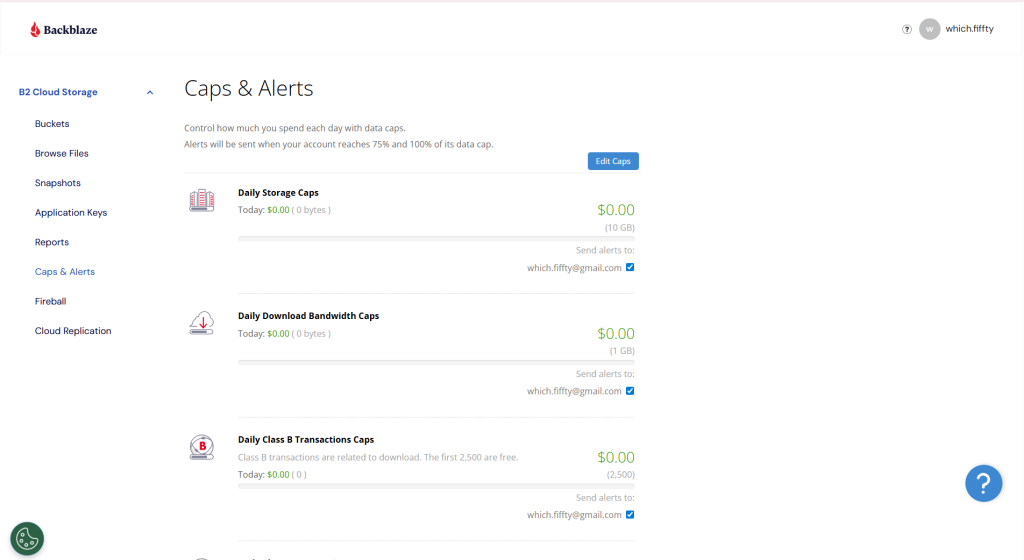
Backblaze is the closest thing to a truly invisible backup system. After a short installation, it continuously monitors your computer and backs up changed files to its cloud servers automatically. There’s no schedule to configure. There’s no folder selection to worry about — it backs up everything except operating system files by default.
The value is in the simplicity. You don’t manage it. You don’t think about it. It just runs. If you ever need to restore something — whether that’s one deleted file or an entire drive after a failure — you log in, find what you need, and download it. For individuals who want complete cloud protection without ongoing maintenance, it’s one of the most stress-free options available.
IDrive — Hybrid Protection Across Cloud and Local
IDrive gives you more control than Backblaze while still running automatically in the background. You choose which folders to back up, set your preferred schedule, and decide whether backups go to IDrive’s cloud servers, a local external drive, or both simultaneously.
The both-simultaneously option is particularly valuable. Local backup restores faster when you need a single file quickly. Cloud backup protects you if your home or office suffers a physical event — fire, theft, flooding — that would destroy a local drive alongside your computer. Running both through one piece of software keeps things manageable rather than juggling two separate systems.
IDrive also retains up to 30 previous versions of each backed-up file, meaning if a document gets corrupted or accidentally overwritten, you can restore an older clean version rather than the damaged one.
Duplicati — Open-Source Flexibility for Technical Users
Duplicati is free, open-source automated backup software designed for users who want full control over how their backup works without paying ongoing subscription fees.
It supports a wide range of storage destinations — local drives, network-attached storage, and major cloud providers including Amazon S3, Google Drive, Backblaze B2, and others. You configure the schedule, the encryption settings, the compression, and the destination yourself. That flexibility makes it genuinely powerful for home labs, small servers, and technical users who want a no-subscription solution.
The honest caveat: Duplicati rewards users who understand what they’re configuring. For someone who wants to install software and move on with their day, the setup investment is higher than Backblaze or IDrive. But for someone who has the patience for initial configuration, it provides a robust automated backup system with no recurring cost beyond whatever storage destination they use.
The Situations Where Manual Backup Still Makes Sense
Manual backup isn’t obsolete. There are specific scenarios where it remains the more sensible choice.
When your files rarely change. A personal archive of old family photos that you’ve already organized and haven’t touched in a year doesn’t need continuous automated monitoring. Copying that archive to an external drive once, verifying it, and storing it safely is a perfectly sound backup strategy for static data.
When you need physical verification. Some regulated environments require proof that a specific person reviewed and approved a backup on a specific date. Manual backup creates an audit trail that some automated systems can’t replicate as clearly.
When you want total control over what leaves your network. Automated cloud backup sends data to third-party servers. Some users — particularly those handling sensitive client data or working under certain compliance frameworks — prefer to keep backup copies entirely within their own infrastructure. Manual backup to local media keeps data fully under your physical control.
When you’re setting up your initial automated system. The best starting point for configuring any automated backup tool is understanding exactly what you’re protecting. Doing a thorough manual inventory of your important files before configuring automation ensures your automated system is backing up everything that actually matters.
The Honest Comparison
The real question isn’t “which is better in theory.” It’s “which will actually protect you given how you realistically behave.”
If you’re the type of person who genuinely does plug in your hard drive every Sunday without fail, and you’ve maintained that habit for years, manual backup serves you reasonably well for files that don’t change rapidly. Honest self-assessment matters here.
For most people — especially those running a business, managing client work, or storing irreplaceable files — automation removes the only part of backup that consistently fails: human consistency. You don’t rely on yourself to remember. The software does the remembering for you, every single day, whether or not you think about it.
Our guide on setting up automated cloud backups walks through the 3-2-1 backup strategy in detail — three copies of your data, on two different media types, with one stored offsite — which works equally well whether you’re combining automated and manual methods or going fully automated.
According to Veeam’s Global Data Protection Report, organizations that rely primarily on manual backup processes experience significantly higher data loss rates and longer recovery times compared to those using automated solutions — a pattern that applies to individual freelancers and small businesses just as much as it does to enterprise IT teams.
Quick Comparison Table
| Factor | Automated Backup | Manual Backup |
|---|---|---|
| Consistency | Always runs on schedule | Depends entirely on you remembering |
| Backup frequency | Hourly or continuous | As often as you remember to do it |
| Setup effort | Higher upfront, then minimal | Low upfront, ongoing effort each time |
| Cost | Monthly subscription or software fee | Usually just storage media cost |
| Human error risk | Very low | Higher — missed backups, skipped folders |
| Control over what’s backed up | Configurable, often comprehensive | Complete manual control each session |
| Best for | Active business files, changing data, anyone who travels | Static archives, compliance audit trails, air-gapped environments |
| Recovery speed | Fast, especially with local + cloud hybrid | Depends on how recent the last backup was |
Conclusion
Manual backup is a habit. Automated backup is a system. Habits break when life gets complicated. Systems keep running regardless. For anything you can’t afford to lose — client work, financial records, creative projects, irreplaceable files — build the system. Use manual backup where it genuinely fits your workflow. But don’t bet your most important data on whether future-you remembered to plug in the drive last Sunday.


Leave a Comment