Here is an honest observation most productivity guides skip over: the technology problem of keeping files in sync across devices was essentially solved years ago. Cloud sync has been mainstream since at least 2010. The infrastructure is mature, the tools are plentiful, and the monthly cost for most individuals is negligible. And yet.
Ask any professional who works across a home office desktop, a laptop they carry to client meetings, and a phone they use between the two, and you’ll almost certainly hear some version of this: a presentation on the laptop that wasn’t the right version, a document started on the desktop that never made it to the phone, a folder that exists on one machine but not the other. The tools exist. The friction persists.
Which means the real challenge was never technical availability. It was understanding what each sync approach actually does, how different systems handle conflicts when two devices edit the same file simultaneously, and which combination of tools genuinely fits your working patterns rather than the working patterns described in someone else’s setup tutorial.
The Part Nobody Explains Well: What Sync Actually Does
Sync is not the same as backup, and it is not the same as transfer. The distinction matters more than it sounds.
When you transfer a file, you move or copy it from one place to another. That’s a one-time action. When you back up, you create a protected historical copy — ideally offsite — that you restore from when something goes wrong. When you sync, you maintain a continuously updated identical state across multiple locations. The moment you save a change on one device, the sync client pushes that change to every other device connected to the same account or service.
The practical implication of that definition is important: sync propagates changes — including deletions and corruptions — instantly across every connected device. If you delete a file accidentally on your laptop, your desktop and phone will reflect that deletion within seconds. If ransomware encrypts your files, the encrypted versions sync to all your devices. This is why a solid cloud sync setup should always run alongside a proper cloud backup strategy, which retains version history and can restore earlier clean states. You want sync for accessibility and real-time continuity; you want backup for recovery.
Understanding that separation upfront prevents an enormous amount of confusion — and the occasional panic — further down the line.
Why Cross-Device Sync Breaks Down in Practice
The numbers suggest most people are working across more devices than they realize. According to GWI’s global consumer research on multi-device usage, the average internet user now operates across three or more connected devices daily. Mobile, desktop, and tablet access patterns increasingly overlap, meaning a document that lives only on one device is effectively inaccessible during significant portions of the working day.
What makes cross-device sync genuinely difficult isn’t setting it up — any modern sync tool handles the initial configuration in under ten minutes. The persistent pain points are:
Selective sync decisions made without thinking them through. Most sync tools let you choose which folders sync across which devices. If you set up selective sync on your laptop to save local storage, and that folder later contains the file you desperately need during a client call, you’ll discover the limitation at exactly the wrong moment.
Sync conflicts created by editing the same file on two devices before one finishes uploading. Open a spreadsheet on your phone, make changes, put your phone in your bag, then edit the same spreadsheet on your laptop before your phone’s changes finished uploading — many sync services create a duplicate conflict file rather than merging changes. Those conflict copies accumulate. Most people don’t notice them until they have dozens.
Bandwidth throttling during large initial sync operations. Uploading a full computer’s worth of documents, photos, and working files to a cloud sync service for the first time can consume significant internet bandwidth over hours or days. Doing this on a business network without throttle settings configured creates problems for everyone sharing the connection.
Choosing the Right Sync Approach for Your Setup
The right answer genuinely depends on what you’re syncing, who needs access to it, and how your devices are configured. There isn’t one universal right tool.
For individuals syncing personal files and documents across a Mac, Windows PC, and phone: Dropbox remains the most refined general-purpose sync experience available. Its selective sync is granular enough that you can choose exactly which folders exist locally on each device, its conflict handling has improved significantly in recent versions, and its integration with common creative and productivity applications — including Adobe, Slack, and Zoom — is broader than most alternatives.
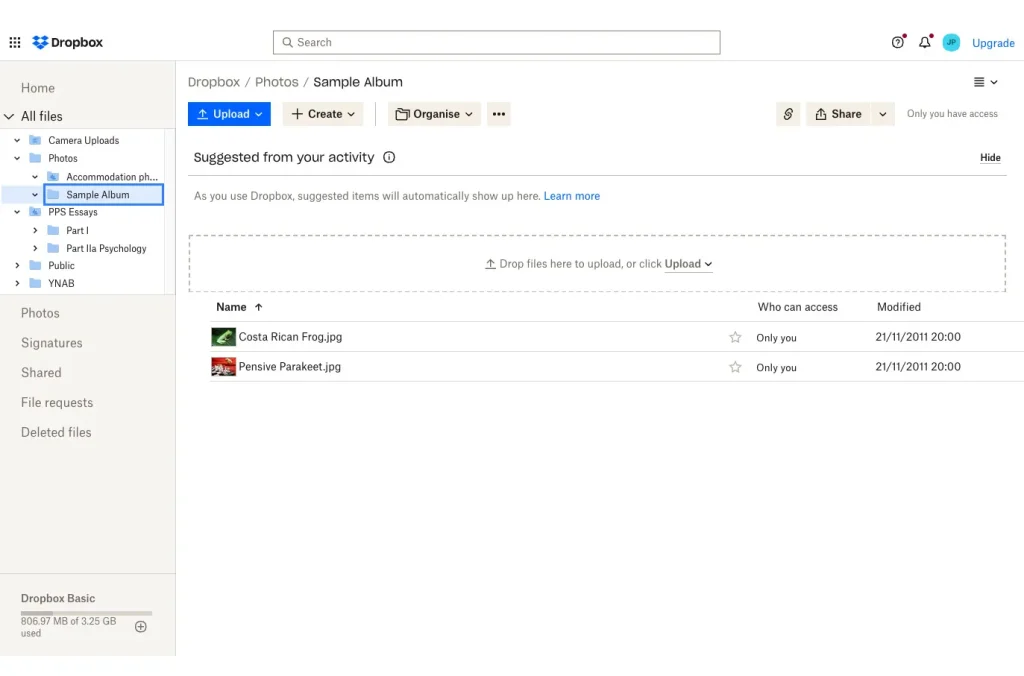
The feature that separates Dropbox from cloud storage commodities is Smart Sync. Files stored in Dropbox appear in your file system on every connected device, but they don’t actually consume local storage until you open them. A 200GB Dropbox folder occupies only a few megabytes on a laptop with limited SSD space. This matters enormously for professionals who carry lighter machines to client sites but need access to large project archives.
For individuals deeply embedded in Google’s ecosystem: Google Drive offers a tighter integration advantage that other sync tools can’t replicate. Google Docs, Sheets, and Slides files don’t have a traditional file format in the same sense — they exist as living documents in the cloud, edited in the browser or the mobile app, with every keystroke saved automatically in real time. There is no “sync” for these files because they are the cloud copy. Every device with access to the Google account sees the same version at the same instant.
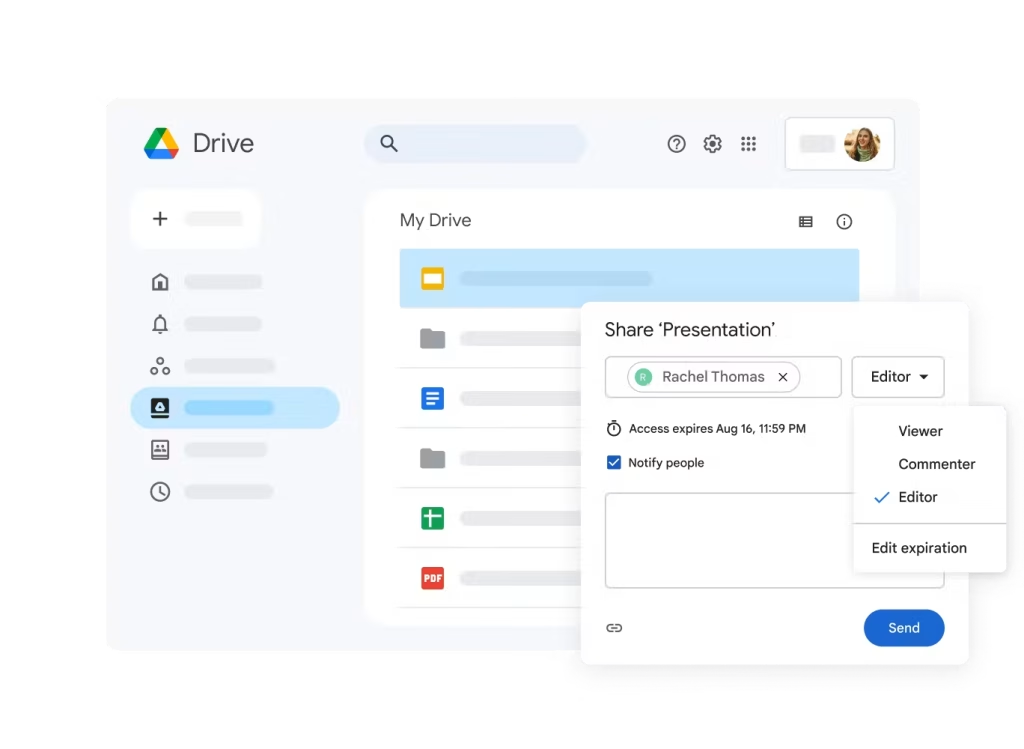
For people whose primary work involves Google Workspace documents, presentations, and spreadsheets, this architecture eliminates the entire category of sync conflicts. The risk shifts instead to version history management and ensuring you’re working in the right document rather than a stale local copy you downloaded months ago. The Drive for Desktop application also extends selective sync to any folder on your computer, mirroring it across devices in the background.
For teams managing knowledge, notes, and structured information: Notion occupies a different niche in the sync conversation but an important one. When the asset being synced isn’t a file but a knowledge base — project documentation, meeting notes, research repositories, wikis, team databases — traditional file sync becomes the wrong framework entirely.
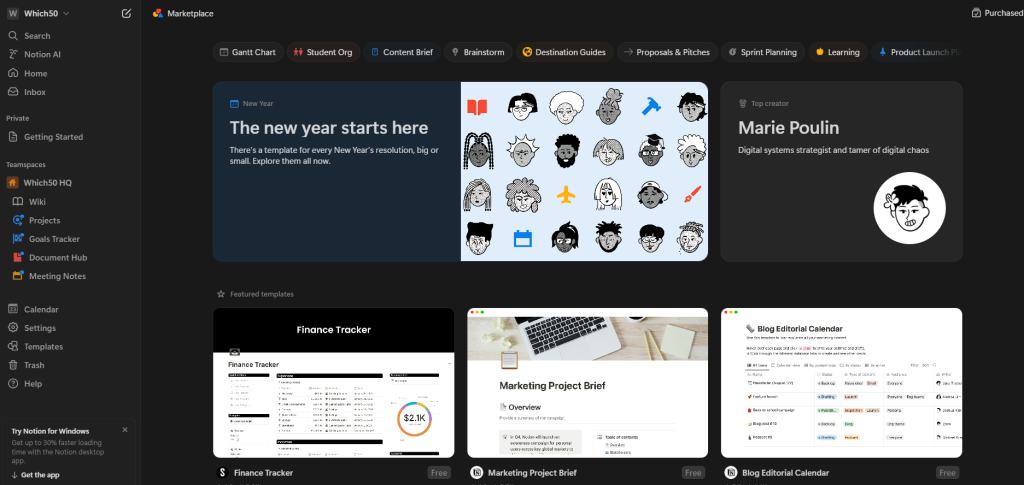
Notion stores everything server-side and reflects changes in real time across every device accessing the same workspace. The iPhone app, the browser, and the desktop client are all interfaces to the same cloud-native data. There’s no upload step, no folder monitoring, and no conflict to resolve because nothing lives on your local drive in the first place. For teams whose collaborative asset is documentation rather than binary files, this architectural approach sidesteps most of the problems that file sync systems struggle with.
The Configuration Details That Actually Matter
Once you’ve selected your sync approach, a few specific settings determine whether the setup works smoothly or generates ongoing friction.
- Selective sync by device type. Configure what actually needs to be locally available on each device. Your phone likely needs your active project folders and recent documents but not your archive of client work from three years ago. Your travel laptop may need less than your home workstation. Treating all devices as identical sync targets wastes storage and slows initial sync unnecessarily.
- Upload speed limits during business hours. Most sync clients include a bandwidth throttling option. Set aggressive upload limits during working hours so a large file upload doesn’t compete with your video conferencing bandwidth. Let the client upload at full speed overnight. This is genuinely one of those settings that takes thirty seconds to configure and prevents a recurring minor annoyance.
- Conflict notification settings. Most sync tools create conflict copies silently and name them with a date stamp or “conflicted copy” suffix. If your tool offers conflict notifications, enable them. Reviewing a conflict the same day it occurs takes two minutes. Discovering seventeen unresolved conflicts a month later takes considerably longer and involves trying to remember which version of which document was the right one.
- Folder structure hygiene. One of the most effective improvements to any sync setup has nothing to do with software settings. Cleaning your folder hierarchy before setting up sync — giving folders clear names, archiving stale projects, removing duplicates — means you spend less time looking for things across devices and reduces the total sync footprint dramatically. It also makes selective sync decisions much cleaner.
Pairing Sync With Backup
As covered earlier, sync handles the accessibility and continuity problem. Backup handles the recovery problem. Running both is not redundant — it is necessary.
The automated cloud backups guide we published covers the 3-2-1 backup strategy in detail, including how to configure tools like Backblaze and IDrive to run continuously in the background. If you haven’t set up both layers, the guide on setting up automated cloud backups is worth reading alongside this one.
According to Backblaze’s annual hard drive reliability report, drive failure rates remain significant across all major manufacturers. A sync setup without backup protection leaves you vulnerable to hardware failure wiping out your only clean copy.
The combination of sync for real-time cross-device access and backup for historical recovery creates a genuinely resilient data architecture for an individual or small team.
Conclusion
Cross-device file sync is not technically complicated. The tools are good, the pricing is accessible, and the configuration takes an hour at most. What creates most of the friction people experience is either a conceptual mismatch — treating sync as backup or expecting it to behave like a traditional file transfer — or configuration choices made hastily during initial setup that cause persistent small annoyances over time.
Understand what you’re actually syncing, choose the tool whose architecture fits that asset type, configure selective sync thoughtfully by device, and pair the whole setup with genuine backup protection. The result is a working environment where files are simply available wherever you need them, without thought or effort.


Leave a Comment