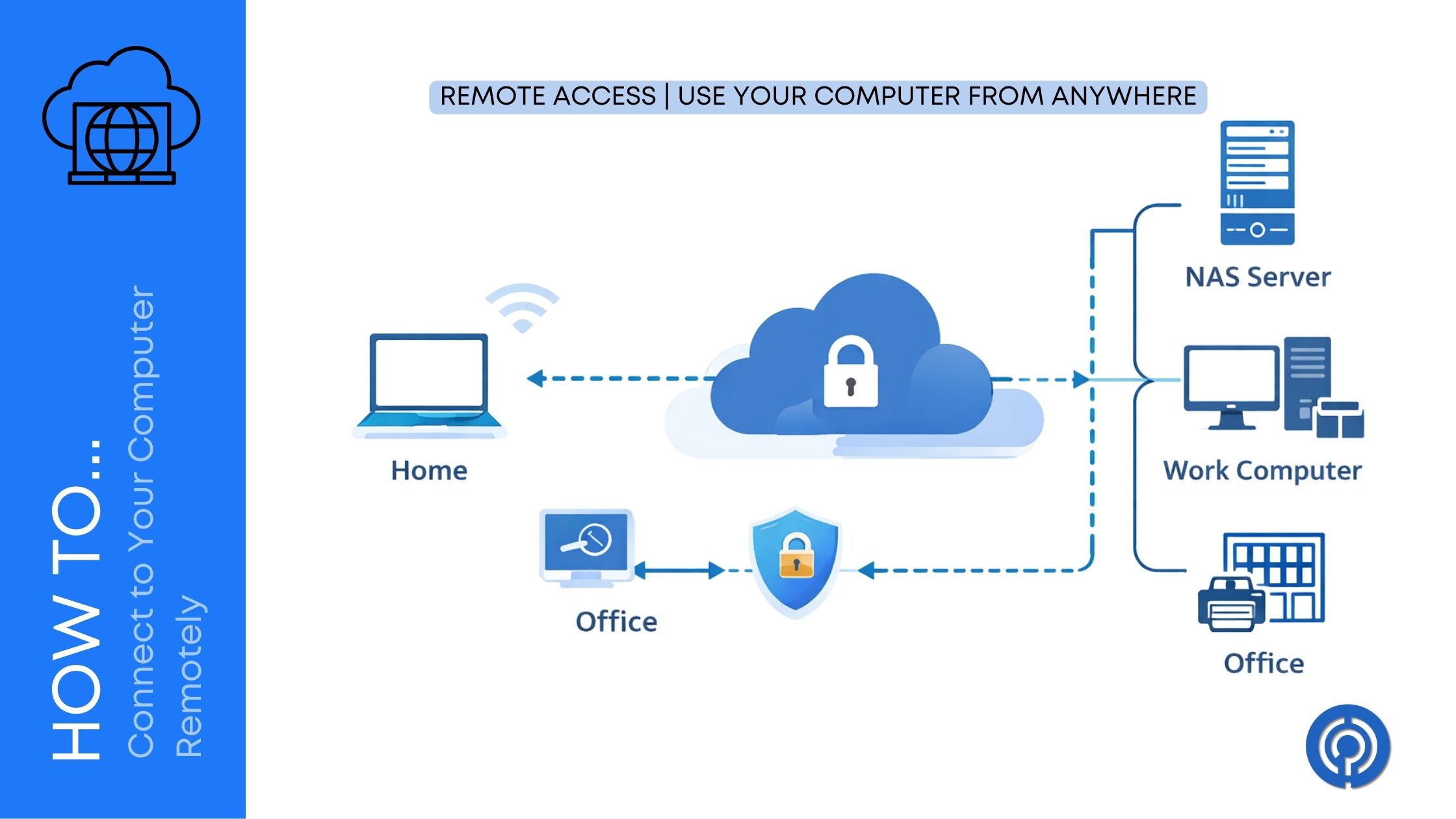
Ever been out of the office or traveling and suddenly need a file from your home PC? Remote access lets you take full control of your computer from anywhere, saving you tons of time and stress.
It’s not just for tech experts anymore. Anyone can set it up with a few clicks and get back to work fast.
Why Remote Access Matters Today?
Remote connections have become essential in our always-on world. You can work from a coffee shop, help a family member with tech issues, or even check on your home security setup without being there physically. Businesses rely on it for IT support, while freelancers use it to stay productive on the go. The rise of hybrid work made these tools must-haves for everyone.
The best part is how modern options make it secure and simple. No more lugging laptops everywhere or worrying about forgetting important documents. Whether you’re managing projects or just grabbing emails, remote access keeps everything flowing smoothly without interruptions.
Preparing Your Computer for Remote Access
Before diving into specific tools, get your host computer ready for action. Start by ensuring it’s always powered on and connected to a stable internet connection that won’t drop mid-session. Update your operating system to the latest version right away, as those patches fix security holes that hackers love to target in remote setups.
Next, create a strong password for your user account if you haven’t already. Head to power settings and disable sleep mode so the PC stays awake and ready for incoming connections. These simple steps prevent most common headaches down the line and keep things reliable.
Don’t forget about antivirus software running quietly in the background. Run a full scan for malware first, since remote sessions can expose hidden vulnerabilities if something bad is lurking on your system. A clean machine makes the whole process smoother and safer.
Setting Up Windows Remote Desktop
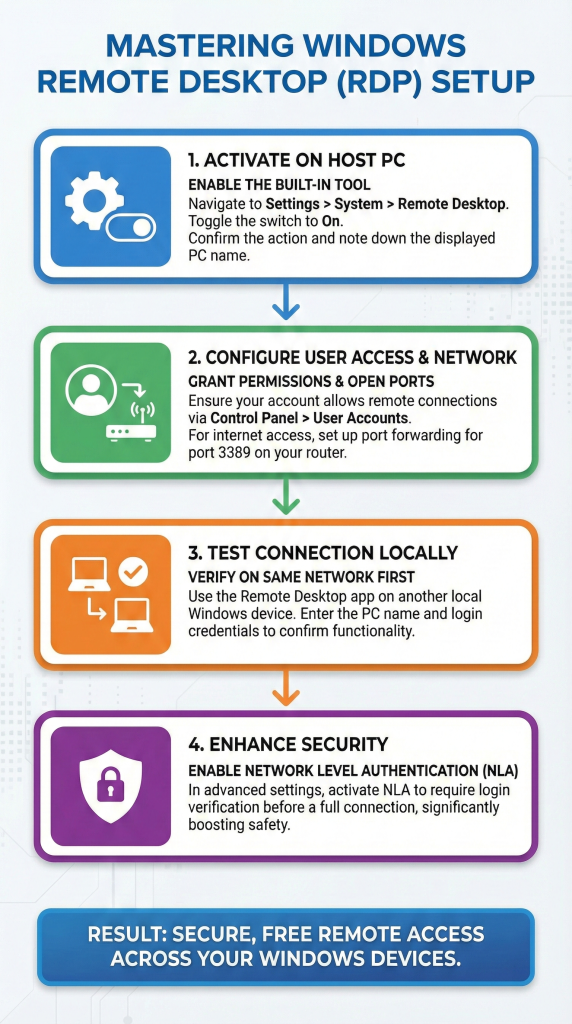
Windows comes with a built-in powerhouse called Remote Desktop Protocol, or RDP for short. It’s completely free and incredibly powerful for connecting between Windows machines on the same network or across the internet. Many people start here because it requires no extra downloads or complicated installs.
On the computer you want to access, the host, open Settings and go to System, then find Remote Desktop. Toggle the switch to turn it on, and Windows will prompt you to confirm the change. Jot down the PC name displayed right there, as you’ll need it to connect from somewhere else.
Make sure your user account has permission for remote logins. Jump into Control Panel under User Accounts and tweak those settings as needed. If you’re connecting over the internet, set up port forwarding on your router for port 3389 to make it reachable from outside your home network.
Test everything locally first by trying a connection from another Windows device on the same Wi-Fi. Open the Remote Desktop app, type in the PC name, enter your credentials, and see the screen pop up. Once that works flawlessly, expand to remote locations with confidence.
For added safety, enable Network Level Authentication in the advanced settings. This smart feature verifies your login details before fully handing over control of the screen. It dramatically reduces risks from random unauthorized connection attempts.
Chrome Remote Desktop for Cross-Platform Ease
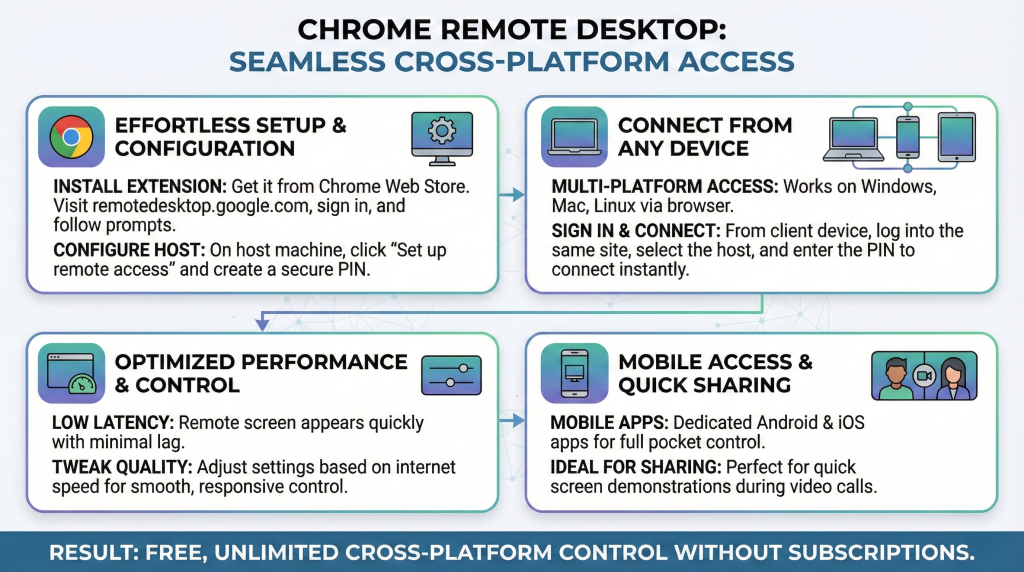
Google offers Chrome Remote Desktop, a fantastic choice that works seamlessly on any device with a web browser. It’s ideal if you mix Windows, Mac, or even Linux machines in your workflow. Best of all, it’s totally free with no annoying time limits or subscriptions nagging you.
- Install the Chrome browser extension from the Chrome Web Store on both the host and client computers.
- Visit remotedesktop.google.com, sign in with your Google account, and follow the prompts.
- On the host machine, click “Set up remote access” and create a strong, memorable PIN that only you know.
- From your laptop, phone, or tablet, sign into the same site, pick the listed device, and enter that PIN.
- The remote screen appears instantly with surprisingly low lag for most connections.
- Tweak the quality settings based on your internet speed to keep performance smooth and responsive.
This tool really shines for quick screen shares, like demonstrating something to a colleague during a video call. It even has dedicated mobile apps for Android and iOS, letting you control your full desktop right from your pocket wherever you are.
TeamViewer: The Go-To for Unattended Access
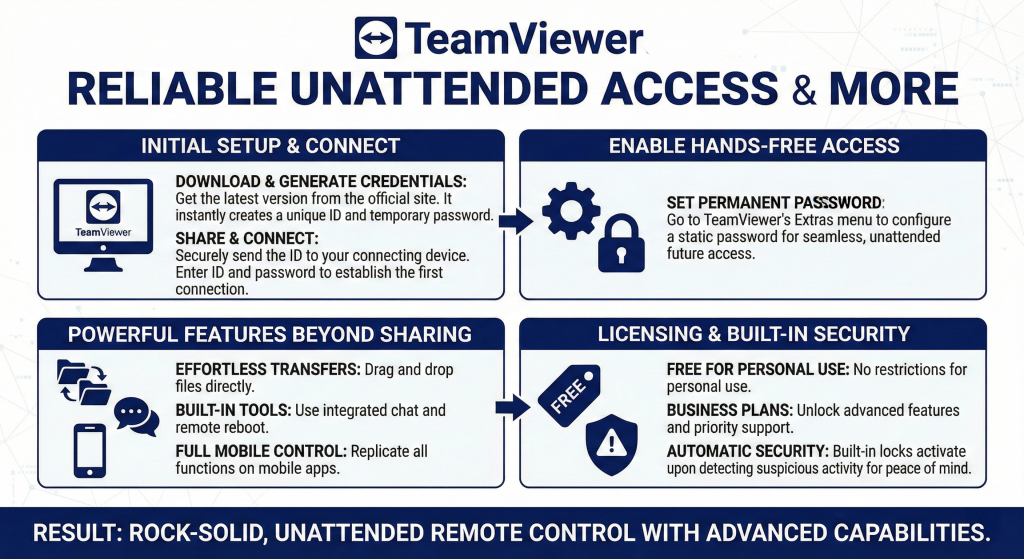
TeamViewer consistently ranks at the top for rock-solid reliability across all major platforms.
- Download the latest version straight from their official website onto the host PC, and it springs to life immediately.
- Right away, it generates a unique ID number and a temporary password ready for sharing.
- Send that ID securely to yourself or a trusted contact for the connection.
- On the device you’re using to connect, enter the ID, click connect, and type in the password when prompted.
- To make it truly hands-free for unattended access, head into TeamViewer’s Extras menu and set a permanent password that works every time.
The features extend far beyond basic screen sharing. Drag and drop files directly between the two windows for easy transfers, open the built-in chat for quick notes, or even reboot the remote machine right from your side. The mobile app replicates every function perfectly on smaller screens.
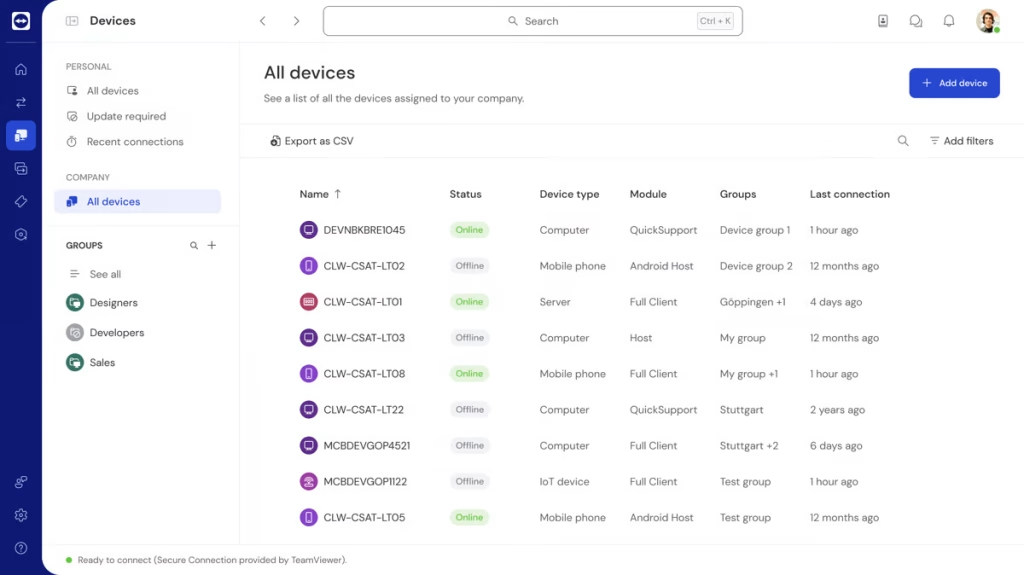
It’s free for all personal use without restrictions, while businesses unlock priority support and advanced management with paid plans. Built-in locks kick in automatically after detecting suspicious activity, giving you peace of mind during every session.
AnyDesk for Lightning-Fast Performance
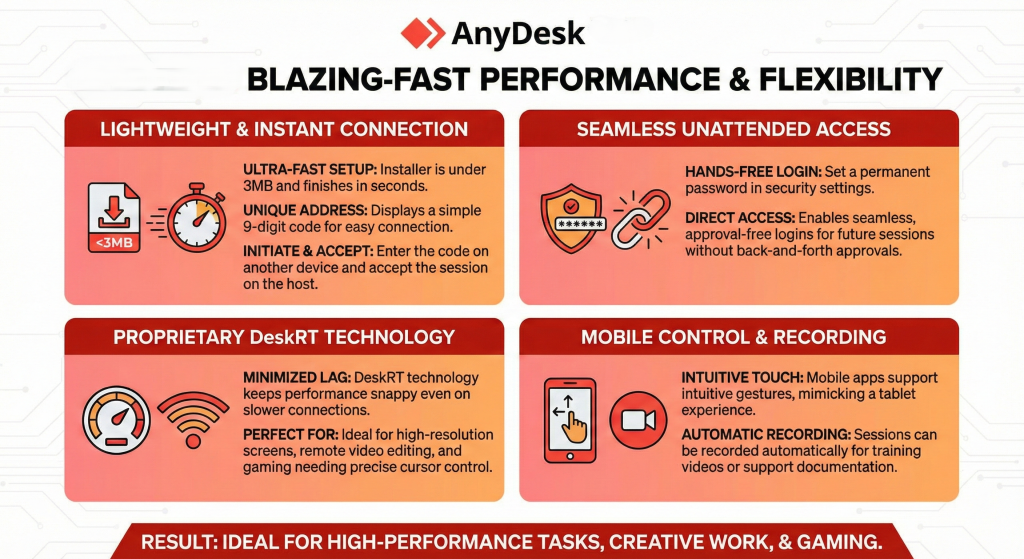
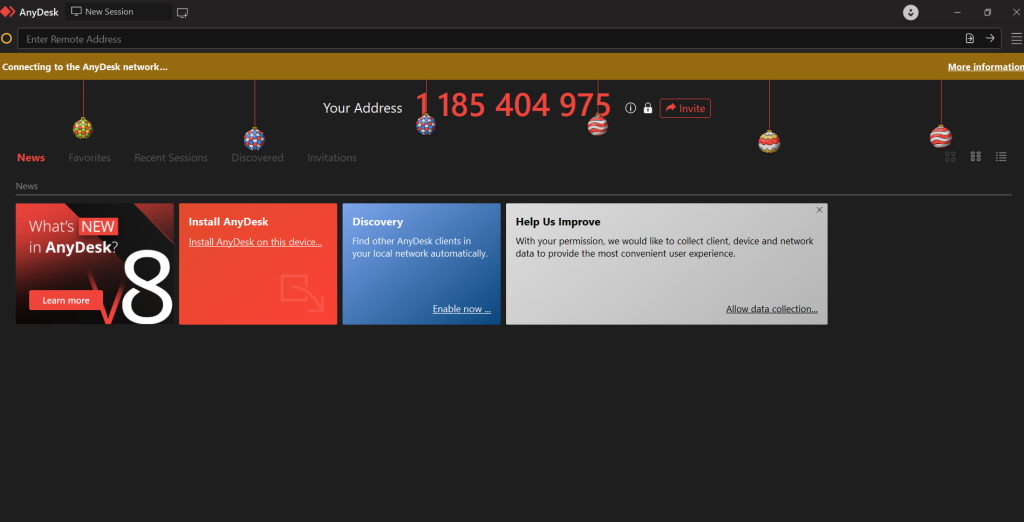
AnyDesk stands out by prioritizing raw speed, making it perfect for handling high-resolution screens or even remote video editing tasks. The installer is incredibly lightweight at under 3MB and finishes in mere seconds. Once launched, it displays your personal address, a simple 9-digit code unique to that machine.
Type that code into another AnyDesk instance to initiate the connection request. Accept the incoming session on the host side, and suddenly you’re viewing and controlling the full desktop environment. Set an unattended password in the security settings for seamless logins without any back-and-forth approvals later on.
Their proprietary DeskRT technology minimizes latency, keeping things snappy even over slower or unstable connections. Customize the floating toolbar for quick access to mouse modes, keyboard input, and screen scaling options. Mobile apps support intuitive touch gestures like pinch-to-zoom, mimicking a tablet experience.
This makes it a favorite among gamers needing precise cursor control or designers tweaking visuals remotely. Sessions can record automatically too, which comes in handy for creating training videos or documenting support calls.
Other Reliable Remote Tools Worth Trying
Beyond the big names, RustDesk provides open-source flexibility with options for self-hosting your own server. Splashtop delivers crisp HD streaming tailored for creative professionals handling graphics or video. For team environments, Zoho Assist adds detailed session reporting and multi-user support.
NoMachine takes media streaming to another level with zero quality loss during playback. These alternatives give you plenty of choices based on your specific needs, like budget or feature sets.
To keep projects organized during remote work, integrate with tools like Asana for task tracking and assignments. TeamViewer pairs especially well for combining access with smooth collaboration flows.
Step-by-Step Security Checklist
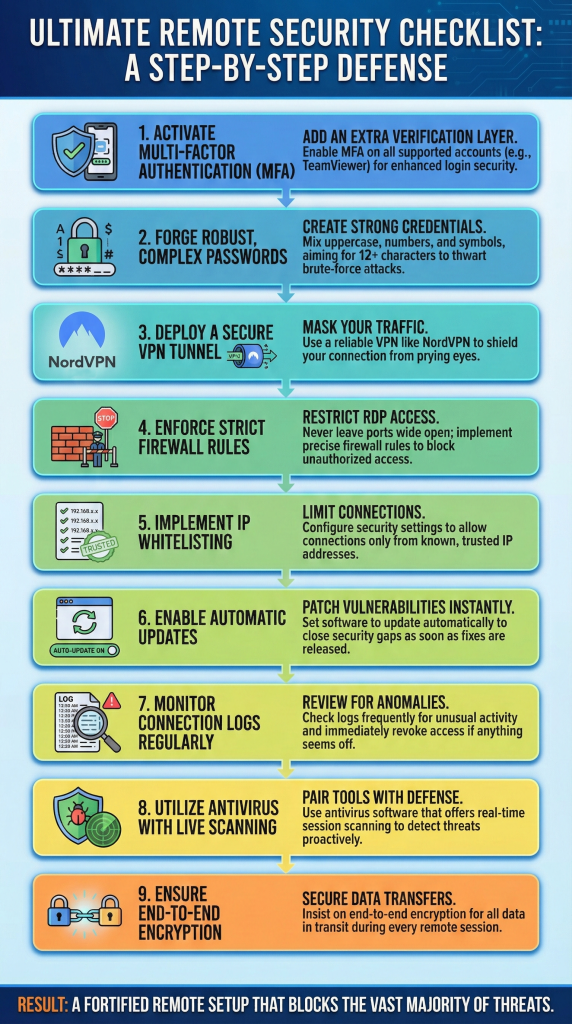
Security forms the backbone of any remote setup, so treat it as non-negotiable from day one.
- Always enable multi-factor authentication wherever the tool supports it, such as on TeamViewer accounts for extra login verification.
- Craft passwords that mix uppercase letters, numbers, and symbols, aiming for at least 12 characters to thwart brute-force attacks.
- Layer on a VPN tunnel before starting remote sessions to mask your traffic from prying eyes. Reliable options like NordVPN make this straightforward and effective.
- Never leave RDP ports wide open to the entire internet without strict firewall rules in place.
- Use whitelisting to restrict connections to only trusted IP addresses in your tool’s security menu.
- Enable automatic software updates to close exploits as soon as vendors release them.
- Regularly review connection logs for anything unusual and revoke access immediately if something feels off.
- Pair your remote tools with antivirus software featuring live session scanning.
- Insist on end-to-end encryption for all data transfers during sessions.
Following this checklist blocks the vast majority of threats before they even get close.
Advanced Features to Unlock
Most tools pack advanced extras waiting for you to discover them.
- Multi-monitor support lets you drag application windows seamlessly between screens as if they were one big display.
- Built-in voice chat eliminates the need for separate phone calls during collaborative sessions.
- TeamViewer’s scripting engine automates repetitive tasks, such as kicking off remote backups or software installs. File synchronization keeps important folders mirrored and up-to-date across both machines automatically. Wake-on-LAN functionality powers up a sleeping PC over the network with a simple command.
- Customize hotkeys for instant access to common actions like full-screen toggle or input switching.
Some apps include virtual printer support, allowing you to print documents from the remote PC directly to your local printer. Dive into the settings after your basic setup to unleash these power-user capabilities.
Troubleshooting Connection Problems
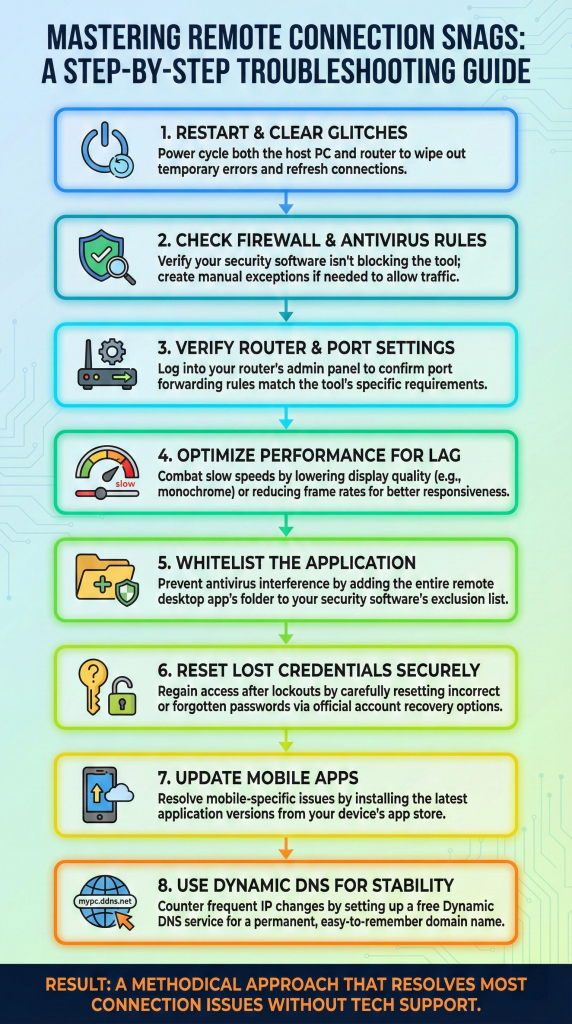
Even the best setups hit snags sometimes, so arm yourself with fixes. If connections fail completely, restart both the host PC and your router to clear temporary glitches. Double-check that Windows Firewall or your antivirus hasn’t blocked the tool, adding manual exceptions if necessary.
- Port forwarding misconfigured? Log into your router’s admin page, usually at 192.168.1.1, and verify the rules match your tool’s requirements.
- Experiencing slow speeds or lag? Drop to black-and-white mode or reduce frame rates in the display settings for better responsiveness.
- Antivirus interfering? Add the entire app folder to your security software’s exclusion list.
- Forgotten or wrong credentials causing lockouts? Reset passwords carefully through account recovery options.
- For mobile-specific woes, update to the latest app versions from your store.
- Dynamic IP addresses changing frequently? Sign up for a free Dynamic DNS service like No-IP to assign a stable domain name.
Work through these steps methodically, and you’ll resolve 95% of issues without calling tech support.
Integrating Remote Access with Daily Workflows
Weave remote tools into your everyday routine for unbeatable efficiency gains. Combine them with visual boards in Trello to track and update tasks right from the remote desktop. Schedule support sessions effortlessly using Calendly to share availability with clients or team members.
Automate notifications with Zapier integrations, alerting your team whenever a remote connection starts. Use built-in recording features to capture sessions for later review or tutorial creation. This integration turns remote access into a cornerstone of hybrid work success.
Mobile Remote Access Tips
Smartphones revolutionize remote control with apps that mirror every desktop gesture using touch. Switch to landscape orientation for a more expansive view of the remote screen. Long sessions drain batteries quickly, so keep your phone plugged in whenever possible.
Bluetooth keyboards pair easily for faster typing during text-heavy work. Pinch and zoom gestures handle tiny on-screen text without frustration. While iOS and Android support differs slightly by tool, cross-platform picks like AnyDesk ensure consistency everywhere.
Best Practices for Teams and Businesses
Teams benefit from centralized admin consoles in enterprise-grade tools like TeamViewer Tensor. Assign granular user roles and maintain detailed audit trails for compliance. Scale effortlessly to manage hundreds of devices across global locations.
- Roll out quick training videos to instill secure habits among staff from the start.
- Factor premium plans into your budget for round-the-clock support when issues arise.
- Built-in compliance features handle regulations like GDPR or HIPAA without extra hassle.
- Begin with a small pilot group, gather feedback, and expand as confidence grows.
Remote access like this skyrockets productivity while slashing the need for in-office visits.
Final Thoughts on Getting Started
Choose your first tool today, whether Windows RDP for no-fuss simplicity or TeamViewer for all-around versatility. Run a local test to build familiarity, then venture into full remote scenarios. You’ll quickly wonder how you ever managed without this capability in your toolkit.
Drop your favorite setup or success story in the comments below.
Happy and safe connection!


Leave a Comment