You are staring at a screen that feels like it is moving through molasses. You just need to grab one single folder from your office desktop to your local laptop so you can finish your work and go on with your life. You hit copy on the remote machine, move your mouse back to your local desktop, and hit paste.
Nothing happens.
Or worse, your entire session freezes, the cursor turns into a spinning wheel, and you are forced to forcefully reboot the connection. Moving data across remote environments is one of the most frustrating bottlenecks in modern work. It sounds like it should be incredibly simple. In reality, it involves pushing heavy data through tiny network pathways that were never designed for large-scale file transit.
If you are tired of failed transfers, corrupted spreadsheets, and wasted hours, you are in the right place. I am going to show you exactly how to move your data quickly and securely. We are going to cover the native methods built right into your operating system, the third-party platforms that make it effortless, and the security protocols you absolutely must follow to avoid a corporate data breach. Let us fix this problem for good.
The Brutal Reality of Remote Bandwidth
Here is the truth about remote desktop connections. When you log into an office machine from your house or a coffee shop, you are not actually interacting directly with that computer’s hard drive. You are streaming a live video feed of its screen. Your local machine sends your mouse clicks and keystrokes over the internet, and the remote machine sends back the updated picture of the screen.
That pathway is deliberately kept incredibly small to reduce lag. It is a tiny straw designed for tiny packets of data.
When you attempt a direct copy-and-paste of a large video file or a massive database backup, you are trying to shove a bowling ball through that tiny straw. The clipboard memory maxes out instantly. The network chokes. The session dies. You cannot brute-force a massive transfer over a standard display protocol and expect a good result. You need to bypass the display feed entirely and open up a dedicated data channel.
Method 1: Mapping Local Drives in Windows
If you are operating in a standard Windows environment, you already have a powerful tool at your disposal. You just need to configure it correctly before you actually hit the connect button. Windows Remote Desktop allows you to map your local hard drive so that the remote computer treats it like an attached USB stick.
Here is exactly what you need to do next.
First, open the Remote Desktop Connection application on your local machine. Do not type in the IP address and hit connect yet. Look down at the bottom left corner and click “Show Options.”
Click over to the tab labeled “Local Resources.” You will see a section at the bottom for local devices and resources. Click the button that says “More.”
A new window will open showing all the physical drives connected to the computer sitting right in front of you. Check the box next to your main C drive. If you have an external drive where you want the files to land, check that one too. Click OK, return to the main tab, and connect to your remote session.
Once you are logged into the remote machine, open the standard File Explorer. Look in the left sidebar under “This PC.” Right there, mixed in with the remote machine’s drives, you will see your local drive mounted and ready. It will usually be named something like “C on [Your Laptop Name].”
Now, instead of relying on the fragile clipboard, you simply drag your heavy files directly into that mapped drive. The operating system handles the transfer natively in the background. It is stable, it shows you an accurate progress bar, and it will not freeze your screen.
Method 2: The Lightweight Third-Party Approach
Sometimes native drive mapping is not an option. Maybe your IT department locked down the permissions, or maybe you are mixing operating systems. This is where dedicated software completely changes the dynamic.
Picture this: it’s 4:45 PM on a Friday. Your brain is fried, and you just want to log off. Instead of manually wrestling with a lagging remote screen to pull your end-of-week reports, you could literally just set up an automated workflow. Using tools like Zapier, you tell the system to watch a specific folder on your remote machine. The moment a file drops in there, it quietly pushes it to your local environment. You do not even have to lift a finger.
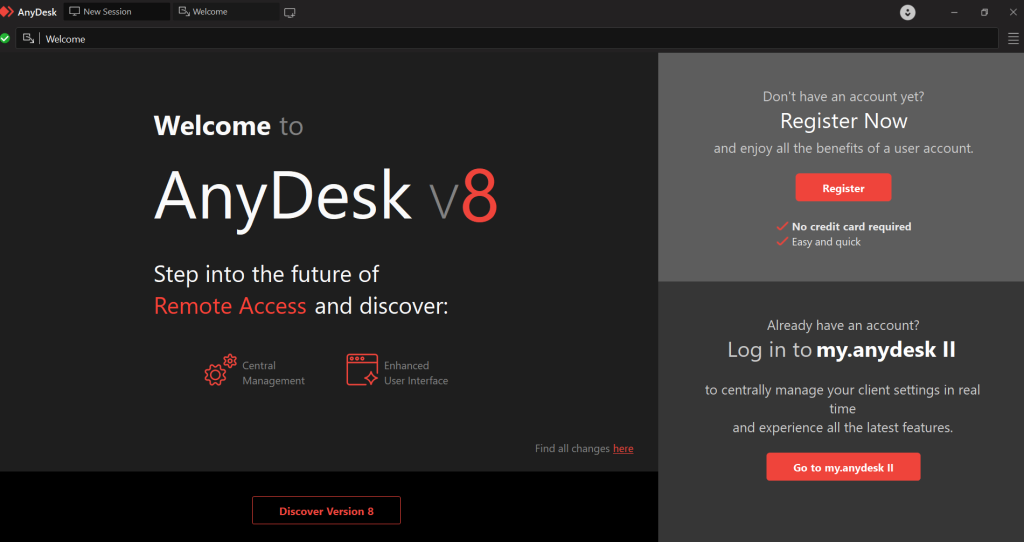
But let us say you are traveling. You are stuck in a lobby with painfully slow hotel Wi-Fi that drops every three minutes. In that exact nightmare scenario, Anydesk is a total lifesaver. It is notoriously lightweight. The best part? You can initiate a standalone file transfer session without even loading the remote computer’s graphical screen. You bypass all that heavy pixel rendering and just move the raw data. I actually just verified a few technical specs on this inside the Jacopo – Which 50 Details (2026 Updated).xlsx file my team maintains, and the bandwidth savings are massive when you disable screen sharing during a transfer.
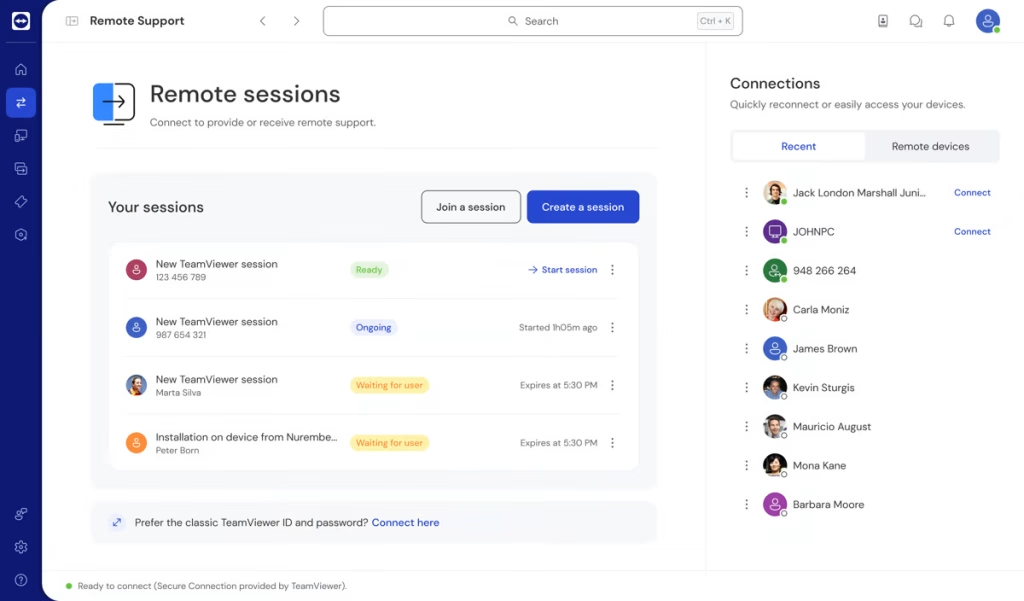
If you are in a more traditional corporate setting, you might be using Teamviewer instead. It operates on a very similar principle. Up in the top toolbar during an active session, there is a dedicated “Files & Extras” tab. When you open the file transfer tool there, it gives you a side-by-side view of both hard drives. You just highlight what you want, hit transfer, and let the software handle the packet routing. It is incredibly resilient and will automatically resume the transfer if your hotel internet blips off for a few seconds.
Method 3: The Cloud Storage Middleman Strategy
What happens when direct point-to-point connections are completely blocked by strict corporate firewalls? You use a proxy. You let the cloud do the heavy lifting.
This strategy involves uploading the data from the remote machine to a secure cloud server, and then pulling it down to your local machine. Yes, you are technically moving the file twice, but because cloud servers have massive, optimized bandwidth pipelines, the total time is often drastically shorter than fighting a stubborn peer-to-peer connection.
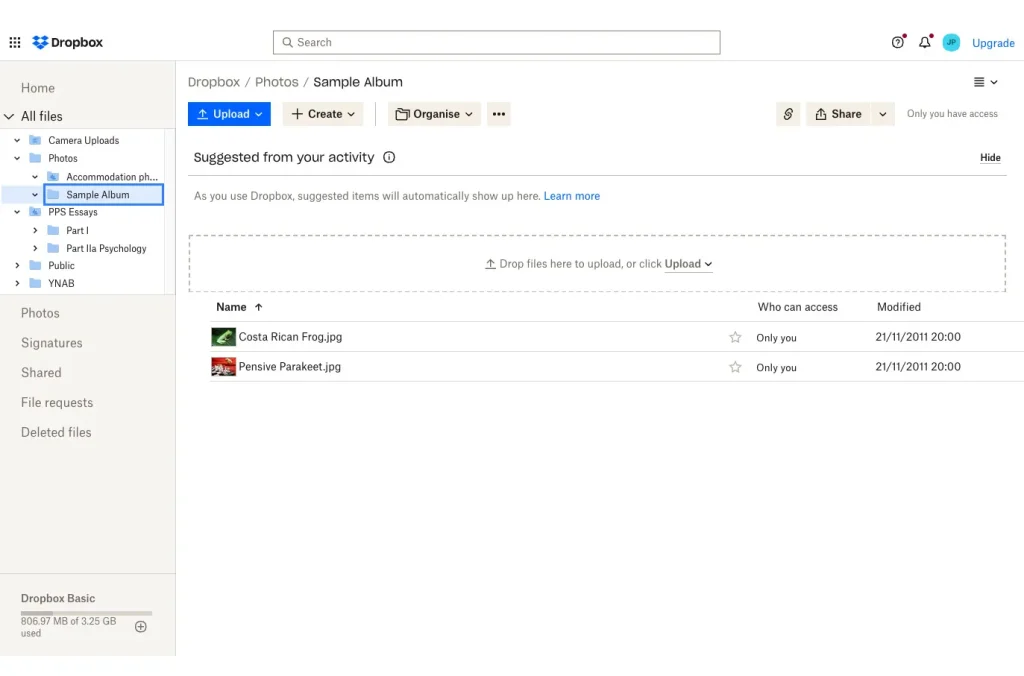
If your organization uses Dropbox, this is a breeze. You open the web portal on the remote machine, drag your folder in, and let the remote office’s gigabit connection upload it in seconds. Then you open your local desktop client and sync the folder down.
For developers or those working with heavy infrastructure, you might be pulling massive logs or database dumps directly from a virtual machine. If you are operating inside something like Google Cloud Compute Engine, you can use the built-in cloud shell and storage buckets to stage your files. You push the data to an encrypted storage bucket on the server side, generate a secure, time-limited download link, and grab it directly from your local browser. It completely sidesteps the remote desktop protocol and guarantees a fast, uncorrupted download.
Security First: Locking the Digital Doors
We need to talk about risk. Whenever you create a bridge to move files between a secure corporate environment and a personal local machine, you are creating a vulnerability. Hackers actively scan for improperly secured remote access endpoints because they are the easiest way into a company network.
You must ensure your transfers are encrypted. Never send sensitive client data, financial records, or proprietary code over an unencrypted FTP connection. Always use modern protocols like SFTP or rely on the built-in end-to-end encryption provided by reputable enterprise tools.
Furthermore, you need to understand the compliance laws governing your data. Moving patient health records or credit card information to an unapproved local hard drive can result in massive fines for your company and immediate termination for you. The Cybersecurity and Infrastructure Security Agency offers rigid, actionable guidance on how businesses should handle data transit and cloud applications. You can read their detailed recommendations at Secure Cloud Business Applications to ensure your specific workflow meets federal baseline standards.
Always mandate Multi-Factor Authentication for any remote gateway. According to extensive security research published at Cybersecurity Roadmap: The CISO’s Guide to Business Results, basic credential theft remains one of the primary drivers of enterprise data breaches. A strong password is no longer enough when you are actively shuttling files out of a secure perimeter. Protect your access points aggressively.
Troubleshooting Common Transfer Failures
Even the best systems occasionally fail. When your transfer hangs at 99 percent or outright refuses to start, do not panic. Check these three common culprits immediately.
First, check your local antivirus software. This is the number one reason files mysteriously vanish upon arrival. Your local security software sees an executable file or a complex script coming in from an external network and immediately quarantines it without warning you. Open your antivirus logs and look for recently blocked threats. You will likely find your missing file sitting in a holding cell, waiting for you to whitelist it.
Second, verify your corporate group policies. If you mapped your drives perfectly but keep getting a “Permission Denied” pop-up when you try to drag a file over, you are likely hitting an administrative wall. Many IT departments implement policies that strictly forbid outbound file transfers via remote desktop to prevent data exfiltration. If you hit this wall, you cannot bypass it technically. You need to submit a ticket to your helpdesk and request temporary file transit permissions for your specific user group.
Third, clear your clipboard memory. If you accidentally tried to copy-paste a massive folder and now your remote session is completely frozen, you need to kill the process. Open the Task Manager on your local machine, locate a background process named “rdpclip.exe”, and force close it. Then go to File, Run New Task, type that exact name in again, and hit enter. This instantly flushes the jammed data pipeline and restores your mouse movement, saving you from having to reboot the entire remote machine.
Conclusion
Moving files remotely does not have to be a painful, time-consuming chore. Stop trying to force massive amounts of data through display protocols that cannot handle the weight.
Take control of your workflow today. Map your local drives for native Windows transfers. Lean on lightweight, third-party software when you are dealing with terrible internet connections. Use encrypted cloud buckets as secure middlemen for massive server dumps. And above all else, secure your connection points so you do not accidentally expose your company’s critical data to the open internet. Implement these strategies right now, and you will never lose another Friday afternoon staring at a frozen transfer bar.


Leave a Comment