Here’s the truth nobody tells you about remote presentations: the slides are the easy part.
I’ve sat through hundreds of virtual presentations — and the ones that flop almost never fail because the deck looks bad. They fail because the presenter doesn’t know how remote delivery actually works. They’re reading slides instead of talking to people. Their audio cuts out mid-sentence. Their screen share shows their notification from a food delivery app. They lose their audience in the first 90 seconds and never get them back.
Remote presenting is a completely different skill from in-room presenting. And most people are treating it like the only difference is that everyone’s on mute.
I’m going to fix that for you today.
Why Remote Presenting Is So Much Harder (and How to Beat It)
When you present in a room, you have natural advantages you don’t even notice. Eye contact. Body language. The physical presence of other humans creating a shared social pressure to pay attention. People feel slightly weird scrolling their phone when you’re standing five feet from them.
Online, that social contract evaporates. Your audience is alone in their home office with seventeen browser tabs open and absolutely no shame about checking email while you talk.
So your job shifts. You’re not just presenting — you’re competing for attention against everything else on that screen. That means every slide needs to work harder. Every pause needs purpose. And your energy level needs to be higher than you’d think feels natural.
Here’s the core insight: remote presenting is closer to hosting a TV show than giving a talk. The camera is your audience. The energy stays up. You’re always “on.” Once you internalize that, everything else falls into place.
Set Up Your Tech Before You Touch the Slides
Most people build the deck first and think about tech last. That’s backwards.
Your audio quality matters more than your slide design. I’m serious. Bad slides with great audio lands better than beautiful slides where you sound like you’re calling from a cave. Invest in a USB microphone or a good headset before you spend another hour perfecting slide animations. Listeners will forgive imperfect visuals. They will close the tab over bad audio.
Your background is your first impression. A cluttered room signals chaos. A virtual background that looks fake signals that you didn’t prepare. A clean, real background — or a simple well-lit setup — immediately communicates professionalism before you say a word.
Your lighting should be in front of you, not behind you. A window behind you makes you look like a silhouette. Move so the light hits your face. This single change makes more difference to how you look on camera than any ring light purchase.
Test your screen share before the meeting. Not five minutes before — the day before. Know which monitor you’re sharing. Know whether to share your full screen or just the application window. Know what happens when a notification pops up (hint: turn them off completely).
How to Build Slides That Actually Work for Remote
Remote audiences give up faster. You get less patience, less social pressure, and more distraction to compete with. Your slides need to be leaner and more visually punchy than what you’d use in person.
- One idea per slide. No exceptions. Online, people will read your slide instead of listening to you the moment there’s more than two lines of text. Keep it to a headline and one supporting visual. Say the rest out loud.
- Use bigger fonts than you think you need. On someone’s laptop screen in a small window, 18pt text is basically invisible. Go 28pt minimum for anything you want people to read.
- Add progress indicators. A simple “slide 4 of 12” in the corner or a section header at the top tells your audience where they are in the journey. Remote audiences get disoriented — they can’t sense the physical weight of remaining slides the way you can feel a printed deck. Give them a map.
Cut your slide count, then cut again. If you’d normally run 30 slides in a 30-minute presentation, aim for 18 to 22 for remote. The pace online needs to be faster to maintain energy. Fewer slides forces that.
The Right Tools for Remote Presenting
Canva — Build Slides That Look Polished Without a Designer
Canva is where most remote presenters should build their decks if they don’t have a design background. The templates are built with visual hierarchy already in place — you’re editing a design that already works, not wrestling with a blank slide. The presenter view in Canva Presentations shows your speaker notes while your audience sees only the slide, which is exactly what you need for smooth remote delivery.
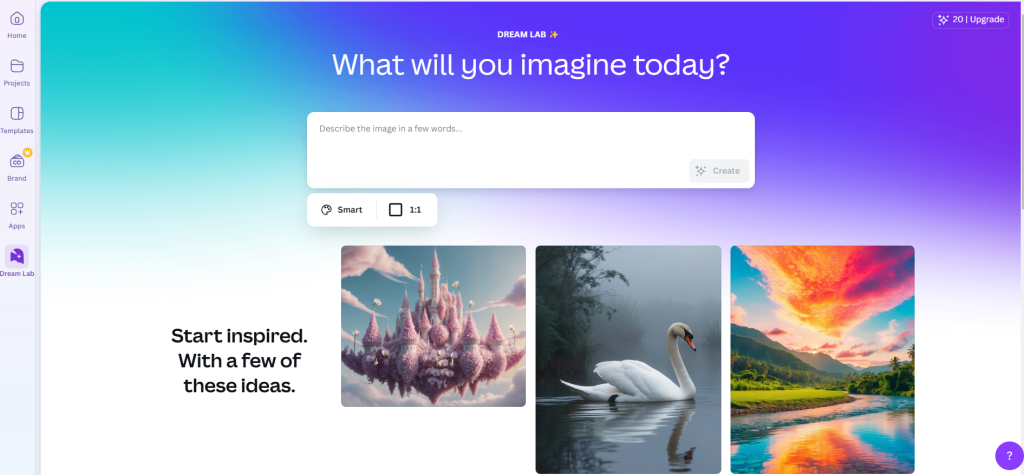
Canva also lets you publish your deck as a shareable link. Instead of emailing a PowerPoint file that looks different on every machine, you send a link and your audience sees the exact version you designed. For sales presentations, client pitches, and stakeholder updates, that consistency matters.
AhaSlides — Make Your Remote Presentation Two-Way
The single biggest mistake in remote presenting? Broadcasting instead of interacting.
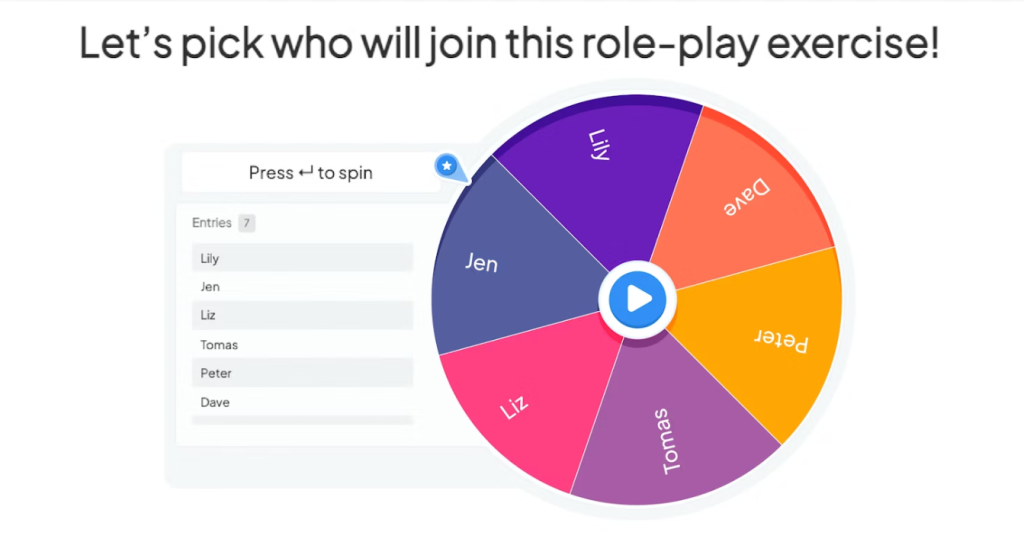
AhaSlides solves this directly. You embed live polls, quiz questions, word clouds, and open Q&A right inside your deck. The audience participates from their phone without downloading anything — just a code they enter in their browser. Every interaction pulls distracted audience members back into the room.
According to research from Gartner on virtual meeting fatigue, participants in interactive virtual sessions report significantly higher engagement and retention compared to passive viewing. Giving people something to do with their hands isn’t just a gimmick — it’s attention management strategy.
Use AhaSlides at the start to warm up the room with a quick poll. Use it mid-presentation to check understanding. Use it at the end for Q&A where questions appear live on screen. Your presentation goes from a monologue to a conversation, and that’s exactly what keeps people off their email.
Zoom — Your Live Remote Presenting Stage
If you’re presenting live, you’re almost certainly doing it on Zoom. And most people use about 20% of what it can do.
The Spotlight feature lets you pin your video alongside the shared screen so the audience sees your face while viewing your slides. Use it. Face-to-camera connection is what separates engaging remote presenters from ones that feel like voice-overs.
Turn on Gallery View during Q&A. When you shift from presenting to conversation, seeing faces makes the interaction feel human. Staring at a screen share while someone asks a question kills the energy of the moment.
Zoom’s breakout rooms change remote workshops completely. Instead of talking at 40 people, you split them into groups of 5, give them a task or discussion prompt, and bring them back to share. Suddenly your presentation has collaborative energy instead of passive consumption. For anything educational or training-focused, this is the highest-leverage feature in the platform.
Loom — When You Can’t Present Live
Sometimes live isn’t the right format. Your audience is in different time zones. You’re presenting to a board who wants to review at their own pace. You’re sending a product update to 200 people who would never all get on a call.
Loom lets you record yourself presenting your slides — camera-in-corner, screen share, narration — in one seamless video. You send a link. They watch when it works for them. They can leave timestamped comments directly on the video, so feedback is precise rather than vague email replies.
For async presentations, Loom is the format. It’s personal in a way that a shared slide deck isn’t — they see your face, hear your voice, feel your enthusiasm for the topic. But it respects their schedule. That combination is powerful for internal communications, client follow-ups, and sales outreach where you want to stand out from a text-heavy inbox.
According to Harvard Business Review’s research on virtual communication, the most effective remote presenters deliberately adjust their delivery pace, increase their visual expressiveness, and build in interaction checkpoints — all things that feel slightly exaggerated in person but land exactly right through a screen.
Five Remote Presenting Habits That Separate the Pros
Look at the camera, not the screen. This is the hardest habit to build and the most important. When you look at the camera, the audience feels like you’re looking at them. When you look at your slides or at the gallery view, they see you looking away. Camera = eye contact. Practice it until it feels natural.
Start strong, skip the setup. Don’t open with “Can everyone hear me? Great. So I’m going to share my screen now.” Start with something that creates immediate pull — a sharp question, a surprising data point, a direct statement of what they’ll know by the end. Earn their attention in the first 20 seconds before they decide whether to actually focus.
Use deliberate pauses. Remote audio often has slight latency. Talking without pauses means people miss transitions and the presentation feels rushed. Pause after a key point. Pause before revealing data. Pauses also give you time to check the chat — something you’d never do mid-sentence in a live room but works naturally in remote.
Have a backup plan for tech failure. Know your internet speed. Have your slides downloadable offline. Know how to rejoin a meeting quickly if you drop. Brief your audience at the start: “If I drop, give me 60 seconds and I’ll be back.” Calm, prepared handling of tech issues builds credibility rather than destroying it.
End with clarity, not ambiguity. Remote presentations often trail off into “any questions?” silence. Before you open Q&A, restate your one key takeaway in a single sentence. Then tell people exactly what happens next. Remote audiences need sharper closings than live ones — the natural energy of a room wrapping up doesn’t exist online.
Conclusion
Remote presenting rewards people who treat it as its own discipline — not a lesser version of in-person presenting. Get your audio and lighting right first. Build leaner slides with bigger text and clearer hierarchy. Use tools that create interaction rather than passive consumption. And develop the camera habits that make remote feel like a real conversation.
The presenters who crack this aren’t the ones with the fanciest software. They’re the ones who understood that their job changed when everyone moved to a screen — and they adapted.


Leave a Comment