Losing access to your passwords is one of those problems you do not think about until it happens. Then it is chaos. You cannot log into email, bank accounts, work tools, or even the apps that help you reset everything else.
A safe password backup plan is not about being paranoid. It is about being practical. Phones break. Laptops get stolen. Password manager accounts can get locked. People forget master passwords. And sometimes life gets messy.
This guide will walk you through a simple, safe way to back up your passwords so you can recover quickly without putting your accounts at risk. It is written in simple English, with clear steps you can actually follow.
What “Backing Up Passwords” Really Means
When people say “back up your passwords,” they usually mean one of two things:
- Backup your password vault from a password manager (exporting or saving a copy of your stored logins).
- Backup your recovery info (master password, recovery codes, secret keys, and emergency access details).
You need both.
If you only back up your vault but forget your master password, you might still be locked out. If you only write down your master password but never back up your vault, you might lose the latest logins you saved.
A good plan covers:
- Your passwords
- Your “keys” to unlock them
- A safe place to store backups
- A schedule so it stays updated
The Golden Rule: Keep Backups Encrypted and Offline
Here is the simple truth: a password export file is extremely sensitive. If someone gets it, they can potentially access everything.
So the safest approach is:
- Encrypt the backup
- Store it offline
- Keep at least two copies
Many password tools can export your vault in different formats. Some formats are safe, some are risky.
A plain CSV export is basically your passwords in readable text. That should never be stored unencrypted, even for a minute.
Encrypted exports are safer because the file stays protected even if it gets copied or stolen. Bitwarden, for example, offers encrypted export options and also recommends keeping the export protected and removing unencrypted originals after you encrypt them. This helps avoid leaving plain-text files lying around on your computer.
Step 1: Decide What You Need to Back Up
Before you do anything, list what should be included in your backup plan.
Password Vault Data
This is the bulk of your logins:
- Website usernames and passwords
- Secure notes
- Credit card details (if you store them)
- Address and identity fields (if your manager stores them)
Recovery Items
These are the things that help you get back in:
- Master password (or at least where it is stored safely)
- Two-factor backup codes for important accounts
- If your password manager uses a secret key or security key concept, back that up too
- Recovery codes for email accounts, because email controls resets for most services
If you use 1Password, the Emergency Kit is designed for this. 1Password support recommends printing a copy and storing it somewhere secure, like with important documents, and writing down relevant details on it. It also suggests writing down your two-factor secret if you use 2FA, so you can recover if you lose your authenticator app.

Step 2: Choose a Backup Method (Safe Options Only)
You have a few good options. The best one depends on how technical you are and how much risk you can tolerate.
Option A: Encrypted Export + Encrypted USB Drive (Recommended)
This is a strong approach for most people.
- Export your vault in an encrypted format
- Put it on an encrypted USB drive
- Store the USB somewhere safe
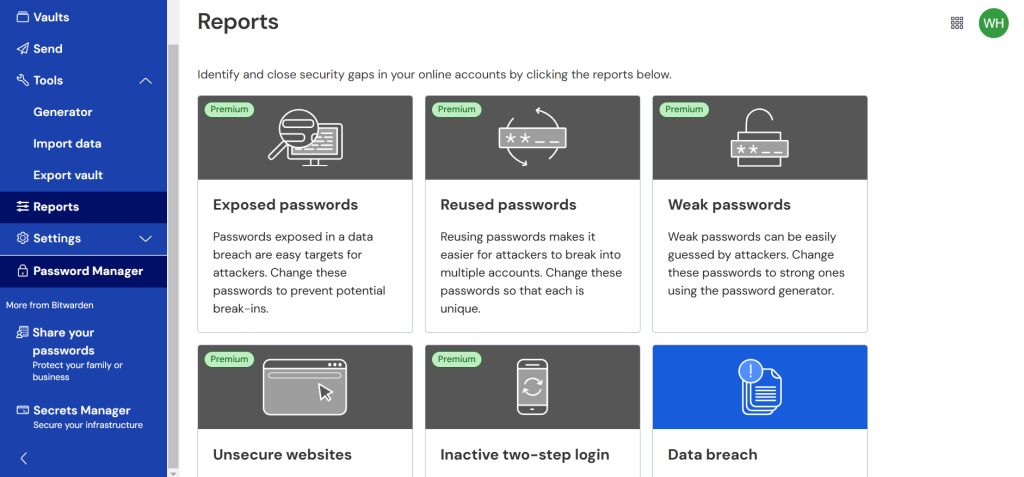
A key point from Bitwarden’s guidance is to use password-protected encryption for backups and to avoid leaving any unencrypted export file sitting around. Their help articles also describe exporting and saving backups to a secure location like a USB drive, then storing it in a safe place.
Option B: Encrypted Export + Offline Storage (Two Copies)
If you worry about losing a single USB drive, make two copies:
- USB Drive #1 stored at home in a safe spot
- USB Drive #2 stored in a separate secure location
Keeping two physical copies helps protect you from device failure or loss. 1Password has also mentioned that having more than one encrypted USB drive can be a smart idea because drives can break or get lost.
Option C: Printed Emergency Information (For Recovery)
This is not a vault export. It is your “break glass” plan.
Print or write down:
- Password manager account email
- Master password (or where it is stored)
- Secret key or emergency kit info if your manager uses one
- 2FA recovery codes
A printed backup helps when your devices are gone or your apps are locked.
This option is not perfect because paper can be stolen. But it is useful if stored properly, like with other important documents.
Step 3: Export Your Vault Safely
Every password manager has a slightly different export process, but the safety rules are the same.
The Safe Export Checklist
Before exporting:
- Sync your vault so your backup includes your newest entries
- Close other programs, especially screen sharing tools
- Make sure you are not saving the file to a shared folder
During export:
- Choose encrypted or password-protected export if available
- If you must export CSV, treat it as dangerous
After export:
- Encrypt it immediately if it is not already encrypted
- Delete the original unencrypted file
- Empty your recycle bin or trash
Bitwarden’s export guidance specifically warns that if you create an unencrypted export, you should remove it once you have an encrypted copy, because the original is readable.
Use a Different Password for Backup Encryption
This part matters a lot.
When you encrypt your backup file, use a strong password that you store safely outside your password manager. Bitwarden’s own backup guide recommends using a different password from the one that protects your vault, so your backup encryption does not depend on the same single point of failure.
Keep that backup password in your emergency plan.
Step 4: Store Your Backup in the Right Place
Where you store the backup matters as much as how you create it.
Good Storage Choices
- An encrypted USB drive stored in a safe, drawer, or locked box
- A second encrypted USB drive stored elsewhere
- A printed emergency sheet stored with important documents
Risky Storage Choices
- A plain file sitting in your Downloads folder
- A shared work drive
- Emailing the export file to yourself
- Uploading an unencrypted export to cloud storage
Some people store encrypted backups in the cloud. That can work if the backup file itself is strongly encrypted and the encryption password is stored separately. But it is still riskier than offline storage because cloud accounts can be attacked.
If you choose cloud, treat it like this:
- Only upload encrypted backups
- Use strong cloud account security
- Do not rely on your password manager to access the cloud backup (avoid circular lockout)
Step 5: Back Up Two-Factor Authentication Too
This is the part most people forget.
If your password manager has perfect backups, but your 2FA app is lost, you can still get locked out.
Here is what to back up:
- 2FA recovery codes for important accounts
- Backup methods like SMS recovery, hardware keys, or alternate email
- If you use a password manager that supports storing 2FA codes, be careful because it puts more power in one place
1Password specifically suggests writing down the 2FA secret next to the QR code in the Emergency Kit if you use 2FA. That is a good reminder that 2FA recovery needs its own plan.
Step 6: Use the 3-2-1 Backup Habit (Simple Version)
A practical way to think about backups is the 3-2-1 idea:
- 3 copies of important data (your live vault + 2 backups)
- 2 different storage types (example: encrypted USB + printed emergency info)
- 1 off-site (a second location)
You do not need to be extreme about it. Just avoid putting everything in one place.
Step 7: Test Your Backup (Yes, Really)
A backup that cannot be restored is not a backup.
Once you create your backup:
- Make a test import into a separate account or a fresh vault if your tool allows it.
- Confirm your important logins are there.
- Confirm your encrypted file opens with the backup password.
- Confirm you can find your emergency info quickly.
Do this once now, then again every few months.
Step 8: Set a Backup Schedule You Will Actually Follow
Most people back up once, then forget for years. That is how you lose new passwords.
Pick a schedule based on how often your vault changes:
- If you add passwords often: back up monthly
- If you rarely add passwords: back up every 3 months
- If you run a business account or share vaults: back up more frequently
Add a repeating reminder in your calendar.
Common Mistakes That Make Backups Unsafe
Here are the most common problems that cause real damage:
Saving an Unencrypted CSV “Just for a Minute”
That “minute” becomes months. It gets copied in cloud sync. It ends up in backups. It stays on disk.
If you must export CSV:
- Encrypt it right away
- Delete it completely after you create the encrypted copy
Storing the Backup Password Inside the Vault
This creates a loop. If you are locked out of the vault, you cannot get the backup password.
Keep the backup password stored separately in your emergency plan.
Putting Everything in One Spot
If your only backup is on the same laptop, you lose both at once.
Keep at least one backup separate from your main device.
Forgetting 2FA Recovery Codes
A lot of people only back up passwords and forget the keys needed to log in.
Always keep recovery codes in your emergency plan.
A Simple “Safe Backup” Plan You Can Copy
If you want a straightforward setup that works for most people, use this:
- Export your vault using an encrypted or password-protected export option.
- Save it to an encrypted USB drive.
- Make a second copy on a second USB.
- Print an emergency sheet with:
- Password manager sign-in email
- Master password storage location
- Backup encryption password storage location
- 2FA recovery codes for email and password manager
- Store the USBs in separate secure locations.
- Test restore once.
- Set a monthly or quarterly reminder.
This plan is not fancy, but it is strong and realistic.
Wrap Up
Backing up your passwords safely is one of those “adult life” tasks that feels boring until you need it. Then it becomes the most important thing in the world.
The goal is simple: keep a backup that is encrypted, offline, and recoverable, with your recovery information stored safely outside your password manager. If you do that, you avoid the worst-case scenario of being locked out of your digital life.
Set it up once this week. Then put a reminder on your calendar. Future you will be very grateful.


Leave a Comment