Ever watched a project plan fall apart in real-time? It’s brutal. You start the week with a clean calendar and a team ready to build. By Wednesday, a developer is out sick, a client asks for a “quick” change that isn’t quick at all, and your launch date is out the window.
This happens to everyone. Usually, it’s not because your team is lazy. It’s because your timeline was a work of fiction.
A project timeline shouldn’t be a pretty Gantt chart you make once and never look at again. It needs to be a realistic map of how work actually flows. Let’s look at why they break, how to build one that survives contact with reality, and the tools that actually make it easy.
Why Project Timelines Are Important?
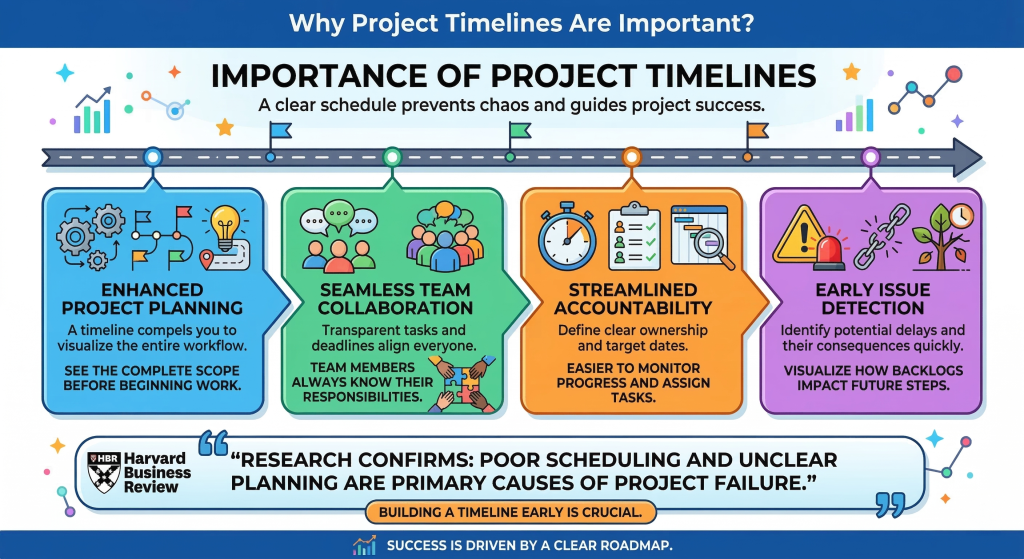
Look, nobody joins a company because they love planning meetings. It’s way more fun to jump straight into designing a mockup or writing code. But starting a project without a timeline is like going on a road trip without a map—sure, you’re moving, but you have no idea if you’re heading toward a cliff. Skipping this phase is a massive mistake. Here is what you actually get when you build a good one:
- No more scope creep: Clients love asking for “just one more thing.” But when they see that a new design template pushes the launch date back two weeks, they think twice about making “quick requests.” A visual timeline is your shield.
- Spotting dependencies before they break you: If your developer is sitting around waiting for design assets, you’re losing money. Timelines show you exactly who needs to finish what before the next person can start.
- Balanced workloads: It’s easy to accidentally dump half the work on one senior engineer. Putting everything on a timeline shows you who is drowning and who has breathing room.
- Real accountability: When the schedule is open for everyone to see, there’s no room for “I didn’t know that was due today.” Even the formal frameworks in the PMI Learning Library point out that a schedule is less about tracking hours and more about managing team energy and keeping stakeholders calm.
A Simple Example of a Project Timeline
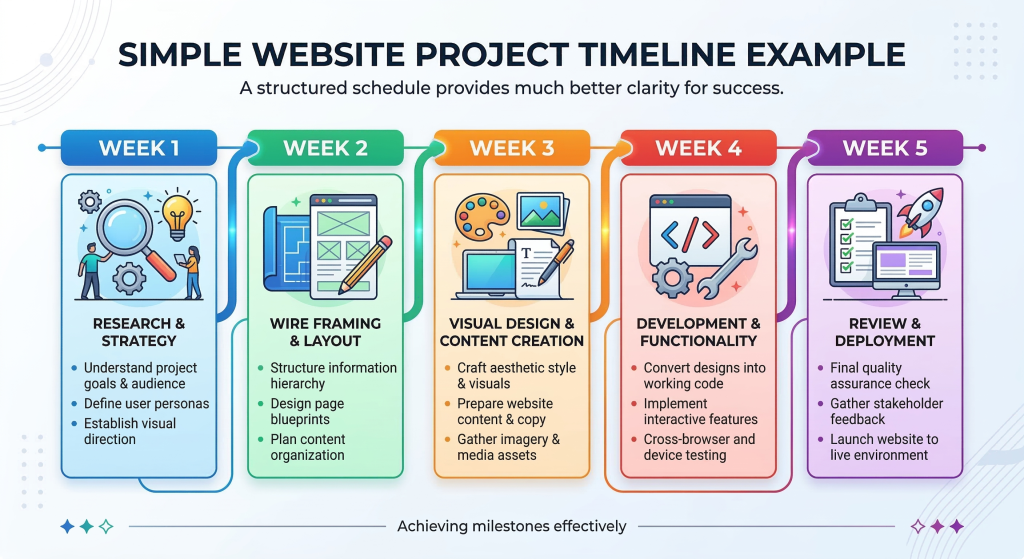
Let’s look at how this works. Say you are redesigning a basic website.
Instead of just setting a single launch date eight weeks out, you block out specific milestones:
- Week 1: Research. Meet the client, lock down the goals, and map the site architecture. Doing this first prevents you from designing something the client hates later.
- Weeks 2-3: Design. Wireframes, mockups, and client approval. Moving pixels around is ten times easier than rewriting CSS, so lock the layouts down now.
- Weeks 4-6: Build. Writing code, setting up databases, and plugging in tools. This gets the longest block of time because technical integrations are notorious for hitting unexpected walls.
- Week 7: Polish. Testing, debugging, and loading actual content. Things always break when you test them on different browsers, so give yourself a full week to hunt bugs.
- Week 8: Launch. Go live and show the client how to use the dashboard. Handing over the keys properly stops them from calling you with basic questions next month.
If you just tell your team “the site is due in two months,” they will procrastinate. Breaking it down into weekly targets gives everyone a small milestone to focus on right now.
How to Create a Project Timeline from Scratch
Ready to build one? Don’t just start throwing dates on a calendar. Follow this simple progression instead:
- Define the finish line: What are you actually building? If you don’t know the exact deliverables, you’re going to fail. That’s project management 101, and it’s a huge focus in the HBR Guide to Project Management.
- List every single task: Break the milestones down. Don’t write “Build site.” Write “Buy domain,” “Configure hosting,” and “Set up security.”
- Connect the dots: Figure out the order of operations. You can’t run user tests on a layout that doesn’t exist yet, and you can’t design layouts until the brand guidelines are set. Identify these gatekeepers early.
- Be honest about time: If a designer says a layout takes two days, write down three. You need to build in a buffer for the inevitable delays, lost assets, and client review lags. If you plan for best-case scenarios, your timeline will break on day one.
- Make it visual: Put it on a grid. You can use a spreadsheet, but dedicated software makes it much easier to adjust dates on the fly.
The Best Tools to Create Your Project Timeline
You don’t need to draw Gantt charts by hand. There are plenty of great tools designed for this. Here are the three big ones you should look at:
Asana
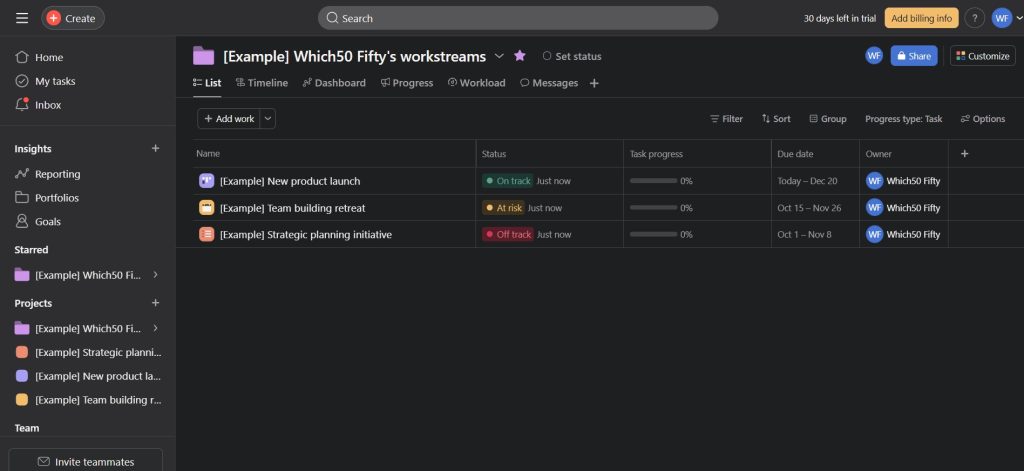
If you are managing projects with a lot of moving parts across different departments, Asana is a lifesaver. Its timeline view is incredibly intuitive. If a task gets delayed, you just drag the bar, and all the dependent deadlines slide forward automatically. It’s awesome for keeping copywriters, design teams, and devs on the same page without wasting hours in alignment meetings. Just know that it takes a minute to get used to, and it’s definitely too much software if you’re just tracking a simple to-do list.
Trello
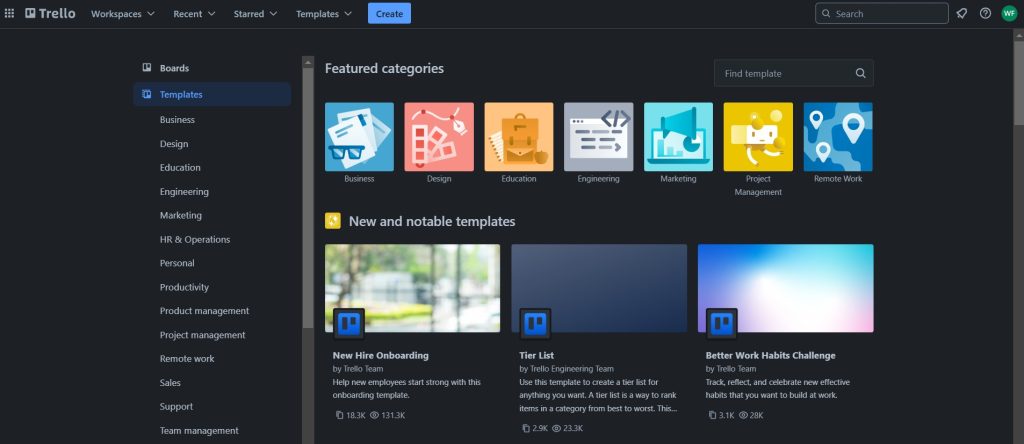
If you want something simple that your team will actually use without training, Trello is perfect. It is built around Kanban cards, but the timeline view lets you see cards plotted across a calendar. You can drag cards to extend deadlines or assign them to different people instantly. It is clean, simple, and great for smaller teams or freelancers. But if you’re dealing with giant projects that have complex dependencies or heavy resource mapping, Trello’s card system is going to feel way too basic, fast.
Monday.com
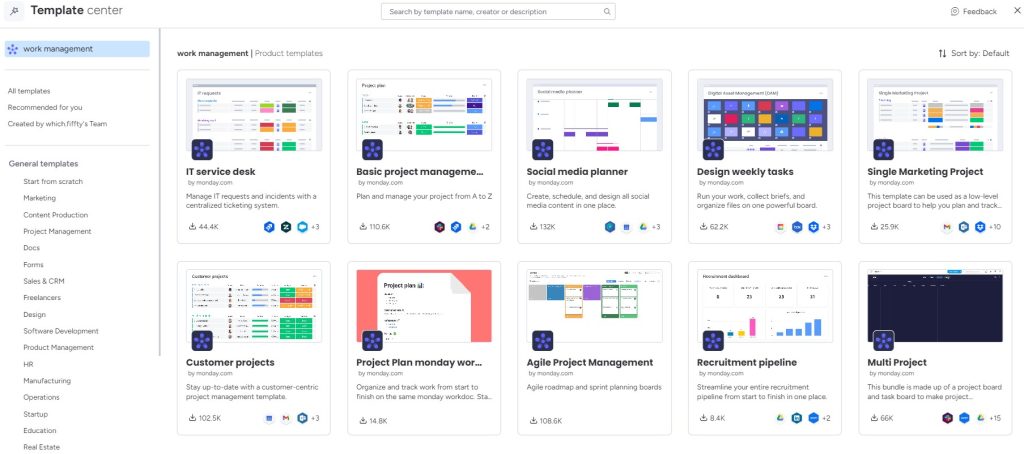
If you’re obsessed with tweaking layouts and want things to run on autopilot, Monday.com is the way to go. You can set up automation rules—like automatically messaging a manager when a designer finishes a mockup. The timeline view is interactive and perfect for complex projects where you need to track budgets alongside deadlines. The downside is that Monday can feel complex and intimidating to set up initially, meaning someone on your team will have to spend time configuring it.
Tips to Make Your Timeline Actually Work
A timeline is only useful if your team actually looks at it. Here is how to keep it relevant:
- Keep it clean for clients: Build a client-friendly layout in Canva. Stakeholders don’t need to see every single subtask. A high-level layout lets them track the major milestones without getting overwhelmed by the minor day-to-day checklist items.
- Measure the actual hours: Don’t just guess duration times. Log the hours instead. You’ll never improve your schedules if you don’t know the real time investment for a task. Running a simple tracker like Clockify in the background gives you the hard data you need to make more accurate project estimates next time.
- Expect changes: Your timeline is a guide, not a set of laws. Meet with your team weekly, look at the delays, and move dates around when reality changes.
Final Thoughts
Here’s the bottom line:
- Stick with Asana if you’re coordinating different teams and need to track deep dependencies.
- Grab Trello if you just want something simple that works right out of the box.
- Pick Monday.com if you need custom dashboards and heavy automation.
Don’t overcomplicate it. Pick a tool your team doesn’t hate using, build in a realistic buffer, and adjust the schedule as you go.



Leave a Comment